How to disable Quick Find?
I need to disable the Quick Find hotkey or change it to something else. I use the forward slash on the keypad as a divide symbol for an in-browser calculator for my online math homework. However, every time I hit forward slash, it brings up the Quick Find search bar, which means I have to stop and use my mouse to click the divide button on the calculator. This is quite frustrating and slows me down immensely when completing my homework.
გადაწყვეტა შერჩეულია
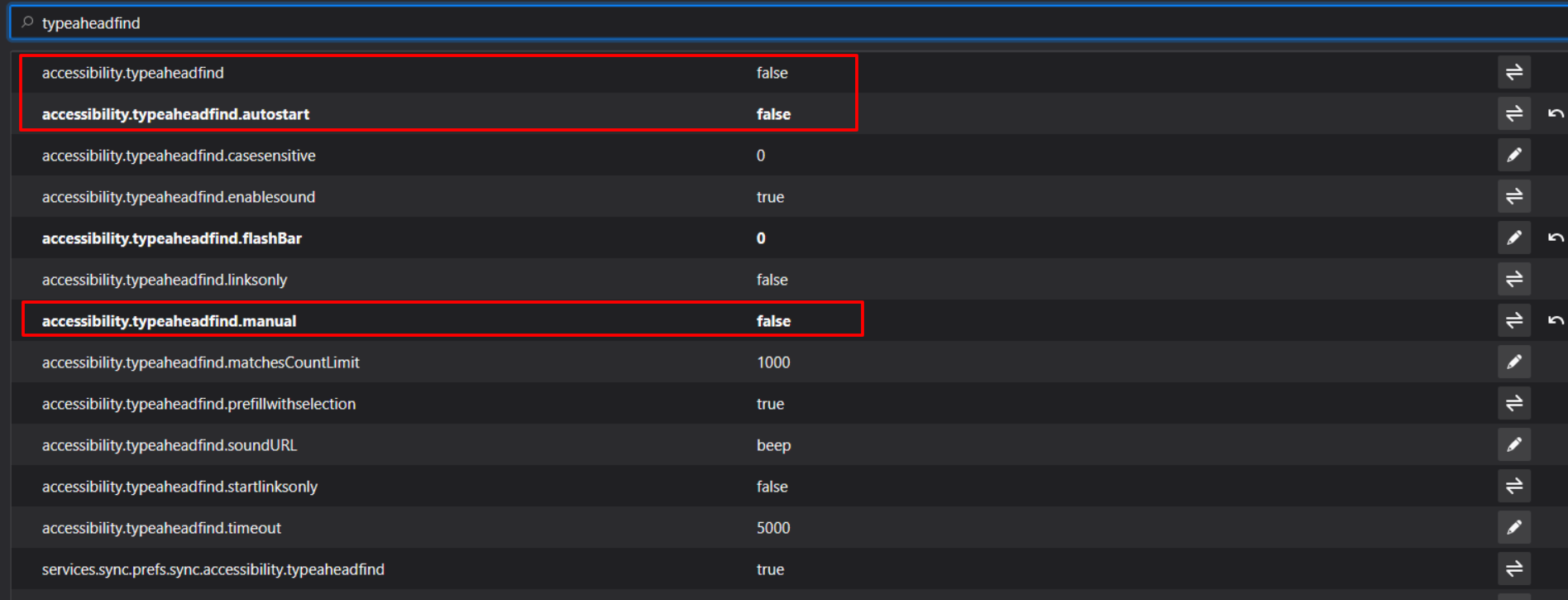
Try to set accessibility.typeaheadfind.manual and possibly all other accessibility.typeaheadfind prefs to false on the about:config page.
- accessibility.typeaheadfind.manual = false
- accessibility.typeaheadfind = false
- accessibility.typeaheadfind.autostart = false
You can open the about:config page via the location/address bar. You can accept the warning and click "I accept the risk!" to continue.
პასუხის ნახვა სრულად 👍 1ყველა პასუხი (6)
შერჩეული გადაწყვეტა
Try to set accessibility.typeaheadfind.manual and possibly all other accessibility.typeaheadfind prefs to false on the about:config page.
- accessibility.typeaheadfind.manual = false
- accessibility.typeaheadfind = false
- accessibility.typeaheadfind.autostart = false
You can open the about:config page via the location/address bar. You can accept the warning and click "I accept the risk!" to continue.
Thank you! That worked quite well. Currently there are no noticeable negative effects of changing those setting.
The only negative effect is that you won't be able to open the Quick Find bar and search for links (you need to open the find bar via Ctrl+F or the Edit menu).
cor-el said
Try to set accessibility.typeaheadfind.manual and possibly all other accessibility.typeaheadfind prefs to false on the about:config page.You can open the about:config page via the location/address bar. You can accept the warning and click "I accept the risk!" to continue.
- accessibility.typeaheadfind.manual = false
- accessibility.typeaheadfind = false
- accessibility.typeaheadfind.autostart = false
Wie kann ich die Antworten auf meine Frage in Deutsch erhalten?
Hi Karli
You can use Google Translate to translate this text to German. Sie können Google Translate verwenden, um diesen Text ins Deutsche zu übersetzen.
Hey,
You can easily customize your browser by typing 'about: config' in the address bar. There are highlighted settings that you must change to false in order to disable quick search...