


How can I manually add a website to "local network devices" settings?

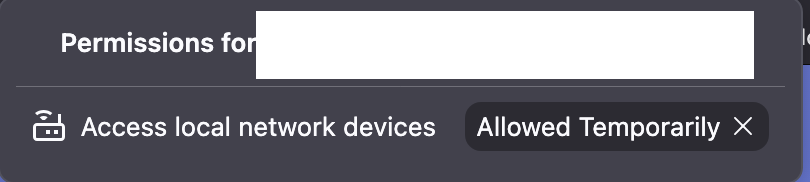
There is a website that when I visit it , it Firefox prompts me if I want to grant it access to Local Network Devices. The page continually refreshes, so the checkbox to "allow always" unchecks in a fraction of a second after I check it.
The result is the site is only temporarily allowed to connect to Local Network Devices but I want it to be permanent.
Since I cannot check the "always allow" checkbox, I'm looking to manually grant the website permission. Looking at Settings->Local Network Devices, I don't see a way to add a website to the allowed list.
Is there a work around I can use to achieve my goal? Perhaps something I can edit in about:config?
Asịsa Ahọpụtara
This is what worked for me
1. Open about:config 2. Navigate to network.lna.skip-domains (string) 3. The add / remove website from list.
All Replies (3)
Hi,
When visiting the website:
- Click the shield icon in the address bar.
- Click "Connection secure >" in the top right corner of the panel that opens.
- Click More site information at the bottom of the panel that opens.
- Select the Permissions tab at the top of the window that opens.
- Under Access local network devices, uncheck Use Default and select Allow.
Or key combo Command + i should open the page info panel for you right away — that has the list of permissions.
Asịsa Ahọpụtara
This is what worked for me
1. Open about:config 2. Navigate to network.lna.skip-domains (string) 3. The add / remove website from list.