


Windows 10 reached EOS (end of support) on October 14, 2025. For more information, see this article.

חיפוש בתמיכה

יש להימנע מהונאות תמיכה. לעולם לא נבקש ממך להתקשר או לשלוח הודעת טקסט למספר טלפון או לשתף מידע אישי. נא לדווח על כל פעילות חשודה באמצעות באפשרות ״דיווח על שימוש לרעה״.

מידע נוסף

Remove Tint on Tabs and toolbars

  • 2 תגובות
  • 3 have this problem
  • 11 views
  • תגובה אחרונה מאת cor-el

more options

Ok I installed the classic theme restorer but I still cannot figure out how to get rid of the highlight that has been added to my address bar, bookmark toolbar, and my tabs. I tried starting in safe mode and disabling all applications and it is still there. Even with the default theme it is there. I will attach two screenshots. first with the dark blue theme I use then with the default. On the default I am talking about the very light grey color.

It is almost like some sort of glaze effect or gradient. But it is always there no matter what theme I use. Is there something I can change in about:config or can someone tell me how to get rid of it with the classic theme restorer addon?

I can't figure out how to attach screenshots.

Ok I installed the classic theme restorer but I still cannot figure out how to get rid of the highlight that has been added to my address bar, bookmark toolbar, and my tabs. I tried starting in safe mode and disabling all applications and it is still there. Even with the default theme it is there. I will attach two screenshots. first with the dark blue theme I use then with the default. On the default I am talking about the very light grey color. It is almost like some sort of glaze effect or gradient. But it is always there no matter what theme I use. Is there something I can change in about:config or can someone tell me how to get rid of it with the classic theme restorer addon? I can't figure out how to attach screenshots.

כל התגובות (2)

more options

Ok figured out how to attach screenshots
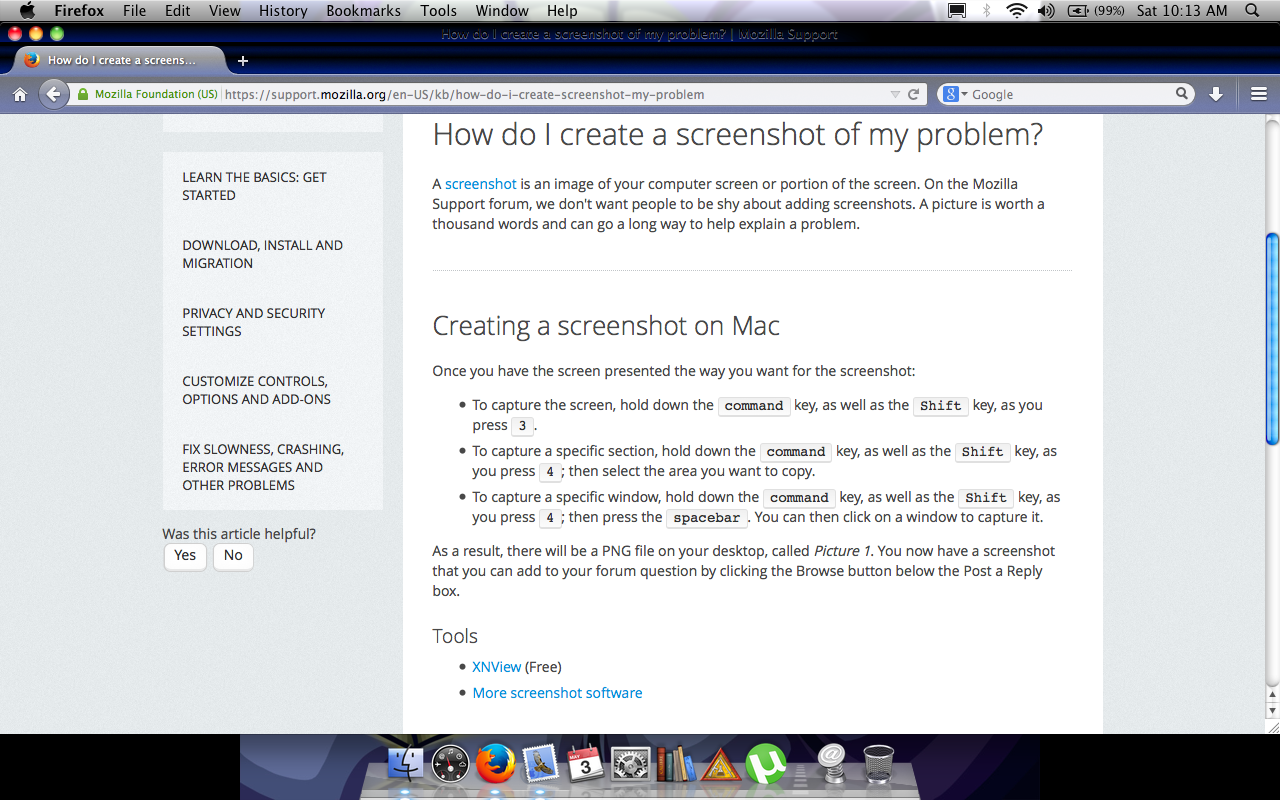
more options

You can try to look for a different and possibly compacter theme.