


transfer bookmarks

Is it possible to transfer my bookmarks from an old hard drive? My old HD (1TB) wouldnt load windows any more...So I made it a slave and add a (500GB) as my main drive. I can still see everything on the 1TB. I then reloaded windows vista and downloaded firefox and want to bring the bookmarks from drive D: to C:
פתרון נבחר
This folder is the installation folder.
First unhide files and folder:
Then access the old profile folder: "Old Drive":\Users\"username"\Application Data\Mozilla\Firefox\Profiles Click on the profile with “default” in the name to open it in a window.
In this folder you will find the bookmarks folder and the places.sqlite file
Read this answer in context 👍 0כל התגובות (5)

Yes,
You need to acces your old profile in the old hard drive:
Try do the instructions of the help article above but in the old drive Then try go to bookmarks folder and get a backup .json file
or
Try transfer your old places.sqlite to your new profile:
step 1. click on bookmark follow screenshot
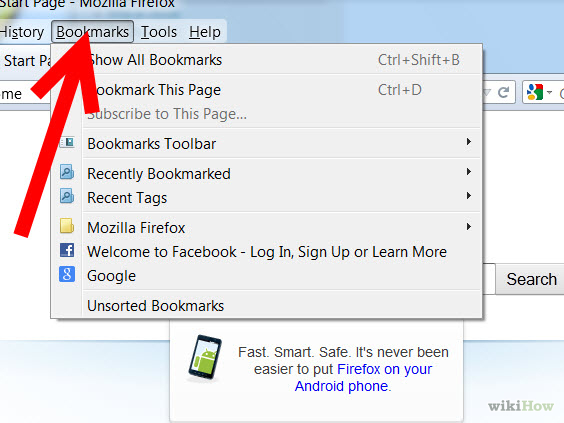
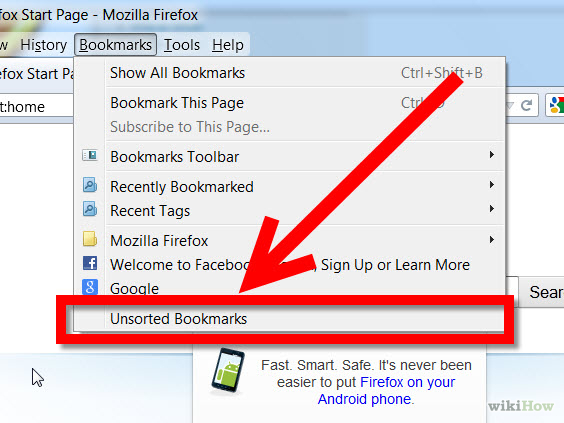
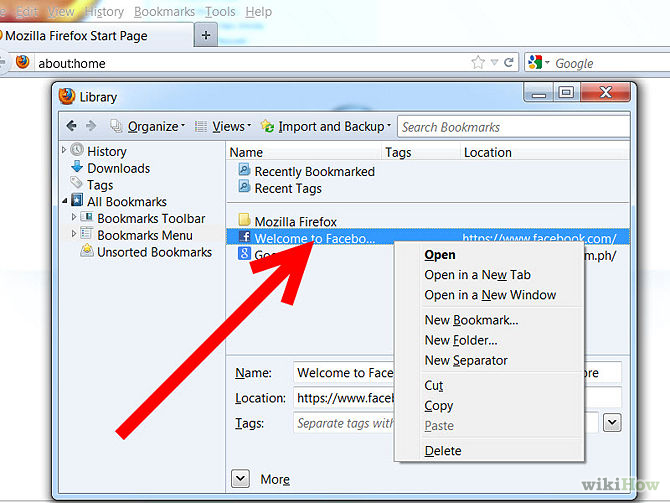
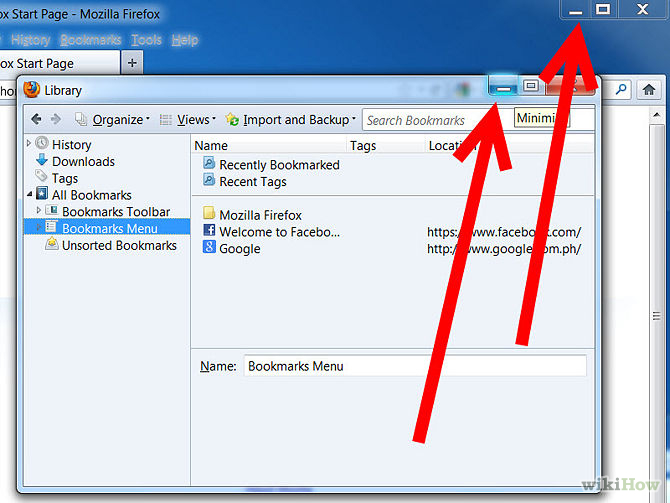
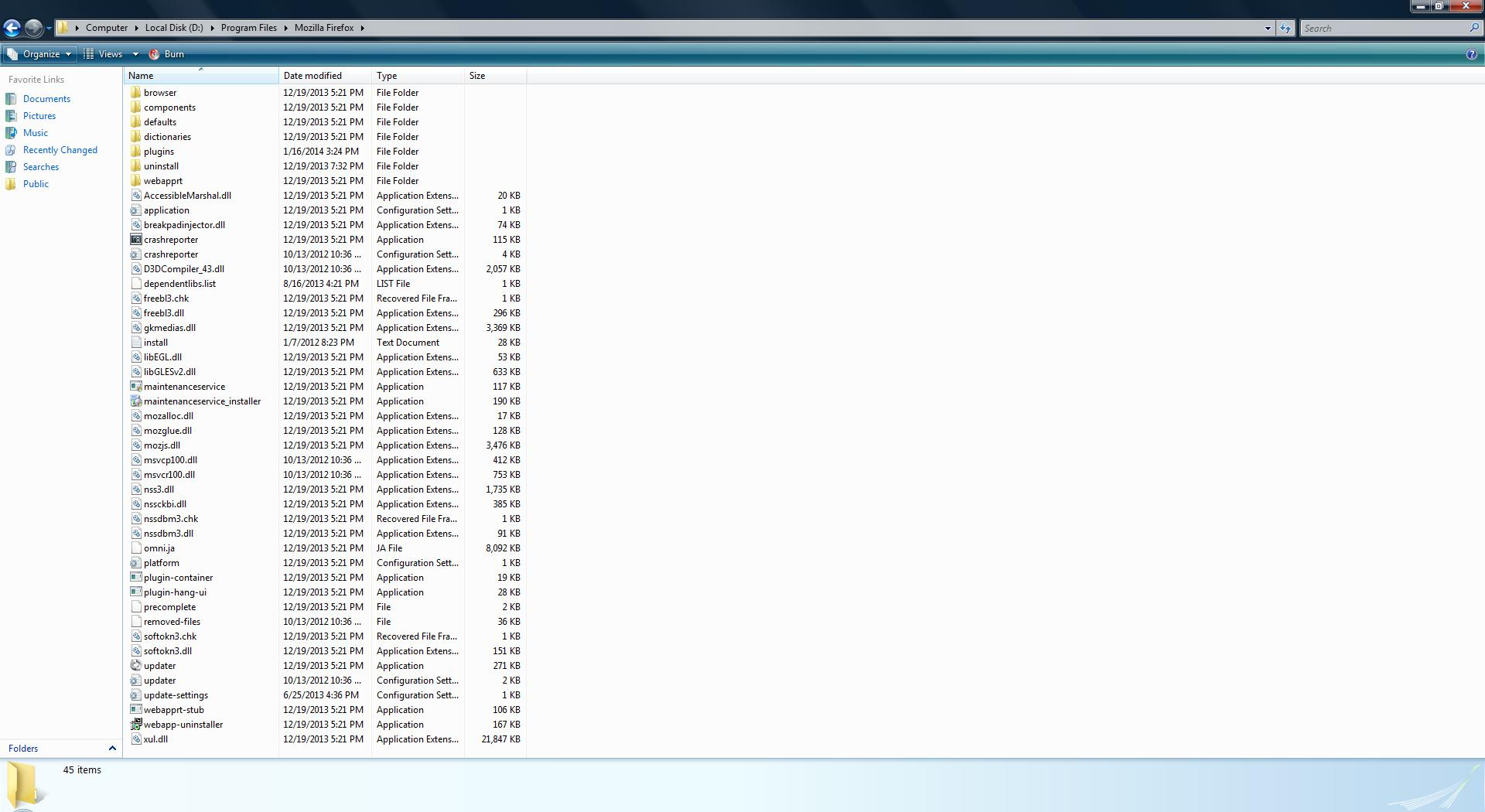
when I do it your way I see the new 27 version of firefox bookmarks....when I last saw my old one it was still 26 on the D drive. I clicked on it and now its gone from the folder I have posted. this is all thats posted in the folder maybe it's in there?
פתרון נבחר
This folder is the installation folder.
First unhide files and folder:
Then access the old profile folder: "Old Drive":\Users\"username"\Application Data\Mozilla\Firefox\Profiles Click on the profile with “default” in the name to open it in a window.
In this folder you will find the bookmarks folder and the places.sqlite file
that helped me find the old ones, from there I was able to join it with the new fire fox. Thanks for the help!