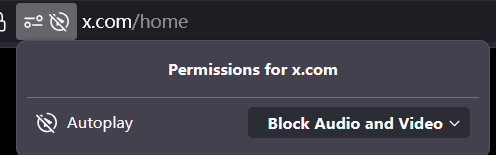
Block media autoplay in Firefox cannot work, after I right-click on a blank area of the page and scroll(Bug)

This is a functional bug, not a settings issue. Block media autoplay in Firefox cannot work, after I right-click on a blank area of the page and scroll.
For example, I saw a post with a video on x.com, and the site was set to prohibit automatic video playback. But when I right-clicked on the webpage and then scrolled the page with the mouse, the video started to play automatically, which means that the function of prohibiting video playback was invalid. Very strange.
Firefox version: 141.0.3 (private-browsing No extensions are running)
OS: Windows11 Enterprise 26100.4946
השתנתה ב־ על־ידי White
כל התגובות (2)
How to Lock Media Autoplay in Firefox
To prevent media from playing automatically in Firefox, you can adjust the settings in the browser. Here’s how to do it: Using Firefox Settings
Open Firefox: Launch your Firefox browser.
   Access Settings:
       Click on the three horizontal lines (menu) in the top-right corner.
       Select Options or Settings.
   Navigate to Privacy & Security:
       Scroll down to the Permissions section.
   Adjust Autoplay Settings:
       Click on Settings next to Autoplay.
       Choose Block Audio and Video from the dropdown menu.
       Click Save Changes.
Using About:Config
For more advanced control, you can use the configuration editor:
   Open Configuration Editor:
       Type about:config in the address bar and press Enter.
       Click on "I accept the risk!" to proceed.
   Search for Autoplay Preferences:
       Type media.autoplay.default in the search bar.
       Change its value:
           0: Allow autoplay for all media.
           1: Block autoplay for all media.
           2: Prompt for permission to autoplay.
   Additional Settings:
       You can also adjust media.autoplay.blocking_policy to control autoplay behavior more specifically.
Conclusion
By following these steps, you can effectively lock media autoplay in Firefox, ensuring a quieter and more controlled browsing experience.
השתנתה ב־ על־ידי James