


Adding my Windows account to Linux

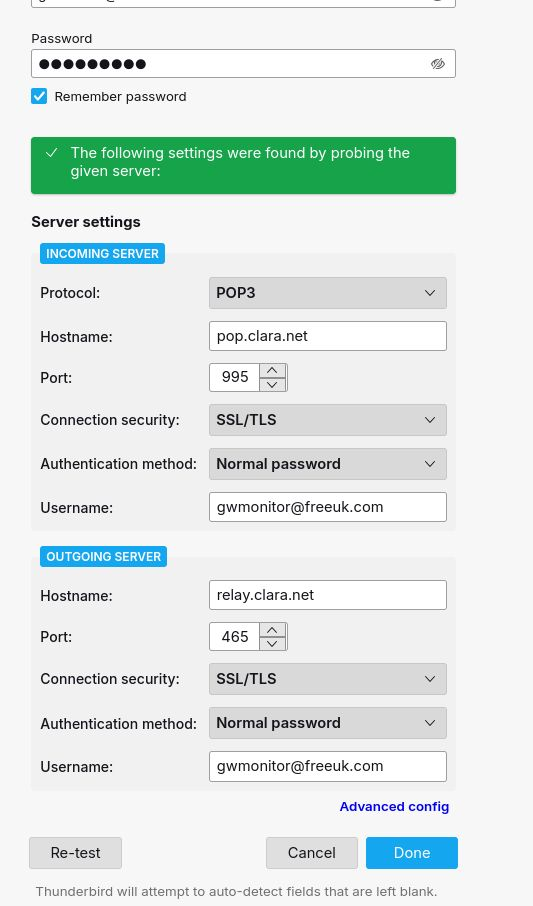
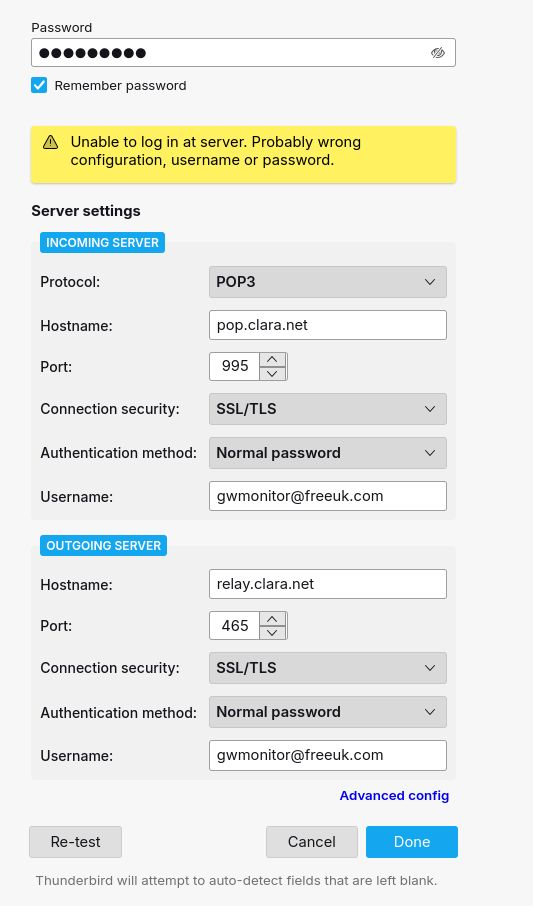
In the process of changing from Windows to Linux, I have entered the details of my email account and it is fine when I press re-test, but when I press done it is not fine anymore. The email is “freeuk.com” which is still active but Freeuk itself isn’t, but the service was taken over by Claranet with a “clara.net” setting, so I imagine that may be relevant. Any help (not too technical please) would be appreciated. Thanks.
Opaite Mbohovái (17)
I suggest entering whatever worked for Windows, but do NOT enter password until prompted.
Thanks for your reply David.
I tried it again and waited for the password prompt and the result was the same. I didn’t used to do anything on Windows.
In my list of App Basics there are “Profiles”, with a link to “about profiles”, but the other one “Profile Directory (local drive)” with the “open directory” doesn’t do anything that I could see, and I can’t find it in my Linux folder. I guess I haven’t got a profile on the new PC.
If it’s any help, I’d installed TB ordinarily thinking I could update the profile after, but the ‘Ask Leo’ video I watched said to custom install it so I uninstalled it in order to custom install. It doesn’t seem to want me to and therefore I finished up with the email configuration that is ok when TB tests it but not ok when it tries to connect.
I installed TB using a Flatpack (I think, which is how Linux works) and it immediately asks me for my name, email address and password, without the option of custom installing. When I enter those I get the boxes (attached earlier) because it “checks common servers” and doesn’t find mine (freeuk.com), so I enter the claranet server details and the same boxes whenever I choose “Done”. Do you think it’s because it’s Linux? Any advice would be welcome.
Thanks, Steve
Can you post exactly what the server settings and SMTP settings are on your Windows PC? I imitated your setup and received a microsoft password prompt.
Server type POP mail server server Name pop.clara.net Port 995
user name xxx@freeuk.com
Security settings Connection security SSL/TLS Authentification normal password't
Then various server settings check messages, leave on server, etc.
I can't find SMTP in the settings, and I don't know where to look f or them.
I 'd add a screen shot of the server settings but I don't think I can here.
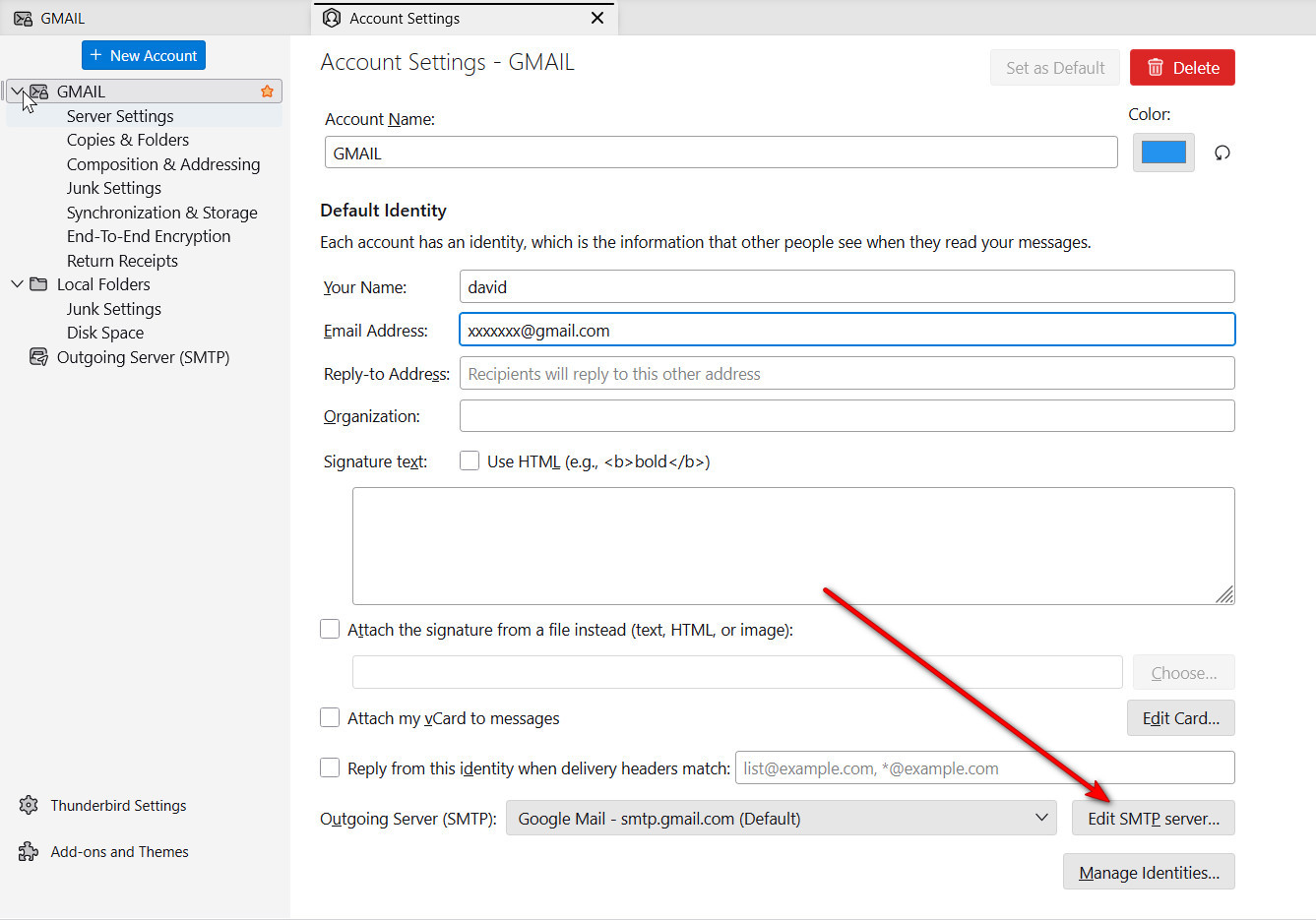
the SMTP server info can be accessed from 'account settings' pane and link to the account name. See attached sample.
Thanks David,
Server name: relay.clara.net Port 465 User name: xxx@freeuk.com Auth… Normal password Conn. Security: SSL/TLS
At this point, I have no idea, since you're using the same setup. Maybe someone else ideas. I regret I couldn't be more helpful.
Thanks for your efforts David,
What I think (and I know nothing about computers) is:
Either some record of TB’s initial installation is left on the PC after uninstallation and it’s recognising it, and if it were completely uninstalled I could then do a custom installation, according the the Ask Leo video I referred to earlier.
Or I can’t do a “fresh” installation because it is a flatpack download.
These are just thoughts that occur to me, but they may be logical to me but completely ludicrous technically.
One last piece of help, please, would be telling me whether either of my ideas could be feasible. Thanks again, Steve
Well, it 'could' be that the password is wrong. Have you tried accessing the account from the email provider's website? To my knowledge, Thunderbird doesn't store passwords until they work, and yours never has. You can check what is stored by clicking settings>privacy&security and selecting 'saved passwords and then click showpasswords. there may appear two rows for the account, one for input and one for output. You can highlight both and click delete to remove all password info.
Sounds good. So I delete all the passwords from the source Profiles folder?
and then copy the passwordless profile to the new PC?
you could try it on the Linux computer.
I tried to replace the linux profile, following the TB guide I have the corrected profile plugged into the new PC but, following the guide, I don’t have a “Profile Folder” (as I had loading from the old windows PC), I’ve got a “Profiles Directory” with a button “open directory” and (local drive). The button doesn’t seem to do anything; nothing opens!? Did I miss something?
You stated using the flatpak version of Thunderbird. I don't know how different that is from the normal distribution channel install or the Snap install. There must be a profile somewhere for Thunderbird to run. When you click help>troubleshootinginformation and scroll to 'profile folder and click 'about:profile" what do you see? Again, I do not know Flatpak's version.
On my Linux PC when I follow that path I get “Profile Directory”, with a grey button which does nothing when I press it. The Windows PC seemed to have the same window but with a “Profile Directory” instead of “Profile Folder” with a button which did open when I got the profile.
Brave's AI said this:
Important: If You Installed Thunderbird from the "Software" Store If you installed Thunderbird using the Zorin Software store, it might be a "Flatpak" version. Flatpak versions store data in a different, hidden location that the standard button often fails to open.
If the path from Step 1 didn't work, try this path instead:
In Files, press Ctrl + L. Paste this exact text: ~/.var/app/org.mozilla.Thunderbird/.thunderbird/ Press Enter. Look for a folder inside that ends in .default or .default-release.
Sorry David, a mistake. The Windows PC had a “Profile Folder”, but the Linux had the “Profile Directory” which didn’t work.