How can I apply the column layout of one folder to all folders?

I am trying to set up a visualization of the columns of the main interface. Here's what I do:
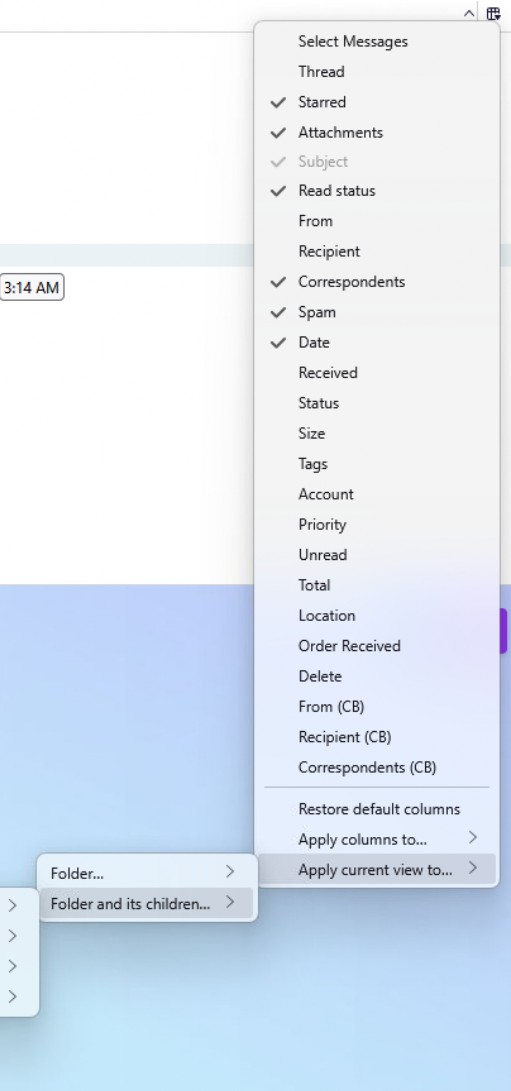
- Click on the list icon in the top right corner.
- Uncheck the columns I want to hide. Specifically, From (CB), Recipient (CB), and Correspondents (CB).
- Apply the selection to all folders: click on the icon in the top right corner, apply columns to.. > folders and its children... > select account > Confirm
These actions produce immediate results. However, the next day or a few days later, when I reopen the program, the column display changes. Sometimes in the main folder (inbox), sometimes in the subfolders.
Is this a known bug? Is there anything I can do to keep the desired column configuration stable?
Opaite Mbohovái (9)
FOR EXISTING FOLDERS These steps may help: To set many *existing* folders, follow these steps: This must be done on an account by account basis.
- select table view - the icon just to right of 'quick filter' button above message list pane
- select a message folder and apply all desired attributes - View>sort by from menu bar (if not shown, click alt key)
- click the icon at right side of column display in message list pane
- select the entry near bottom 'Apply current view to...'
- highlight 'folder and children'
- move mouse left to see account name and move left again to display all account folders. Now CLICK. a small menu will appear to confirm setting all folders within that account.
I did a simple (okay, crude) video at https://davidkirk.org/SettingDefaultFolderView.mp4
david said
FOR EXISTING FOLDERS These steps may help: To set many *existing* folders, follow these steps: This must be done on an account by account basis.I did a simple (okay, crude) video at https://davidkirk.org/SettingDefaultFolderView.mp4
- select table view - the icon just to right of 'quick filter' button above message list pane
- select a message folder and apply all desired attributes - View>sort by from menu bar (if not shown, click alt key)
- click the icon at right side of column display in message list pane
- select the entry near bottom 'Apply current view to...'
- highlight 'folder and children'
- move mouse left to see account name and move left again to display all account folders. Now CLICK. a small menu will appear to confirm setting all folders within that account.
Thanks David, I already do what you show in the video. Unfortunately, it doesn't solve the problem. NB: If it helps, the email accounts configured on my Thunderbird are Google Workspace accounts.
Moambuepyre Luca Amodei rupive
david said
FOR EXISTING FOLDERS These steps may help: To set many *existing* folders, follow these steps: This must be done on an account by account basis.I did a simple (okay, crude) video at https://davidkirk.org/SettingDefaultFolderView.mp4
- select table view - the icon just to right of 'quick filter' button above message list pane
- select a message folder and apply all desired attributes - View>sort by from menu bar (if not shown, click alt key)
- click the icon at right side of column display in message list pane
- select the entry near bottom 'Apply current view to...'
- highlight 'folder and children'
- move mouse left to see account name and move left again to display all account folders. Now CLICK. a small menu will appear to confirm setting all folders within that account.
Thanks David, I already do what you show in the video. Unfortunately, it only works immediately. Then the column display changes. NB: If it helps, the email accounts configured on my Thunderbird are Google Workspace accounts.
What do you mean by ' it only works immediately. then the column display changes'? Are you stating that it works, but on a restart it reverts to prior setting? I am not an expert on this at all, but the more detail you provide, the better that someone else may see the thread.
david said
What do you mean by ' it only works immediately. then the column display changes'? Are you stating that it works, but on a restart it reverts to prior setting? I am not an expert on this at all, but the more detail you provide, the better that someone else may see the thread.
I already wrote in my first post: However, the next day or a few days later, when I reopen the program, the column display changes. Sometimes in the main folder (inbox), sometimes in the subfolders.
Ok, it's over my head. Had the problem been consistent, that is, working fine until restart and then reverting, then I would have suggestions. Since this is inconsistent, I have no idea. Maybe someone else will see and comment here.
If it helps, I would add that the problem occurs on both PC (v. 147.0.2) and Mac (v. 140.7.2).
Assuming you select the columns and the sort by in Inbox first Just for clarity for anyone reading this.... The ' apply columns to' - applies the choice of columns to selected account The 'Apply current view to' - applies the 'sort by' view to selected account
If something is working for a period of time, but then alters what might be the common occurance that invokes it.
You say 'However, the next day or a few days later, when I reopen the program,' Obviously you know what you mean, but that statement is a bit ambiguous, so can you read the next bit and then try to clarify what you are doing.
Please try to clarify.
- Do you mean you Exit Thunderbird (completely shut down) and you might restart the next day, but you may not start up Thunderbird for a few days?
- OR do you mean you start up every day and it might be ok, then one day you restart and it's altered?
- OR do you mean Thunderbird and computer were never exited but were in hibernation - thus Thunderbird was reopened - not necessarilly restarted?
For example - Does it occur everytime after you have exited Thunderbird? By that I mean completely closed the program. I mention this because you say you have both a PC and a MAC - Windows PC will close and exit program as a MAC can Close but not necessarilly Exit/shut down program. There is a difference.
To detemine whether there is any correlation between the MAC and PC can you have a think about the following and report back if you notice something.
Do you notice if the PC columns goes wrong, then when you start up the MAC, it will immediately go wrong as well? Do you notice if MAC columns goes wrong, then when you start up PC, it will immediately go wrong?
Are you by any chance sharing a profile on an external drive between the PC and MAC? OR does PC and MAC have completely independent profiles in default locations, but both have imap accounts accessing same email address/server ?
You say "PC (v. 147.0.2) and Mac (v. 140.7.2)." Is that correct - are you using two different versions or are they the same and you just made a typo error ?
What settings you have on both PC and MAC in the following location:
I'm not sure what you have set up in this default area so it might help if you could let us know.
It might be easier to upload images as that would cover most answers. But I would still need you to confirm whether you set up to apply to all accounts.
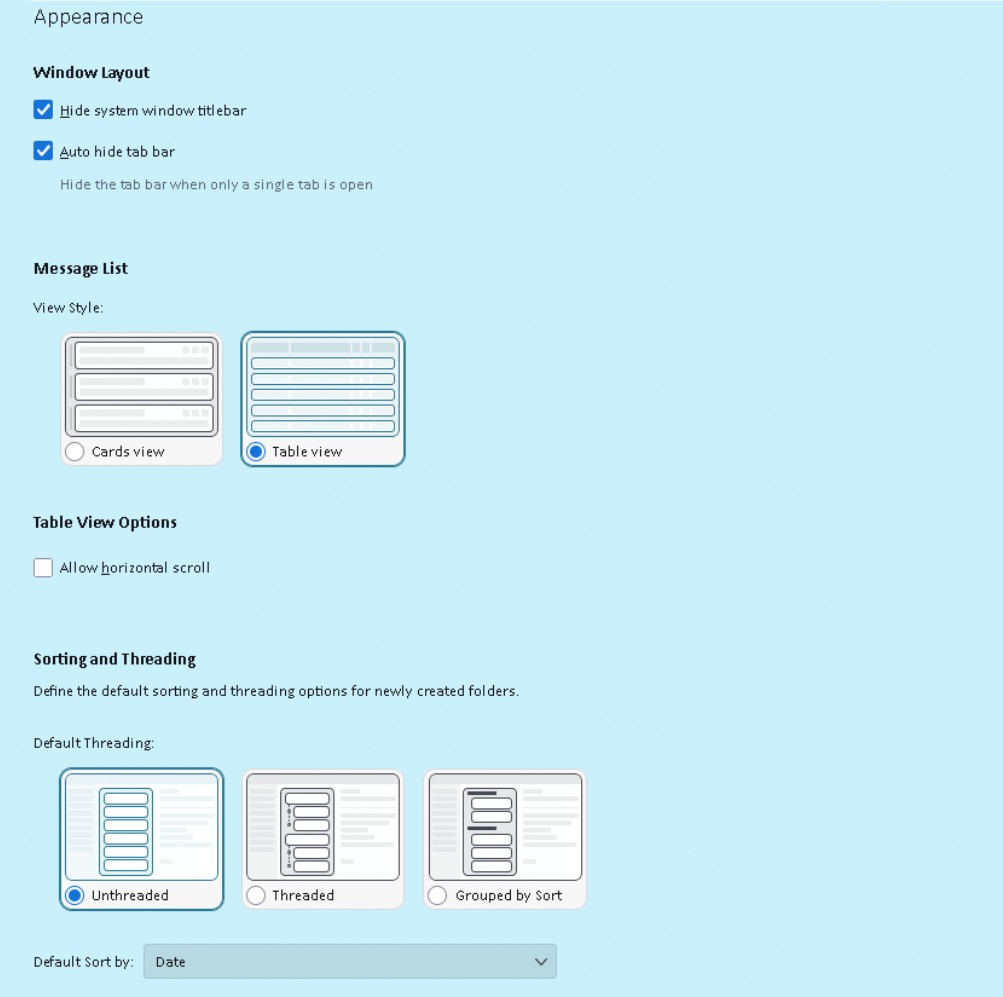
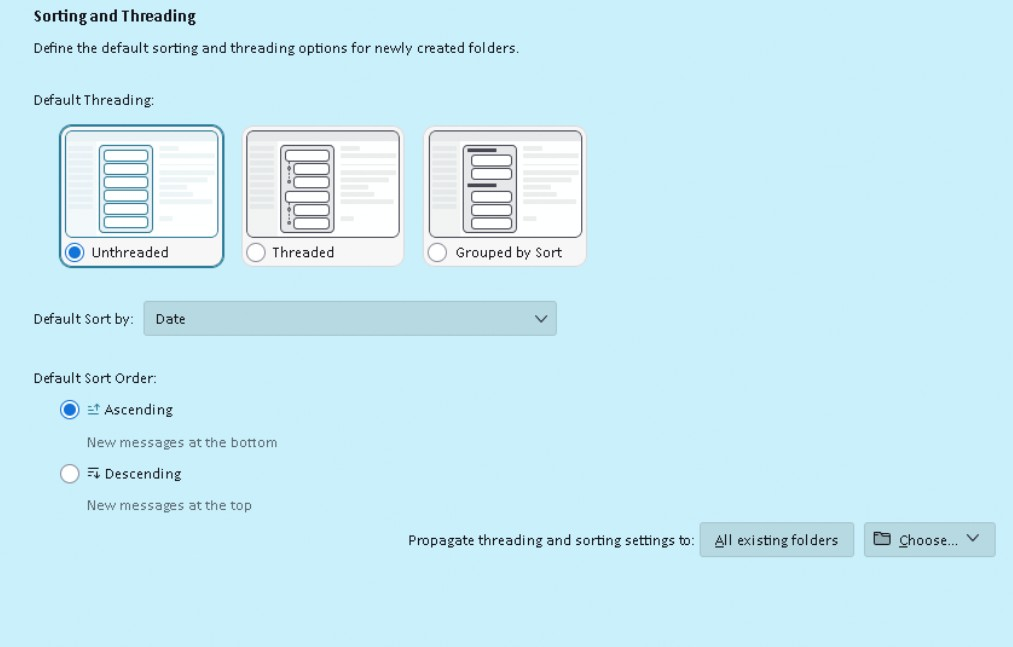
- Settings > Appearance
What is selected as the defaults in that location Default Threading ? Unthreaded, threaded, Group by sort ? Default Sort by: This is usually 'Date' - is it 'Date' ? Default sort order: Ascending or Descending ? Propagate threading and sorting settings to : ? EG: 'All existing folders' and did you then click on 'Choose' and apply to 'Folder and it's children' > select account name > select account name. You would need to reclick on 'Choose' to set up for each account.
Thanks for info.
Hello Toah-Hall, thank you for your detailed response. Here is a summary of my answers:
- It doesn't happen every time I close and open Thunderbird. It's random.
- I confirm that the program is also closed on the Mac.
- I open the program every day.
- The profile is not shared: I have three different profiles on two PCs and a Mac. The email accounts I access are the same for all three.
- The behavior is the same: the columns do not retain their settings.
- The program versions differ by operating system (MacOS and Windows).
I am attaching an image of how I prefer to view the columns. Two more showing the settings in Settings > Appearance