


Re-installing Thunderbird on Windows 11

Thunderbird and Firefox removed when Windows reinstalled. Looking for old mail etc.
All Replies (24)
It should appear in the ttq6zs1.default\Mail\pophm.sympatico.ca folder with the name 'inbox'
This folder does exist in my backup from 2025 on the external hard drive and when I click on it I'm asked what application to open it up in. When I use the ImportExport Tool to get to that file there is no file available that is just Inbox, only Inbox.mozmgs, where I try to select it I get the message "no items match your search," and Inbox.sbd ("doesn't contain a valid profile").
On the same drive, there is a compressed file from 2024 that appears to be a thunderbird backup of more than 59,000,000 kb, but I get the message that "Windows can't open the file.
For what it's worth, on the computer's C drive, if you go to AppData-Roaming-Thunderbird-Thunderbird Profile-ttq62ys1.default-Mail-pophm.sympatico.ca there are older Thunderbird files. They are shown below. Are they of any use?
Thanks.
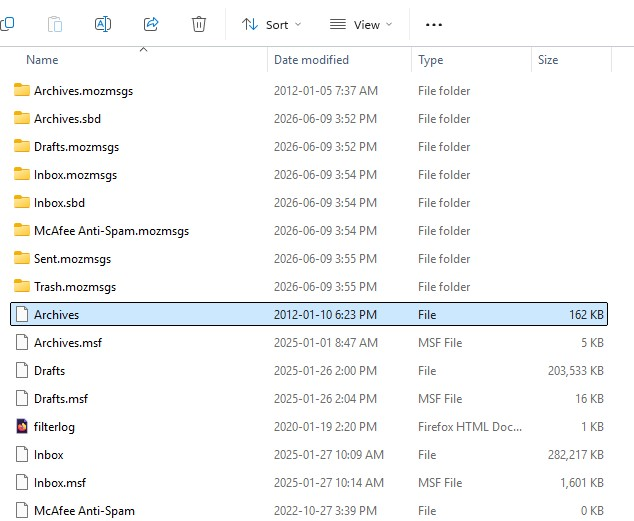
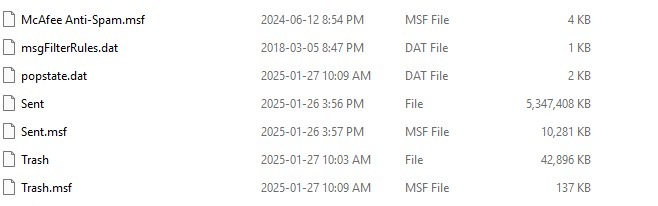
You have a backup folder as shown in image as: ....27 January 25/ 'Thunderbird Profile'/'ttq6zys1.default'
- Open that 'ttq6zys1.default' folder so you can see all the contents.
- Please COPY all the contents in that 'ttq6zys1.default' folder - not the actual 'ttq6zys1.default' folder' just the contents.
Leave that window open because you might need it.
However, at no point have you told us your current profile name folder.
I'm assuming you downloaded Thunderbird from the official website and not from Windows app store.
Exit Thunderbird - this is important.
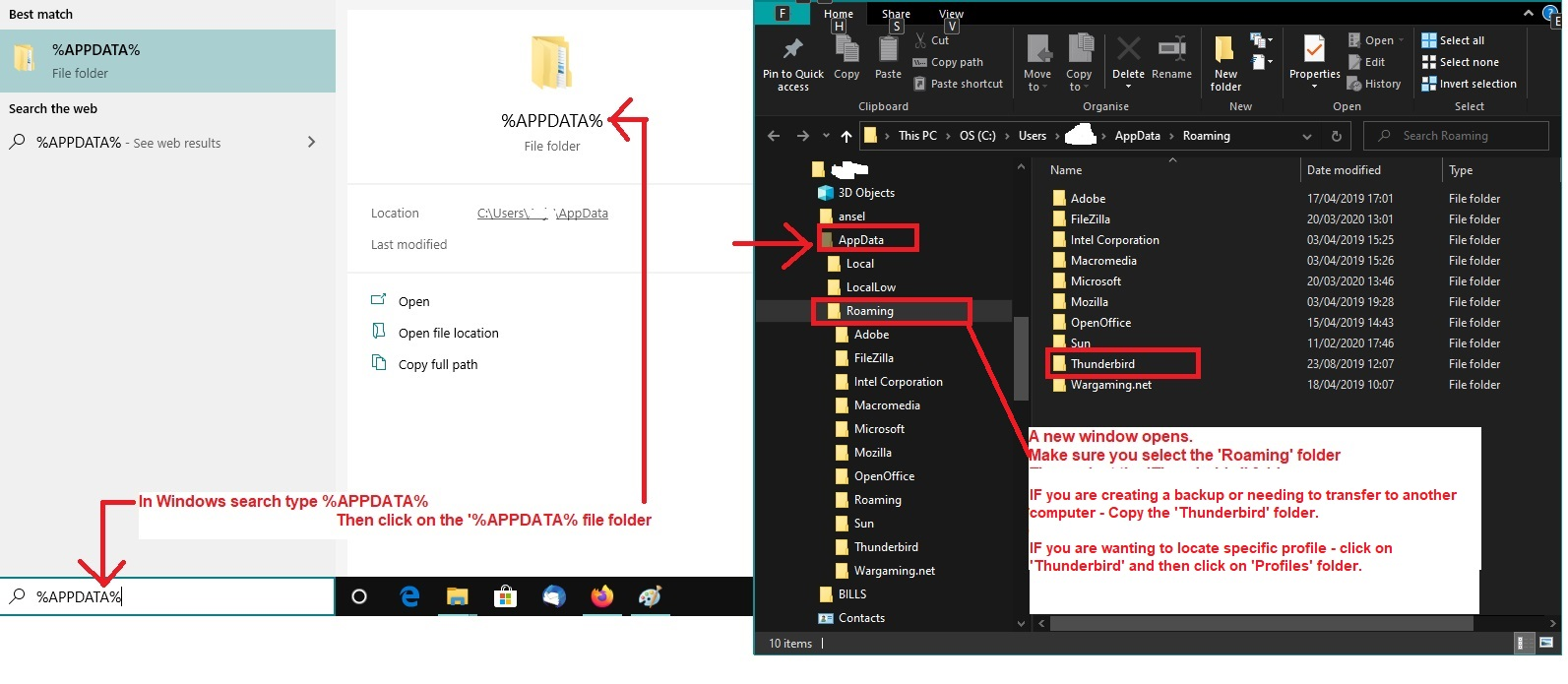
- In windows search type: %Appdata% - see image below as a guide
- Select the %Appdata% File folder
- Select the 'Roaming' folder
- Select the 'Thunderbird' folder
- Select the 'Profiles' folder
- You should see your 'profile name' folder and it will have a similar format to ttq6zys1.default, but different letters and numbers.
- Select that new profile name folder to see contents.
- Delete all the contents from that new profile name folder because you are going to replace them.
- Now Paste all the copied contents from the 'ttq6zys1.default' folder into that new 'profile name' folder
So in effect the completely new profile name folder now as all the contents from your old backup 'ttq6zys1.default' folder'.
Start Thunderbird.
Thanks for your reply. It seems that the file Roaming-Thunderbird-Profiles has the same letters and numbers as the backup one on the external drive.