


Restoring Firefox bookmarks

Mozillers,
I depend heavily in my environmental and other work on Firefox and am grateful for its ability to restore previous tabs when my laptop, not infrequently, stops working abruptly.
Now the much-used bookmarks have disappeared. A search site states promisingly:
"To restore Firefox bookmarks, use the built-in backup feature by going to Menu > Bookmarks > Manage Bookmarks > Import & Backup > Restore, then select a dated backup or a manual file (like a JSON backup) to bring back lost bookmarks..."
But my Firefox's Bookmarks drop-down menu has no Manage Bookmarks option. PLEASE, what must I do?
Elsewhere I managed to find this file which apparently contains recent bookmarks:
"C:\Users\User\AppData\Roaming\Mozilla\Firefox\Profiles\unk14jlv.default-release-1647366062305\bookmarkbackups\bookmarks-2025-12-26_95_4IdGtYxezJpwuH1UIiT1bRwe1K6bcGO8rv0mqa9rUWU=.jsonlz4"
But attempting to open it with Applications\firefox.exe (default) accomplishes nothing.
FOOL-proof instructions would be wonderful. Thank you.
Réiteach Roghnaithe
Thank you again, Denys, for another fast follow-up:
> If it has somehow fixed itself, that's great!
You were unquestionably, directly or indirectly, involved in the fix. For that I remain grateful. Perhaps a future version of the browser will have a Restore Bookmarks button and even a Ctrl-Z option to restore an unintentional tab deletion.
> I guess you don't have to do anything unless you face further issues.
I had hoped for a response to: "I presume all that's needed now is to click on "Bookmarks Ctrl+B" and they will be resurrected. Am I right?" Yes, have just tried - my Bookmarks, a big relief, are back.
As for "Can my "extremely broken" Library window now be ignored? Or might simply turning the browser, or my laptop, off & on fix it?", I'll simply keep my fingers crossed.
> Regarding deleting duplicated bookmarks, the first thing that comes to mind is using the Library window (the one you opened with Ctrl+Shift+O). There (if that window works), you can select several bookmarks (from the same folder) while holding Ctrl and then delete them all at once. If that doesn't work for you, I would recommend asking a new question, since I'm not the best expert in bookmarks.
All fine. Am pretty tied up presently. But will follow your advice later.
All Replies (12)
Hi Antonio,
Thank you for providing the detailed info! Are you sure there is no Manage Bookmarks option? It should be the last one, at the bottom of the menu. Alternatively, you should be able to open the same window by:
- Pressing Ctrl+Shift+O
- Pressing Alt to restore the menu bar and then selecting Bookmarks -> Manage Bookmarks
- Right-clicking your Bookmarks toolbar and selecting Manage Bookmarks.
Does any of that help?
Denys, You deserve your Top 10 Contributor status! Thank you for your thoughts. You wondered:
> Are you sure there is no Manage Bookmarks option? It should be the last one, at the bottom of the menu.
As before, clicking on the top-right 3 bars elicits a "Synchronise all your devices" drop-down menu whose 6th line is "Bookmarks >". This in turn responds with - I wish 'snips' could be pasted into this text - the options: "Bookmark current tab", "Search bookmarks", "Hide bookmarks toolbar" and finally, beneath a line, "Recent bookmarks/(Empty).
> Alternatively, you should be able to open the same window by:
> Pressing Ctrl+Shift+O
After repeated attempts, success? Please see the first image below.
> Pressing Alt to restore the menu bar...
All that accomplished was to highlight "Organise" above. And this provided 10 options, all grey, with a Black "Close" " bottom.
> and then selecting Bookmarks -> Manage Bookmarks
Not displayed. To the right of Organise, however, "Import and Backup"'s dropdown displays "Restore/choose file" which does nothing and, more encouragingly, "Import Bookmarks from HTML..." and Export Bookmarks to HTML..." But clicking on those offerings also accomplishes nothing.
> Right-clicking your Bookmarks toolbar and selecting Manage Bookmarks.
Where, please, are those options? I am starting to despair. Should I restart Firefox in Troubleshoot mode? However "Your extensions, themes, and custom settings will be temporarily disabled."
I despair. Sould I restrat Firefox in Troubleshoot mode? However "Your extensions, themes, and custom settings will be temporarily disabled."

The window from the screenshot is what you need. If you have managed to open it with Ctrl+Shift+O, you don't need other options.
If under Backup and Restore -> Restore there are no options other than Choose File..., try using that one and manually selecting the backup file you mentioned. If that doesn't work:
- Indeed, try running Firefox in Troubleshoot Mode (and doing the same there).
- Make sure you are using the profile with your backup (unk14jlv.default-release-1647366062305). You can check that by:
- Checking whether your other data (tabs/history/passwords/settings) is preserved
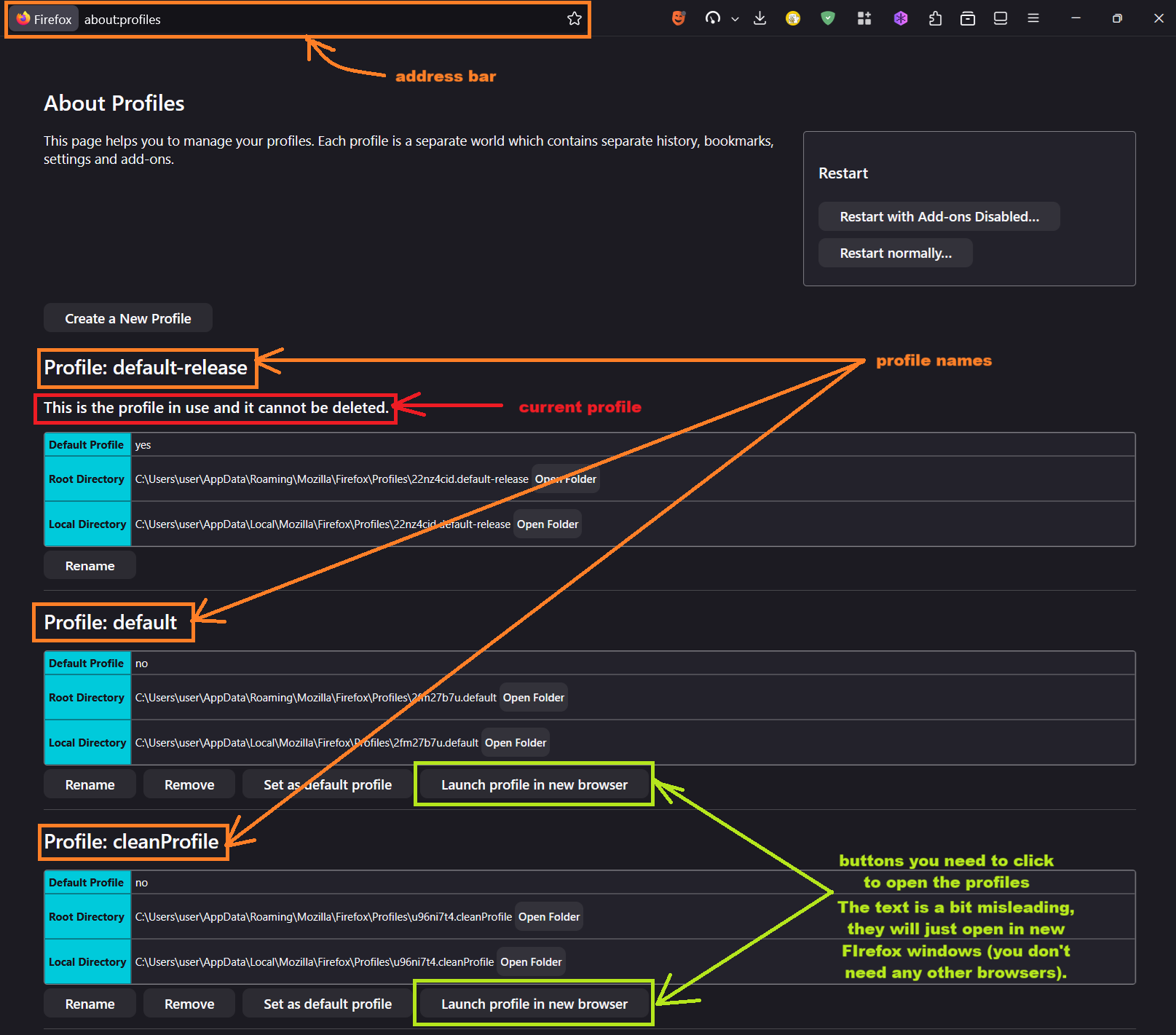
- Going to about:profiles (just type it in your address bar and press Enter) and seeing which profile has the "This is the profile in use and it cannot be deleted" note. That would be your current profile.
- If you are using a different profile, try opening the mentioned one (unk14jlv.default-release-1647366062305) by clicking Launch profile in new browser. Have your bookmarks appeared? If so, set this profile as default by clicking Set as default profile.
Looking forward to your update on how it goes!
Denys, Thank you very much again for your persistence. Your first remark offers some hope:
> The window from the screenshot is what you need. If you have managed to open it with Ctrl+Shift+O, you don't need other options.
GOOD!
> If under Backup and Restore -> Restore there are no options other than Choose File..., try using that one and manually selecting the backup file you mentioned.
Ugh, this was less encouraging. If you refer to unk14jlv.default-release-1647366062305 (which doesn't look like a file to me), in the "Library" panel I clicked on the 3rd "Import and Backup heading and then selected the 2nd drop-down option which offers "Choose File". But doing so elicits no response.
> If that doesn't work:
Indeed, try running Firefox in Troubleshoot Mode (and doing the same there).
The response here is... Ugh, as SO often the text cannot be copied. Please see the jpg below. Please, should I click on OK (although as I recall last time nothing happened. But I'll wait for your approval before proceeding since the cryptic name now is not the earlier unk14... one.
>  Make sure you are using the profile with your backup (unk14jlv.default-release-1647366062305). You can check that by:
       Checking whether your other data (tabs/history/passwords/settings) is preserved
       Going to about:profiles (just type it in your address bar and press Enter)...
I regret being so ignorant. But what is that "address bar"? Would it be the URL above: https://support.mozilla.org/en-US/questions/1557510#answer-1790119 ?
> ...and seeing which profile has the "This is the profile in use and it cannot be deleted" note. That would be your current profile.
This SEEMS to confirm my guess.
> If you are using a different profile, try opening the mentioned one (unk14jlv.default-release-1647366062305) by clicking Launch profile in new browser.
The new browser chosen was Google Chrome. But I could find no 'Launch profile' there.
> Have your bookmarks appeared? If so, set this profile as default by clicking Set as default profile.
IF ONLY!
> Looking forward to your update on how it goes!
I fear that after this fruitless response your optimism will wane. From my ignorant perspective but also my awareness of the importance in all web browsers of bookmarks - they are, after aIl, these peripatetic programmes' roadmaps - I am baffled they don't have a standard default, EASILY-accessed file with which commonly visited sites' URLs can be recovered.
I remain grateful for your efforts.
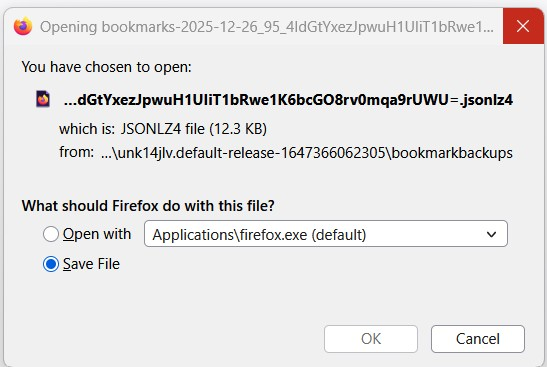
I've just realized that your Library window (from the screenshot under your previous post) looks extremely broken. So let's proceed with Troubleshoot Mode and checking other Firefox profiles.
I'm not sure how you got the dialog in your screenshot, but I don't think that's what you need. To open Firefox in Troubleshoot Mode, you need to click the Firefox menu button  , select "Help", then "Troubleshoot Mode…" and then click "Restart" in the "Restart Firefox in Troubleshoot Mode?" dialog. Then, try do to the same thing there (open the Library window, e.g. with Ctrl+Shift+O, and click Import and Backup -> Restore -> Choose File...). If a new window opens that allows you to specify a file, open the one you have found (C:\Users\User\AppData\Roaming\Mozilla\Firefox\Profiles\unk14jlv.default-release-1647366062305\bookmarkbackups\bookmarks-2025-12-26_95_4IdGtYxezJpwuH1UIiT1bRwe1K6bcGO8rv0mqa9rUWU=.jsonlz4) there. To exit the Troubleshoot Mode, just close Firefox and open it again as usual.
I believe checking other profiles will make sense regardless of what you get in the previous paragraph. The address bar is indeed where the URL is displayed. I've attached a screenshot of the page you should get with some illustrations. Also, check if you have the "Profiles" option in the Firefox menu. If not, it's completely fine. If you do, you'll also need to open the profiles listed there.
Dear Denys, I am grateful for your tenacity. You noted:
> I've just realized that your Library window (from the screenshot under your previous post) looks extremely broken.
May that prove the clue you needed.
> So let's proceed with Troubleshoot Mode and checking other Firefox profiles.
OK, I hope.
> I'm not sure how you got the dialog in your screenshot, but I don't think that's what you need.
Again, accepted.
> To open Firefox in Troubleshoot Mode, you need to click the Firefox menu button Fx89menuButton,..
The word "menu", still less "Fx89menuButton", appears nowhere on my Firefox screen. Perhaps you mean the top-right triple _ which, under the cursor, says "Open application menu". Let's see.
> select "Help", then "Troubleshoot Mode…"
My "Help" actually said "Turn Troubleshoot Mode off…". (Troubleshooting had remained on since our previous session.) With some trepidation in order to follow your instructions I turned the tool off to turn it back on again. But before doing so a miracle occurred. In the previously empty left column my extensive "History" suddenly appeared!! And a 'v' next to it prompts a drop down which INCLUDES BOOKMARKS !!!. So I presume all that's needed now is to click on "Bookmarks Ctrl+B" and they will be resurrected. Am I right? Can my "extremely broken" Library window now be ignored? Or might simply turning the browser, or my laptop, off & on fix it?
Denys, your persistence has, almost certainly, remedied my problem. Thank you SO much!
Since you are so brilliant, I hope I may make a further related request. My bookmarks are often repeated in a lengthy column. Must I onerously scroll down & up deleting individual ones or is there a SIMPLE more efficient way to edit them?
Again, THANK YOU SO MUCH.
If it has somehow fixed itself, that's great! I guess you don't have to do anything unless you face further issues.
Regarding deleting duplicated bookmarks, the first thing that comes to mind is using the Library window (the one you opened with Ctrl+Shift+O). There (if that window works), you can select several bookmarks (from the same folder) while holding Ctrl and then delete them all at once. If that doesn't work for you, I would recommend asking a new question, since I'm not the best expert in bookmarks.
PS "Open application menu" was what I meant, but that doesn't matter now.
Réiteach Roghnaithe
Thank you again, Denys, for another fast follow-up:
> If it has somehow fixed itself, that's great!
You were unquestionably, directly or indirectly, involved in the fix. For that I remain grateful. Perhaps a future version of the browser will have a Restore Bookmarks button and even a Ctrl-Z option to restore an unintentional tab deletion.
> I guess you don't have to do anything unless you face further issues.
I had hoped for a response to: "I presume all that's needed now is to click on "Bookmarks Ctrl+B" and they will be resurrected. Am I right?" Yes, have just tried - my Bookmarks, a big relief, are back.
As for "Can my "extremely broken" Library window now be ignored? Or might simply turning the browser, or my laptop, off & on fix it?", I'll simply keep my fingers crossed.
> Regarding deleting duplicated bookmarks, the first thing that comes to mind is using the Library window (the one you opened with Ctrl+Shift+O). There (if that window works), you can select several bookmarks (from the same folder) while holding Ctrl and then delete them all at once. If that doesn't work for you, I would recommend asking a new question, since I'm not the best expert in bookmarks.
All fine. Am pretty tied up presently. But will follow your advice later.
The latest update to firefox wiped all my bookmarks that I use for my work. I have gone through all of the above suggestions, none of them helped to restore my bookmark folders.
Any new suggestions? I really don't have the time for these kinds of problems and I am sure nobody else does either.
Like they say "when something is working, don't mess with it"
Will really appreciate it if you could fix the problem or restore the system back to what it was.
I sympathise completely with Claire and understand her frustration and dismay.
It prompts me to note my own much more modest regret - how often the top right application menu's History > Recent history can recall only some recently-closed tabs while Recent history too often remains empty.
Athraithe ag AntonioLambe ar
Here to share my update. After my previous comment my computer offered a system update that seems to have resolved the problem.
Very grateful to have my bookmarks back!
Terrific. Still, knowing where the programme normally stores a copy of the links - can someone say, please? - and copying it to a safe place could help us relax.