


no add ons section in tools in the menu- how to install mail merge?

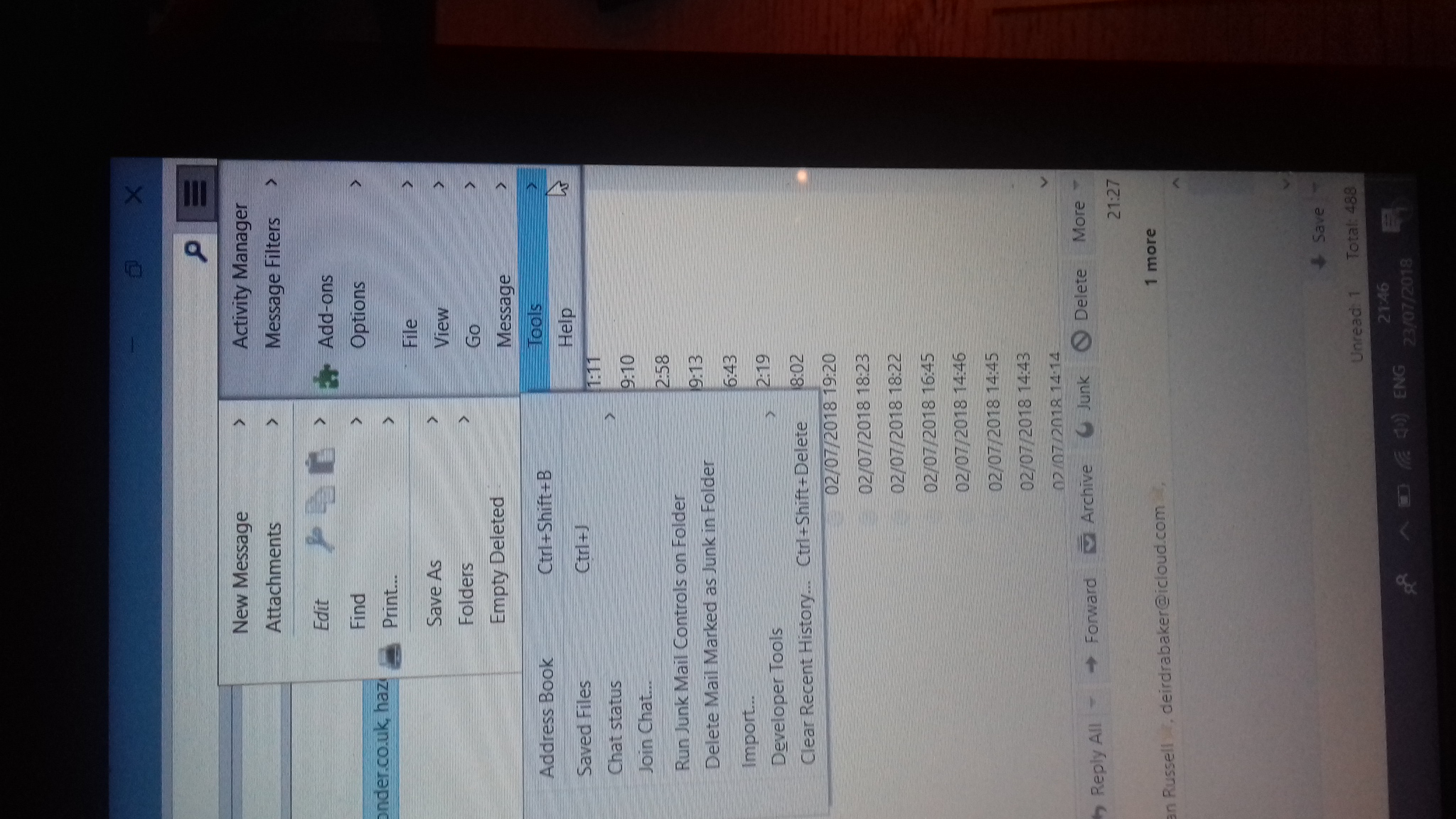
Version of Thunderbird is 52.9.1 Mail merge add on from the Mozilla site Mail merge has been downloaded - I can see it but there seems no way to install it. The drop down menu does not show "add ons" in Tools or in the main menu - see picture.
Chosen Solution
In the Add-ons Manager click on Extensions, then on the Gear icon and choose Install Add-on From File…
Modified by Onno Ekker
All Replies (5)
I see it in your picture with a green icon next to it.
Press the alt key and use Tools on the Menu Bar or use the Add On button showing clearly in the main menu of the AppMenu in your screenshot.
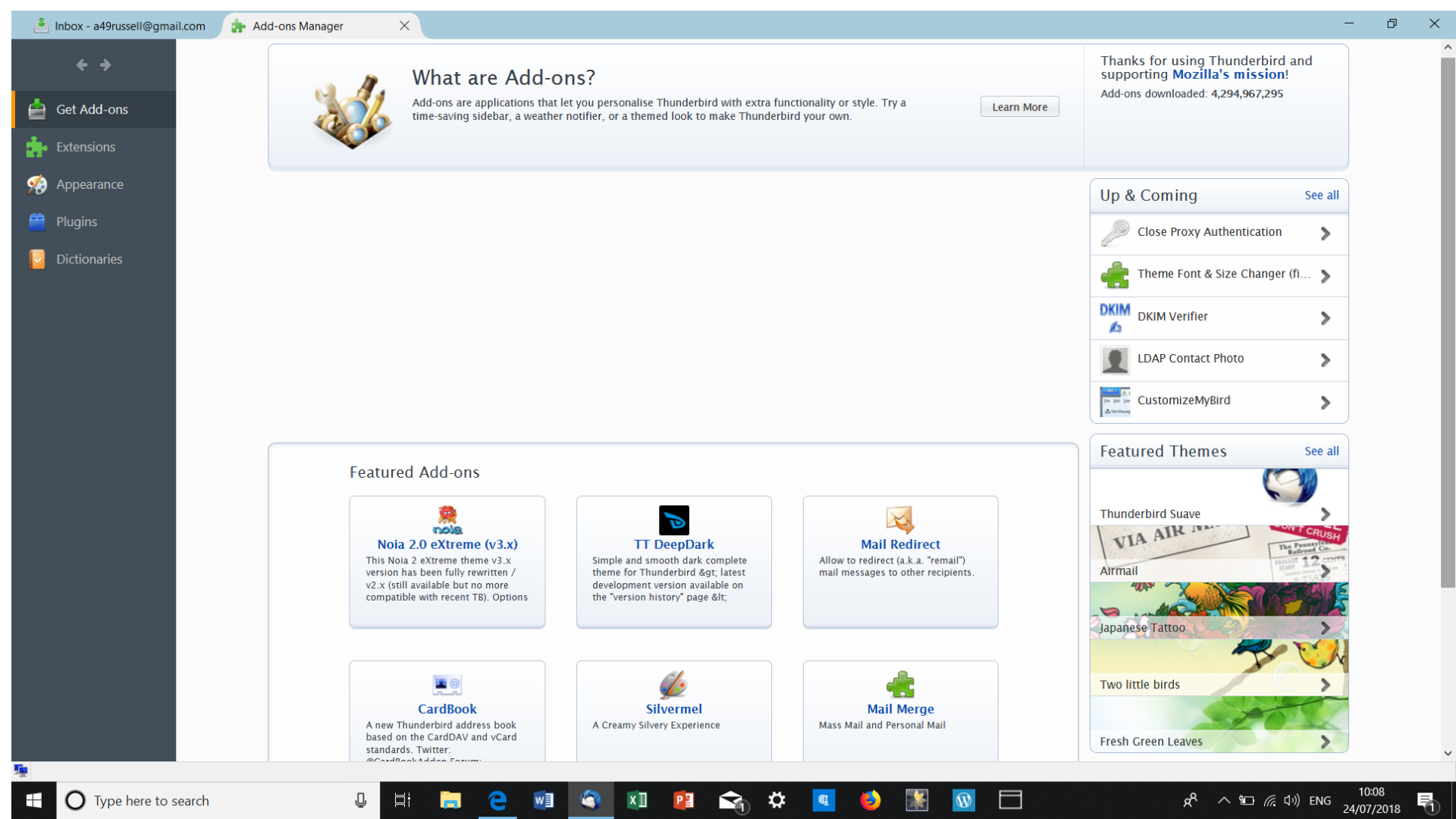
I have no problem with the Add ons button. It allows me to download the Mail Merge add on - it's in my download folder - but I can't see how to install it from that page. All help gratefully received!
Chosen Solution
In the Add-ons Manager click on Extensions, then on the Gear icon and choose Install Add-on From File…
Modified by Onno Ekker
Onno Thanks, that worked very well. Problem solved! Alan