How to delete unwanted addresses from the drop down box

When sending an email there is a drop down box with email addresses. How do we delete the unwanted email addresses out of this drop down box?
Всички отговори (6)
- click help>troubleshootinginformation
- scroll to 'profile folder' and click 'open folder'
- exit thunderbird
- locate the file beginning with 'global' and delete it
- restart thunderbird
Thanks David, but firstly where do I find the page to click help>troubleshootinginformation. Please help me as I am not that computer literate being 87 years of age. Thank You, Mike.
Click the little icon in upper right. It is three short horizonal lines, often called the 'hamburger menu.' That will get you started. If you have any problems, just let me know.
On your original question, I am assuming you mean email addresses that you no longer care about. Some email addresses may appear when keying the desired email address because thunderbird is trying to minimize the keystrokes required by listing email addresses that contain the keystrokes entered so far. If you want to avoid even that, you should click the F9 key when in compose window and a listing of your addressbook will appear on left. Locate the desired recipient and click it and then click the TO link below it will be moved to the TO line for recipient. Keeping that listing there eliminates the need to key email addresses for persons in your addressboook.
Hi David, thanks for trying to help me. My address book on the left is completely different from the drop-down list. To me this sounds too complicated. I tried to follow your instructions but after I clicked on Help, then trouble shooting, it wants to disable and re-start the computer. Not having the technical knowledge, I am too scared to accept this as I might stuff up my computer. Is there any other way to delete the unwanted email addresses from the "drop down box"? Thanks, Mike.
Email addresses that get offered in drop down are taken from your address books.
It sounds like in a TO field you are typing an email address and a drop down appears offering anything that could be the one you are typing, so you can click on the correct one to use it rather then keep typing.
All your contacts and their email addresses are located in your Address Books. If you are not saving them in the 'Personal Address Book, any you enter and send in email will get auto added to the 'Collected Addresses' address book.
You can remove any saved contact and email address from an address book. But the idea of saving them means if you type it again, you will get offered in the drop down prompt.
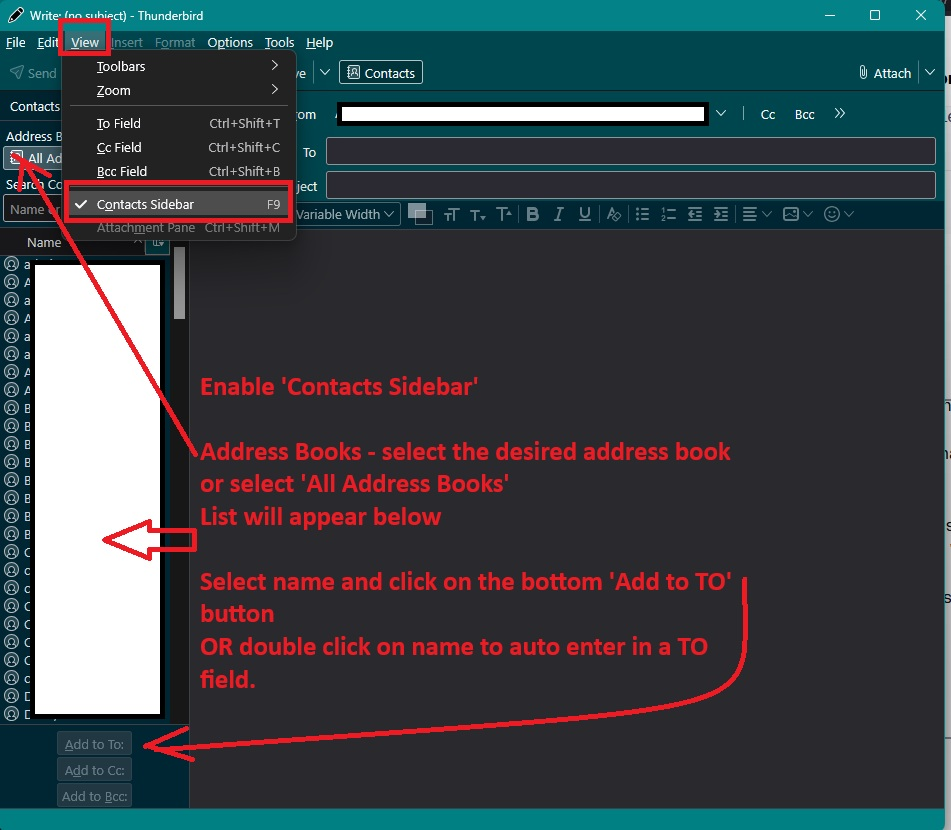
Another way of quickly entering a stored contact/email address : You may find this method a much easier way if the email address is already in your address books. When you click on 'New Message', it opens a new window where you type your email. You can use the 'Contacts sidebar' to select a contact then click on button 'Add to TO' OR double on contact and it gets auto added. It saves you from typing the email address assuming you already have it in one of the address books.
The 'Contacts Sidebar' should be on the left side, but if you do not see it: On top toolbar click on 'View' to see a drop down and then click on 'Contacts Sidebar'
You can choose a specific address book OR just select 'All Address Books' I've added an image below as a guide. Do not be confused by the colours I use. I've blanked out my list of contacts for obvious reasons, but the names display. If image is a bit small - in this forum question click on the thumbnail size image and it will get bigger.