


The page isn't redirecting properly - Firefox can't connect to server

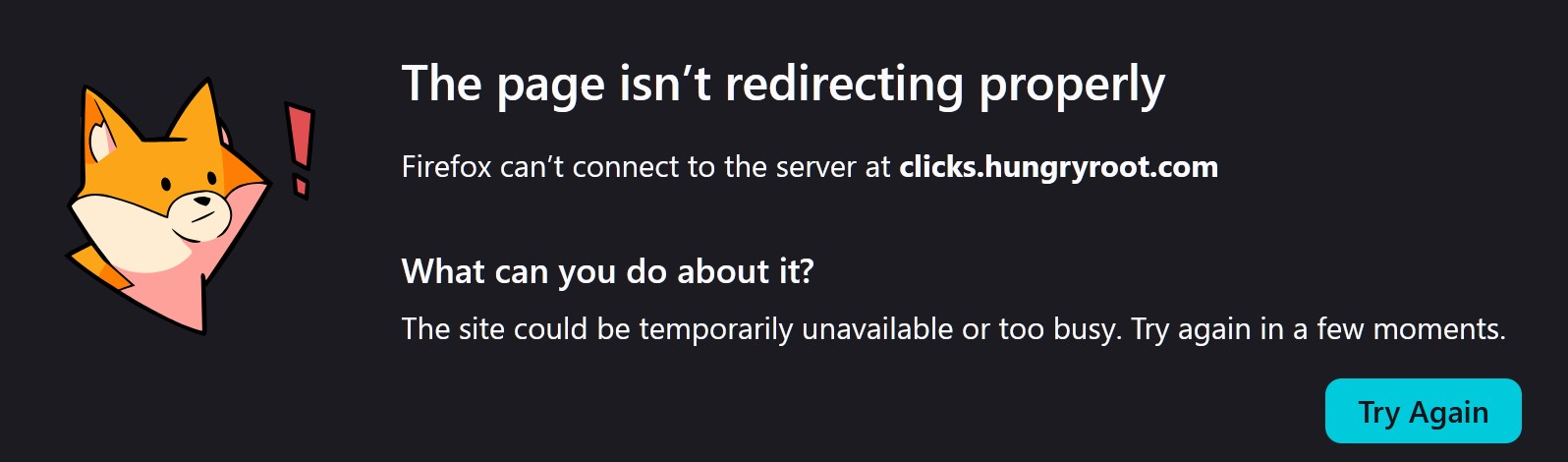
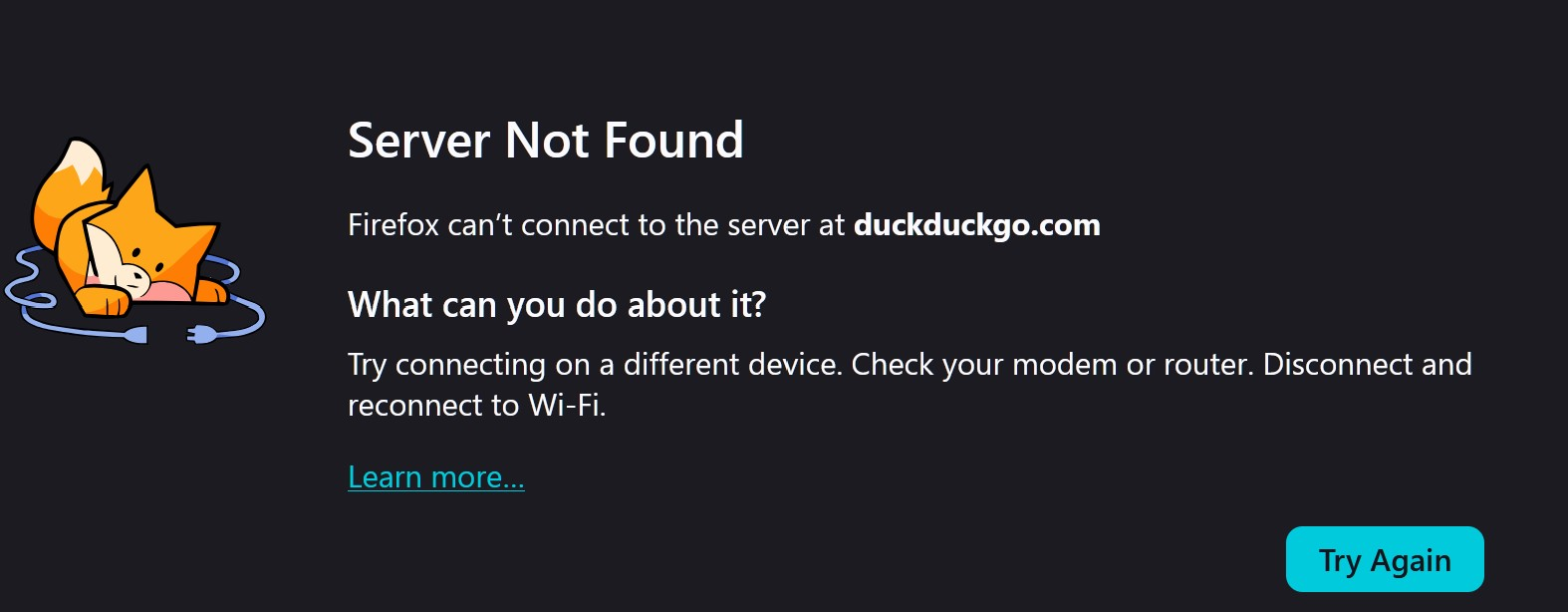
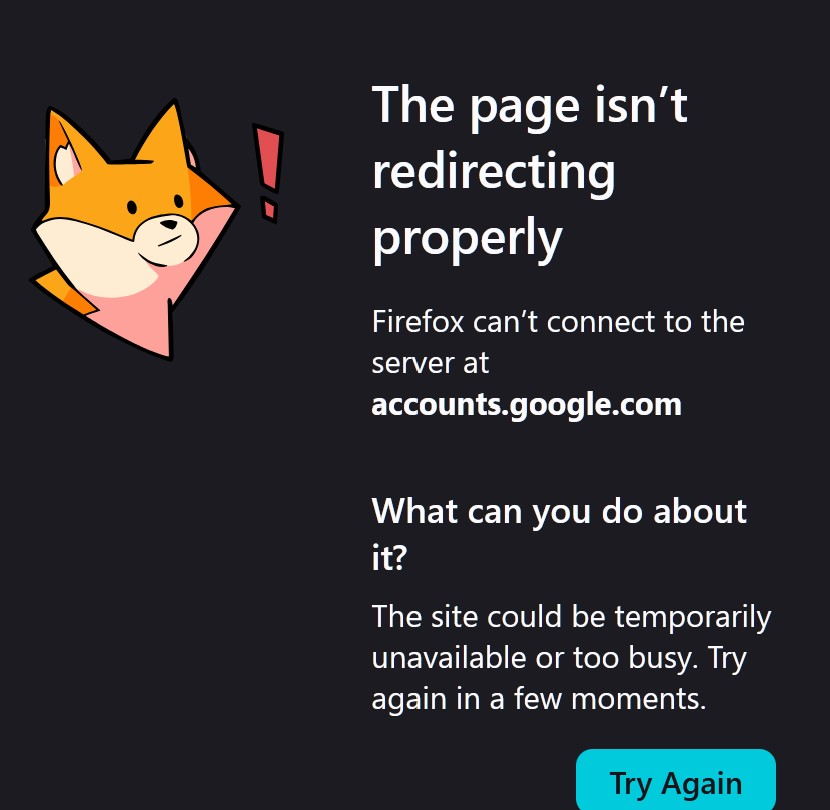
I am receiving "The page isn't redirecting properly - Firefox can't connect to server" error messages. This happens on nearly every website repeatedly for the last six? weeks. It does not happen in other browsers i.e. Chrome. I click the "Try Again" button in the Firefox error msg popup window over and over, 3-14+ times, to get past the error msg and access the site. When I try to login to many sites I am kicked out to the same error msg. Also kicked out of sites randomly when trying to navigate to another page on the same site. I had Claude AI take me step-by-step through all of the trouble shooting and adjustments to various settings. All of my extensions are off. I have had my ISP re-initialize my modem and I've run antivirus scans, still the problem persists. (Strangely YouTube does not have these problems) I love Firefox. I've got it setup just the way I like it. I have been using it for 20 years and during those two decades Firefox has been stable and had only minor glitches. I do not want to change my browser. Chrome feels clunky to me. I'm attaching three representative screen captures of the error msgs. Looking forward to anyone's help.
Избрано решение
Certain Firefox problems can be solved by performing a Clean reinstall. This means you remove your Firefox program files and then reinstall Firefox. This process does not remove your Firefox profile data (such as bookmarks and passwords), since that information is stored in a different location.
To do a clean reinstall of Firefox, please follow these steps: Note: You might want to print these steps or view them in another browser.
- Download the latest Desktop version of Firefox from mozilla.org (or choose the download for your operating system and language from this page) and save the setup file to your computer.
- After the download finishes, close Firefox.
- Windows: Click the Firefox menu
 , then click "Exit".
- Mac: Click the Firefox menu at the top of the screen, then click "Quit Firefox".
- Linux: Click the Firefox menu , then click "Quit".
- Windows: Click the Firefox menu
- Delete the Firefox installation folder, which is located in one of these locations, by default:
- Windows: (Note: Check both folders.)
- C:\Program Files\Mozilla Firefox
- C:\Program Files (x86)\Mozilla Firefox
- Mac: Delete Firefox from the Applications folder.
- Linux: If you installed Firefox with the distro-based package manager, you should use the same way to uninstall it - see Install Firefox on Linux. If you downloaded and installed the binary package from the Firefox download page, simply remove the folder firefox in your home directory.
- Windows: (Note: Check both folders.)
- Now, go ahead and reinstall Firefox:
- Double-click the downloaded installation file and go through the steps of the installation wizard.
- Once the wizard is finished, choose to directly open Firefox after clicking the Finish button.
More information about reinstalling Firefox can be found here.
WARNING: Do not use a third party uninstaller as part of this process. Doing so could permanently delete your Firefox profile data, including but not limited to, extensions, cache, cookies, bookmarks, personal settings and saved passwords. These cannot be easily recovered unless they have been backed up to an external device! See Manually back up and restore Firefox profile data.
Please report back to say if this helped you!
Thank you.
Прочетете този отговор в контекста 👍 1Всички отговори (7)

Similar here. Sites like Amazon and Google and so on work just fine, but many (not all) bank sites are hanging the past couple days. All was well before, and no system changes. College sites won't load forms, errors trying to login to medical portals. Tried everything from clearing browser data to changing DNS servers. Restarts. No VPN. Flushed DNS cache. Different network. Different computer. It really looks like Firefox is the common denomonator here.
dzturbd, Yeah. Same here, I tried everything you have before I posted here. I agree Firefox seems to be the culprit. So, anyone out there got a solution to this? Come on Mozilla techies. Let us know you're working to fix this!
If you're having website connection issues after a Firefox update, your third-party antivirus software, such as Avast, might be interfering with Firefox's secure connections.
We recommend that you uninstall your third-party antivirus software and use the security software offered for Windows by Microsoft:
- Windows Security with Microsoft Defender Antivirus (built-in)
For more information and other solutions, see Troubleshoot security error codes on secure websites.
I have changed my user name after my initial msg as-well-as follow-up reply to dztrbd. it is now SensingWonder. Did my system info load with my initial msg? if not i will include the results in another reply. I ask because the report shows everything about my system including that i am using windows 10 defender on desktop so that isn't the problem.
Nope. Using ProtonVPN. I have exited it when i work. does not solve the problem.
Избрано решение
Certain Firefox problems can be solved by performing a Clean reinstall. This means you remove your Firefox program files and then reinstall Firefox. This process does not remove your Firefox profile data (such as bookmarks and passwords), since that information is stored in a different location.
To do a clean reinstall of Firefox, please follow these steps: Note: You might want to print these steps or view them in another browser.
- Download the latest Desktop version of Firefox from mozilla.org (or choose the download for your operating system and language from this page) and save the setup file to your computer.
- After the download finishes, close Firefox.
- Windows: Click the Firefox menu , then click "Exit".
- Mac: Click the Firefox menu at the top of the screen, then click "Quit Firefox".
- Linux: Click the Firefox menu , then click "Quit".
- Windows: Click the Firefox menu
- Delete the Firefox installation folder, which is located in one of these locations, by default:
- Windows: (Note: Check both folders.)
- C:\Program Files\Mozilla Firefox
- C:\Program Files (x86)\Mozilla Firefox
- Mac: Delete Firefox from the Applications folder.
- Linux: If you installed Firefox with the distro-based package manager, you should use the same way to uninstall it - see Install Firefox on Linux. If you downloaded and installed the binary package from the Firefox download page, simply remove the folder firefox in your home directory.
- Windows: (Note: Check both folders.)
- Now, go ahead and reinstall Firefox:
- Double-click the downloaded installation file and go through the steps of the installation wizard.
- Once the wizard is finished, choose to directly open Firefox after clicking the Finish button.
More information about reinstalling Firefox can be found here.
WARNING: Do not use a third party uninstaller as part of this process. Doing so could permanently delete your Firefox profile data, including but not limited to, extensions, cache, cookies, bookmarks, personal settings and saved passwords. These cannot be easily recovered unless they have been backed up to an external device! See Manually back up and restore Firefox profile data.
Please report back to say if this helped you!
Thank you.