


no longer room for messages on the screen

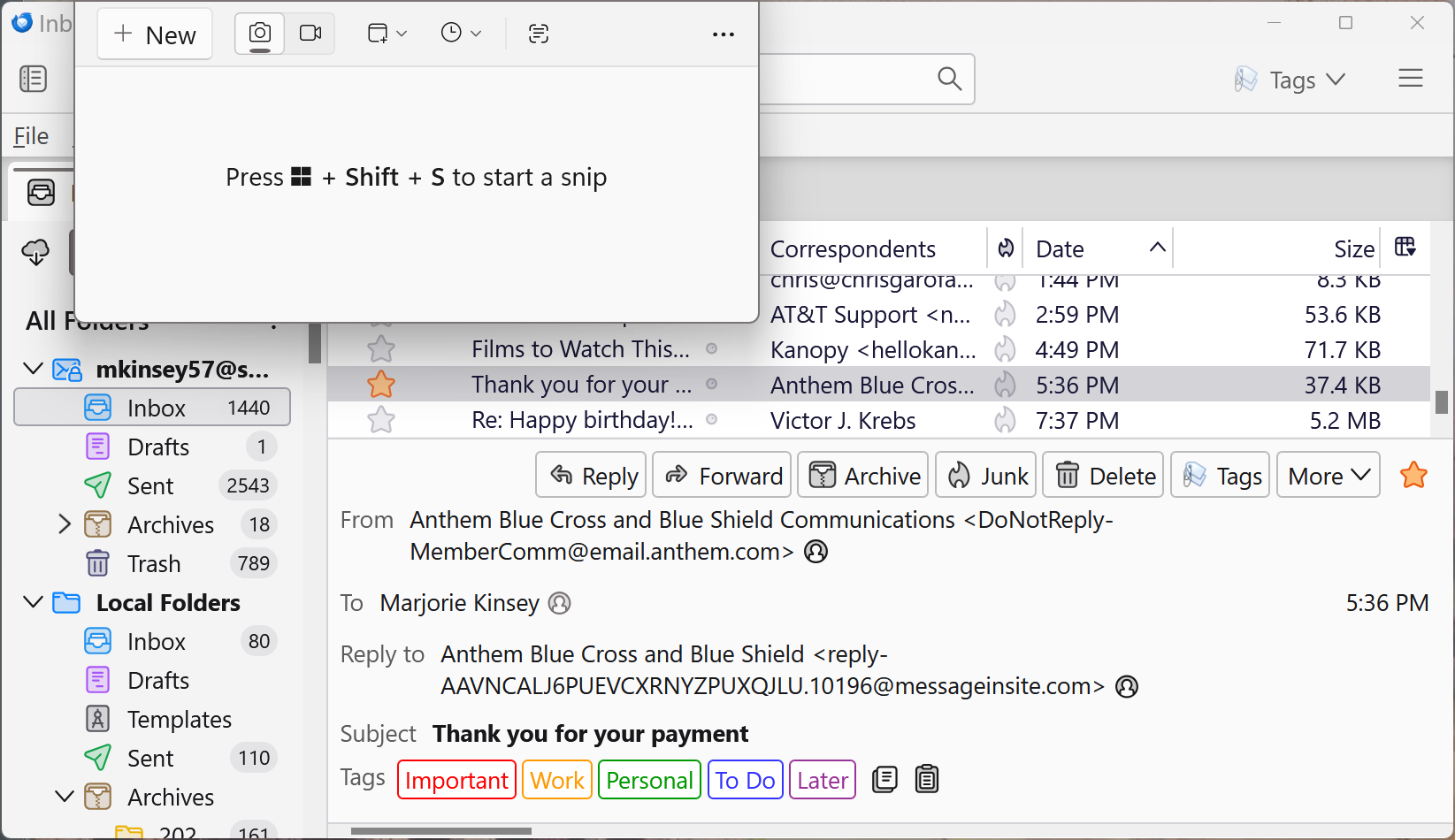
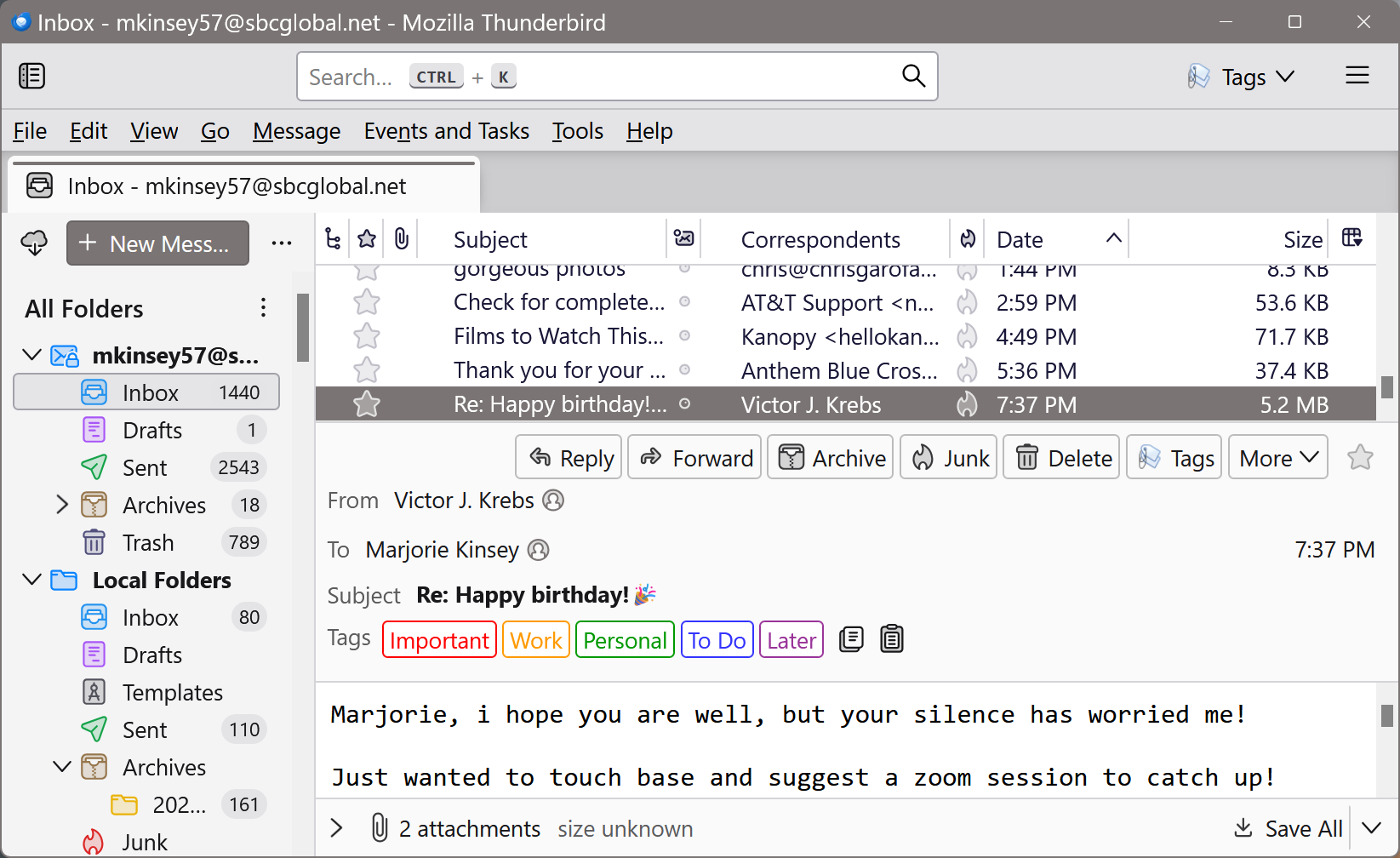
This might also belong under accessibility. Or how to organize the screen? At this point I cannot get some messages because there is no space left for it. This has happened gradually but now its impossible. I will attach a screen shot to show the problem. (I would have a tiny bit more room if I could get rid of that line of tags since they come on a dropdown anyway. Thank you so much,
所有回复 (3)

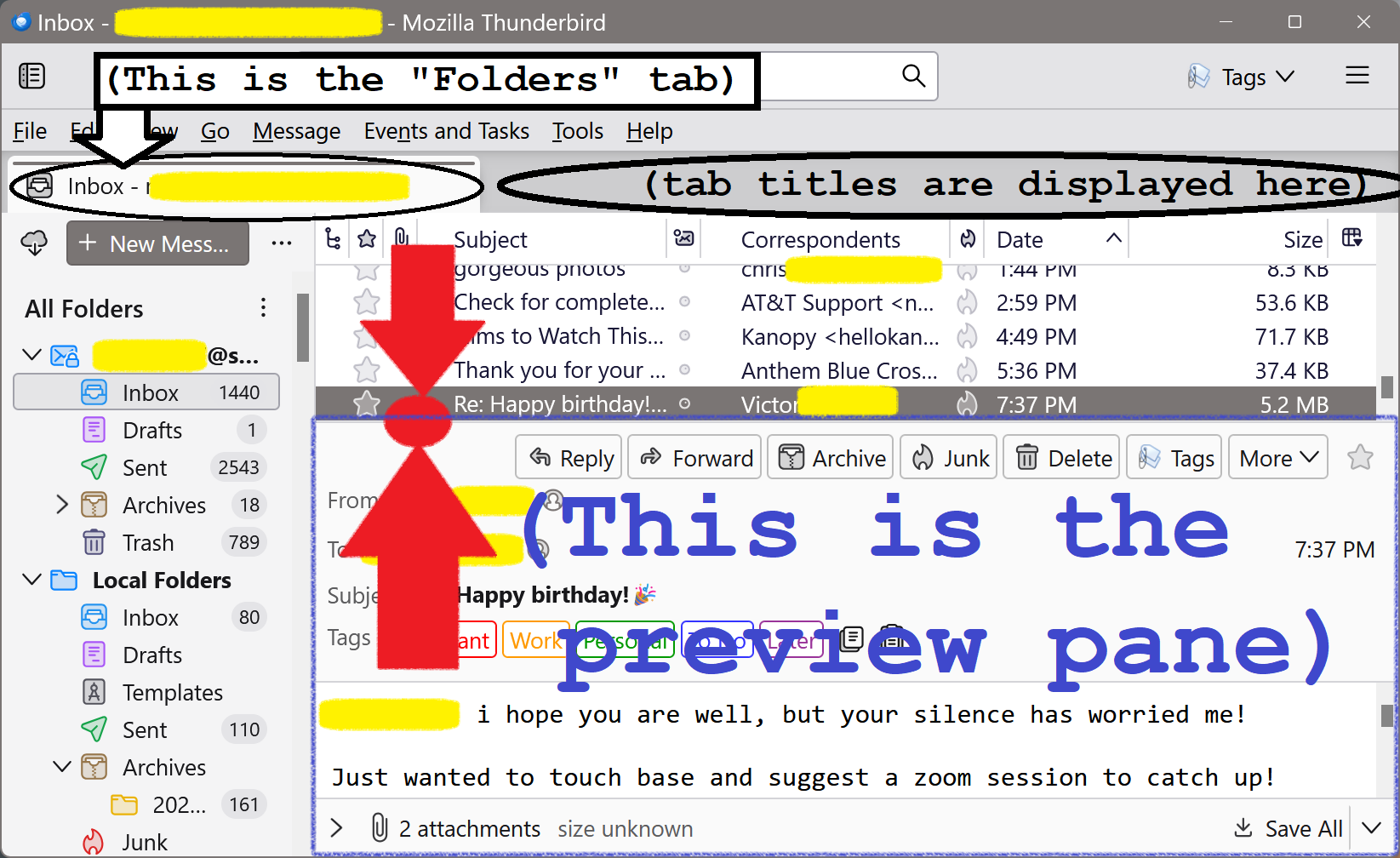
Please reference the attached screen image. In my attached screen image, if you point your mouse pointer directly at the horizontal line separating the list of messages from the "message preview pane", (this specific point is indicated on the attached screen image with a red circle located between the two red arrows) then your mouse pointer should transform from a normal pointer arrow into a double arrow. While your mouse pointer is a double arrow, you can then click and drag up or down, thereby enlarging or shrinking the size of the preview pane. If you drag all the way down, then the preview pane will be entirely removed, but can be restored by pointing at the same line and dragging upwards.
If you have a relatively small screen, or if your display resolution is set to be relatively small (smaller resolution results in everything being drawn larger on the screen) then you may find that use of the preview pane is not practical, as you may need to use all available space for simply navigating through the list of messages. In this case, you may find it to be more useful to view a message in a new tab or new window rather than viewing the message in the preview pane.
To view a message in a new tab or window, in the list of messages, simply click on the message entry once so as to highlight that particular message entry, and then press the "enter" key on the keyboard. Alternatively, right-click on a given message entry which will pop up a contextual menu from which you may elect to "open message in new tab" or "open message in new window."
If you do open messages in new tabs, you should take care to close each tab when done, otherwise, you will end up with multiple tabs open all at once, which can be confusing, and can make it difficult to find your main "All Folders" folder tree from which you select your inbox, sent, trash, etc, as after all, the main folder tree itself also occupies a tab. When too many tabs are open at the same time, it becomes difficult to find a particular tab.
As mentioned above, when you press the keyboard's "enter" key after highlight a given messages in the list of messages, that message will then be displayed in a new tab, or conversely, in a new window. If you have a preference for a new tab or a new window, you may configure that preference in the "Reading & Display" sub-section of the "General" section of the Thunderbird settings.
I hope this helps!
由antifascist于修改
At this point I am using a double click to open the message the width of the screen which is perfectly satisfactory. I don't know the proper names of the panes but none so far have occupied the address'topic area so much as to make it impossible to scroll. Whether I can grab an edge or a line is catch as catch can for any resizing. This is unlike the easy grabs in power point back when I was constructing several a week
But two other problems have arisen.
The small one is that .ping attachments have refused to open even when an adjacent jpeg has.
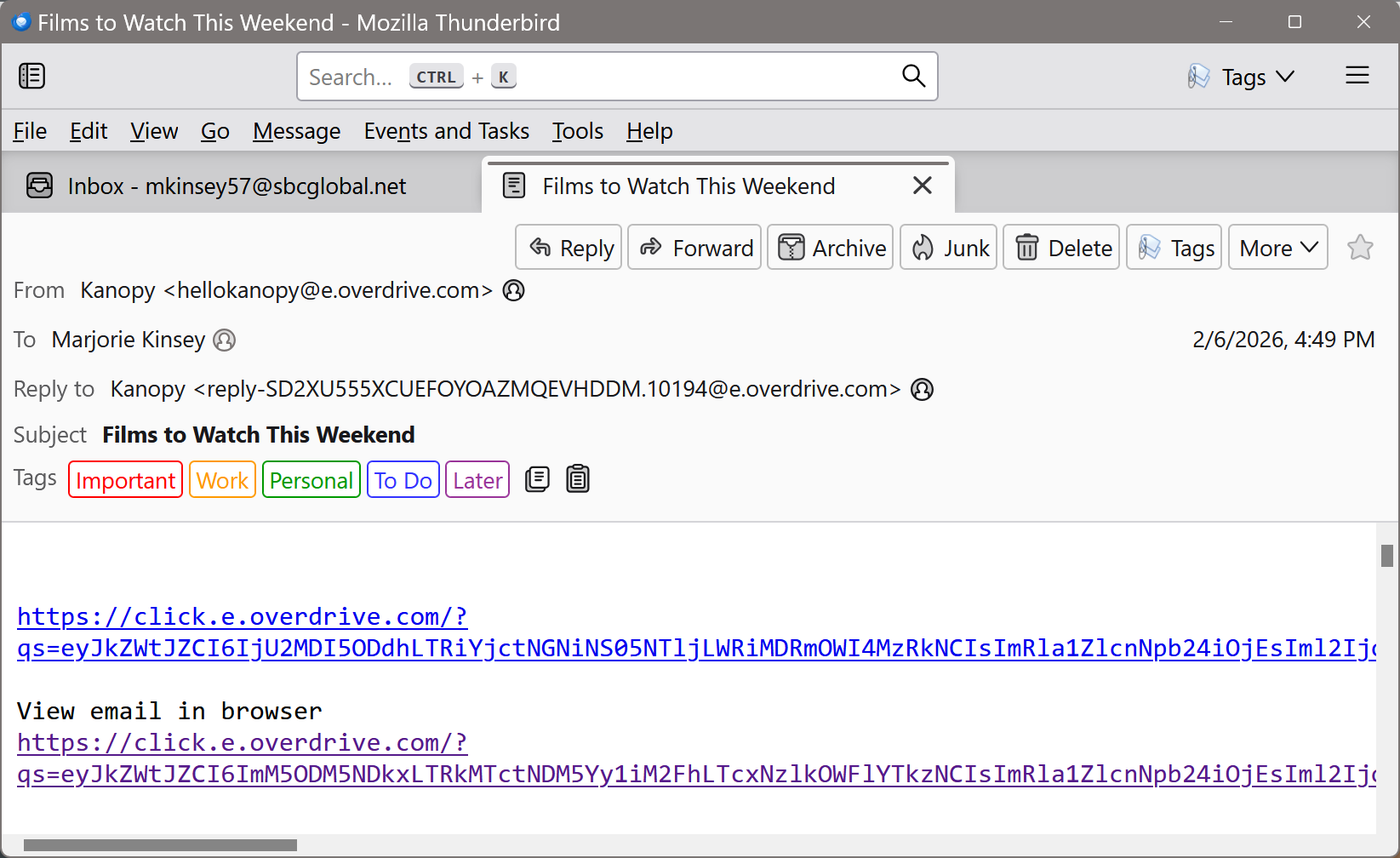
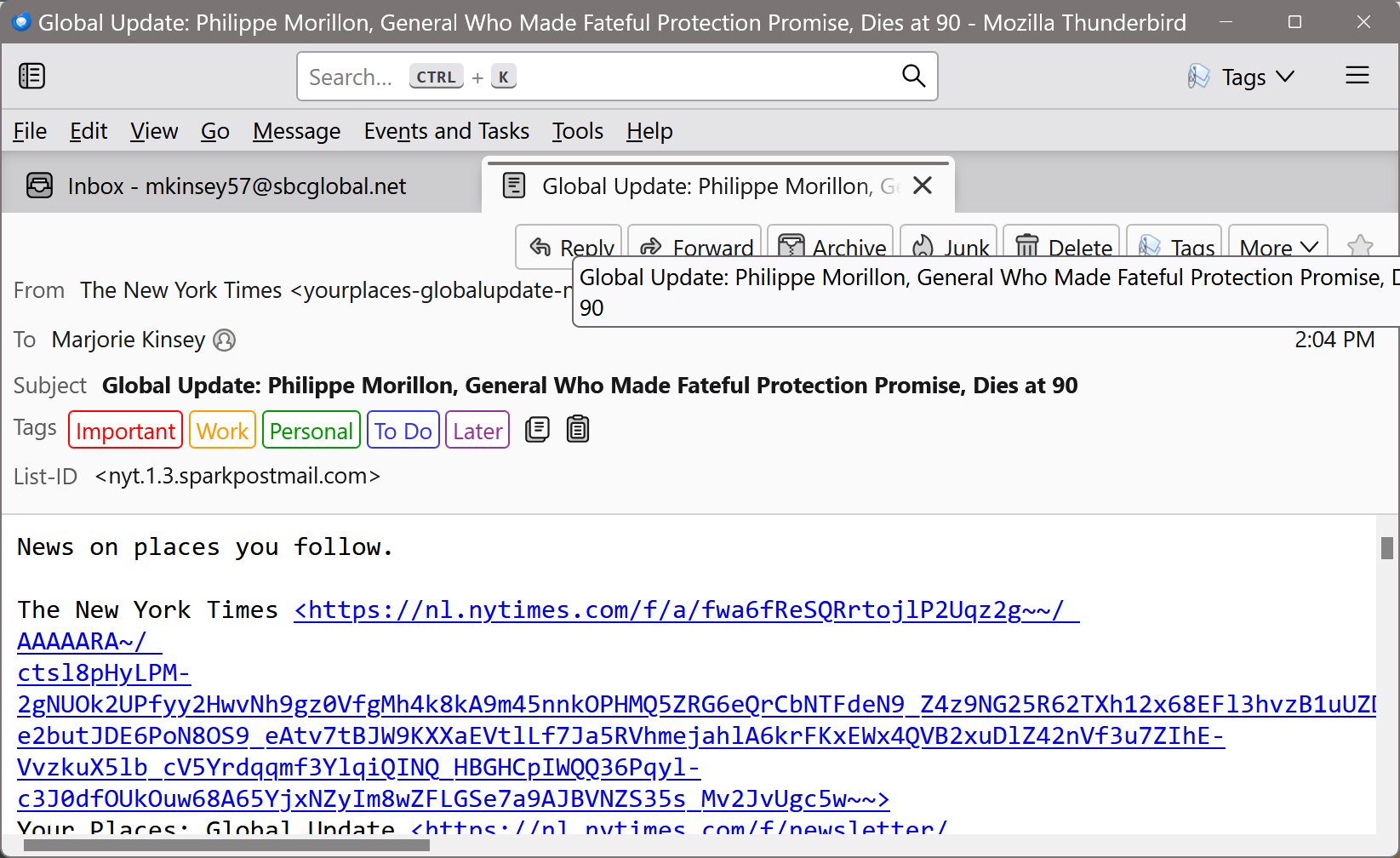
The other is that messages that have graphics or style are now opening as successive links. I must have hit or changed something without knowing it, I hope you can help me with this. I attach two screen shots. (I am trying to understand this process again as well. Whether something records or not seems quite arbitrary.) I will appreciate learning about this. Thank you. Marjorie.
mskinsey said
This might also belong under accessibility. Or how to organize the screen? At this point I cannot get some messages because there is no space left for it. This has happened gradually but now its impossible. I will attach a screen shot to show the problem. (I would have a tiny bit more room if I could get rid of that line of tags since they come on a dropdown anyway. Thank you so much,
perhaps turn them off then.
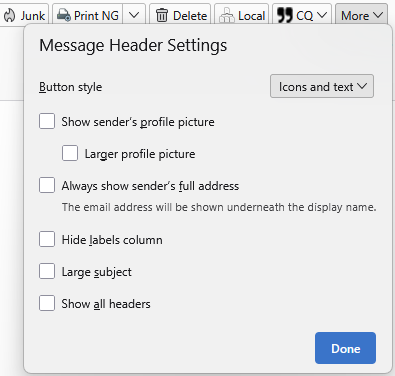
You might try View Menu > Layout > wide view. It truncates the folder list and uses that space for more message viewing space.
Then there is this addon that does some seriously real estate recovery https://addons.thunderbird.net/en-US/thunderbird/addon/compact-headers/?src=search But if you use this you might want to add more than the tags to the toolbar above.
However the simplest solution of all is to maximize the windows size by clicking the box beside the X in the windows header.
The small one is that .ping attachments have refused to open even when an adjacent jpeg has.
I have no idea what a .PING attachment is. Neither does the registered list of media types. https://www.iana.org/assignments/media-types/media-types.xhtml So I guess there is your answer.
For transmission by email media must be correctly identified. They Windows practice of using file extensions does not play in the internet realm where media types rule. Incorrect classification is a leading cause of attachments not opening upon receipt and opening once they are saved to disk. The sending application has misidentified to media type tag on the attachment.
Your last image looks like a HTML email that is being viewed in plain text. Check the view menu setting for Message Body As is set to original HTML.