


Folders and emails not visible after updating to version 102.1.2

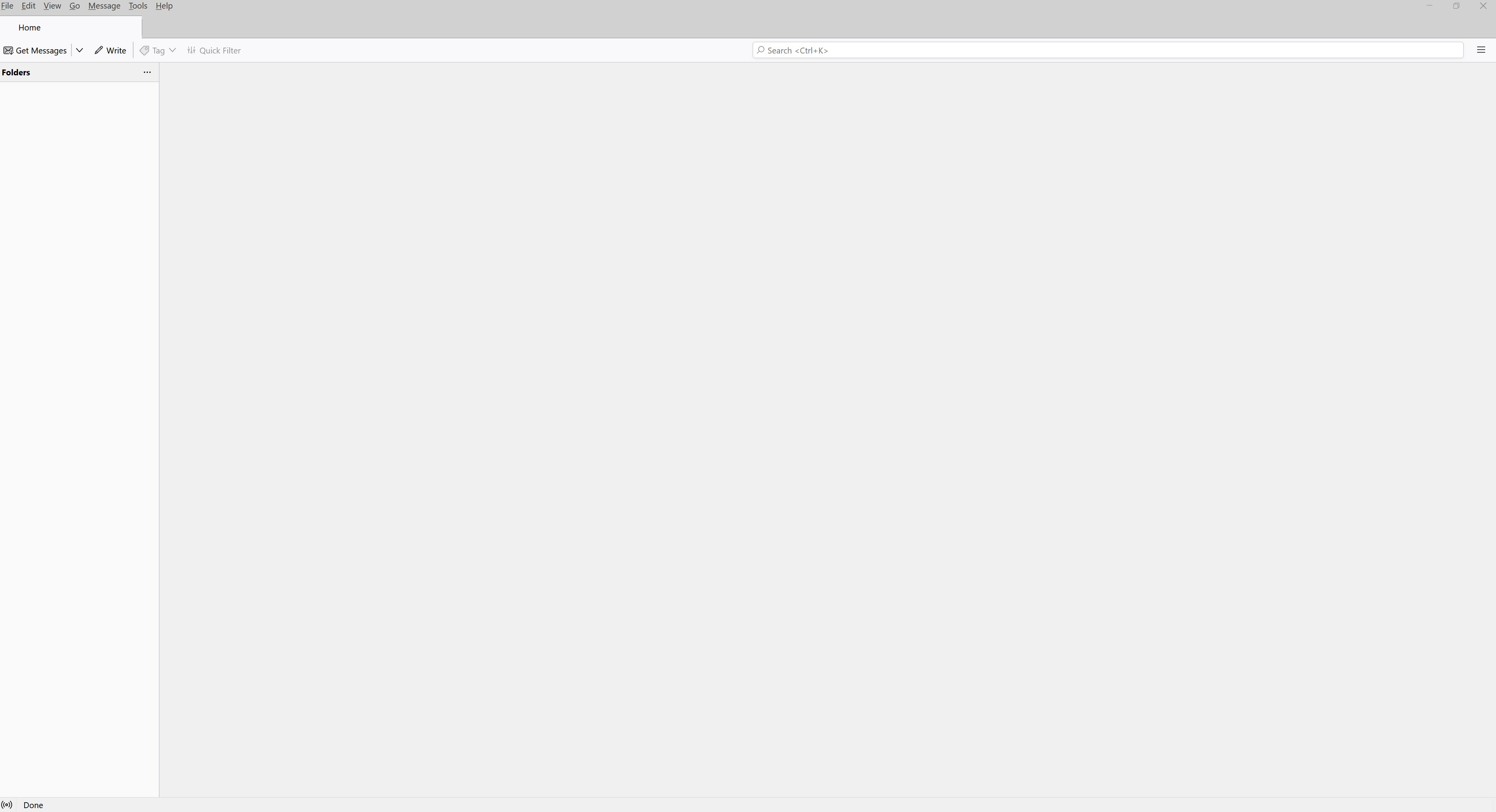
I have been using Thunderbird for many years and have previously updated without problem. But upon updating to version 102.1.2 I suddenly couldn't see my folders or emails (see attached image). However, if I search for an email I will get a list containing the relevant emails, but as soon as I click on an email in the list I go back to the blank screen like at login with no folders or emails.
I have trawled through related fixes and have tried deleting all of the .msf files in my profiles but to no avail. I really hope that someone will be able to assist.
被采纳的解决方案
Toad-Hall said
Do a clear down again, but the restart will be slightly different. First clear the Error Console:
- 'Tools' > 'Developer tools' > 'Error Console'
- Clear the error console then close that window.
It opens a new window showing the contents of the 'profile name' folder.
- Menu icon > Help > More TRoubleshooting Information
- Under 'Application Basics' about half way down is 'Profile Folders' - click on 'Open Folder'
- In mac this might be called 'Open Finder'
delete the following files - note some files may not have been created
- Exit Thunderbird now this is important.
This time I need you to start Thunderbird using 'Run as Administrator' - this is important.
- folderCache.json
- folderTree.json
- virtualFolders.dat
- session.json
- xulstore.json
If this fails:
- Right click on the Thunderbird shortcut icon and select 'Run as Administrator'
- 'Tools' > 'Developer tools' > 'Error Console'
- Post image of Error Console
AustThunderbird.... as this is now fixed and the info I supplied provided the Solution, could you mark that comment as 'Chosen Solution' as it may help other users to locate it.
定位到答案原位置 👍 0所有回复 (6)
Do a clear down again, but the restart will be slightly different.
First clear the Error Console:
- 'Tools' > 'Developer tools' > 'Error Console'
- Clear the error console then close that window.
- Menu icon > Help > More TRoubleshooting Information
- Under 'Application Basics' about half way down is 'Profile Folders' - click on 'Open Folder'
- In mac this might be called 'Open Finder'
It opens a new window showing the contents of the 'profile name' folder.
- Exit Thunderbird now this is important.
delete the following files - note some files may not have been created
- folderCache.json
- folderTree.json
- virtualFolders.dat
- session.json
- xulstore.json
This time I need you to start Thunderbird using 'Run as Administrator' - this is important.
- Right click on the Thunderbird shortcut icon and select 'Run as Administrator'
If this fails:
- 'Tools' > 'Developer tools' > 'Error Console'
- Post image of Error Console
Fantastic! For the first time in two months I can see my email and folders. I did as you said except
folderTree.json, session.json and virtualFolders.dat didn't exist. A file virtualFolders-1.dat did exist and so I deleted it too.
After restarting as Administrator seemingly all files and emails appeared.
Do you have any idea what the cause of my troubles was?
Thanks you very much.
AustThunderbird said
....A file virtualFolders-1.dat did exist and so I deleted it too. After restarting as Administrator seemingly all files and emails appeared. Do you have any idea what the cause of my troubles was?
Can you estimate how many folders you have??
AustThunderbird said
Fantastic! For the first time in two months I can see my email and folders. I did as you said except folderTree.json, session.json and virtualFolders.dat didn't exist. A file virtualFolders-1.dat did exist and so I deleted it too. After restarting as Administrator seemingly all files and emails appeared. Do you have any idea what the cause of my troubles was? Thanks you very much.
Good news indeed. Information is being collected and passed on to the developers. It seems a some files may have been incorrectly updated because sometimes just deleting or using a backup file fixes the situation. But it also suggests a change in the permissions occured. When Thunderbird updated, the permissions were not inherited, so the computer would not allow some files or folders in Thunderbird to run in the computer User Account. Why this occurred is something that would be nice to know.
Question: On your computer, you have a 'User Account' which you logon to when you start computer to see your desktop. Is that 'User Account' set up as 'Administrator' ? In Windows search type Settings' - select 'Settings' click on 'Accounts' and select 'Your Info', it should say if you are 'Administrator'.
选择的解决方案
Toad-Hall said
Do a clear down again, but the restart will be slightly different. First clear the Error Console:
- 'Tools' > 'Developer tools' > 'Error Console'
- Clear the error console then close that window.
It opens a new window showing the contents of the 'profile name' folder.
- Menu icon > Help > More TRoubleshooting Information
- Under 'Application Basics' about half way down is 'Profile Folders' - click on 'Open Folder'
- In mac this might be called 'Open Finder'
delete the following files - note some files may not have been created
- Exit Thunderbird now this is important.
This time I need you to start Thunderbird using 'Run as Administrator' - this is important.
- folderCache.json
- folderTree.json
- virtualFolders.dat
- session.json
- xulstore.json
If this fails:
- Right click on the Thunderbird shortcut icon and select 'Run as Administrator'
- 'Tools' > 'Developer tools' > 'Error Console'
- Post image of Error Console
AustThunderbird.... as this is now fixed and the info I supplied provided the Solution, could you mark that comment as 'Chosen Solution' as it may help other users to locate it.
[Wayne Mery] Can you estimate how many folders you have?? I have about 30 folders.
[Toad-Hall] User Account' set up as 'Administrator' ? Yes, I am "Administrator". Also, UAC "Notify me only when apps try to make changes to my computer (default)"
Let me know if you have further questions regarding my PC/software setup.
Toad-Hall and Wayne many thanks for your help.