


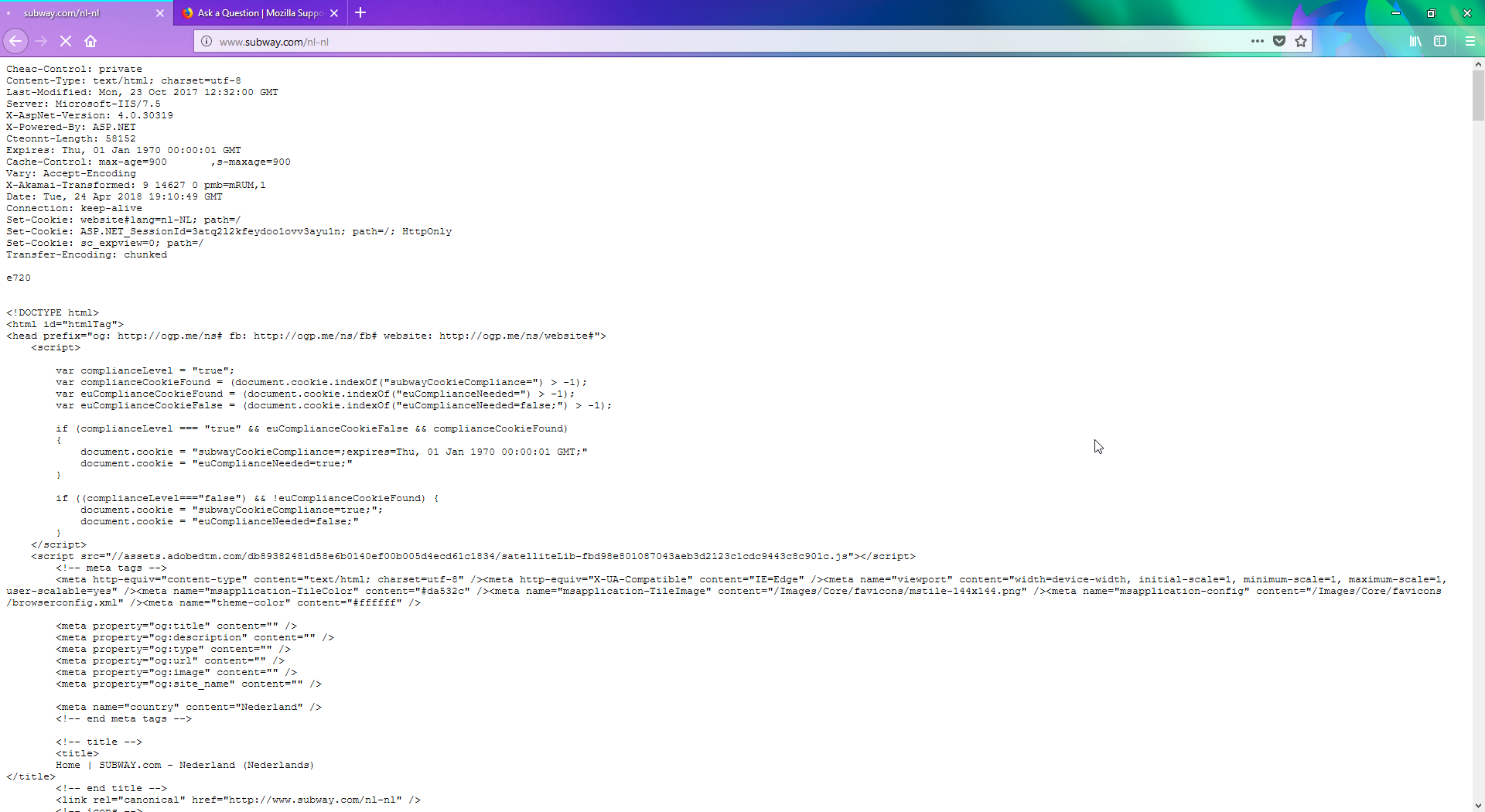
Websites don't load properly.

The image perfectly sums up what I get with 90% of the websites I visit.
The browser doesn't stop loading. I can't get the sites to work, at all. And re-installing my browser doesn't work. This all happened after my ESET32 did a virus scan and deleted a bunch of files. I can't seem to fix this issue at all. I've also tried running the browser in safe mode, but this doesn't seem to be doing anything either.
Any help would be very much appreciated.
被采纳的解决方案
It's possible that some Firefox files were corrupted.
Let’s do a full clean re-install;
Download Firefox For All languages And Systems {web link}
Save the file. Then Close Firefox.
Using your file browser, open the Programs Folder on your computer.
Windows: C:\Program Files C:\Program Files (x86)
Mac: Open the "Applications" folder. https://support.mozilla.org/en-US/kb/how-download-and-install-firefox-mac
Linux: Check your user manual. If you installed Firefox with the distro-based package manager, you should use the same way to uninstall it. See Install Firefox on Linux; https://support.mozilla.org/en-US/kb/install-firefox-linux
If you downloaded and installed the binary package from the Firefox download page, simply remove the folder Firefox in your home directory. http://www.mozilla.org/firefox#desktop ++++++++++++++++++++++++++++ Look for, and remove any Mozilla or Firefox program folders. Do not remove the Mozilla Thunderbird folder if there is one.
Do Not remove any profile folders.
After rebooting the computer, run a registry scanner if you have one. Then run the installer. +++++++++++++++++++++++++++ If there is a problem, start your Computer in safe mode and try again.
http://encyclopedia2.thefreedictionary.com/Linux+Safe+Mode This shows how to Start all Computers in Safe Mode; Free Online Encyclopedia
定位到答案原位置 👍 0所有回复 (4)
Posting the image in the replies because it was missing somehow.

选择的解决方案
It's possible that some Firefox files were corrupted.
Let’s do a full clean re-install;
Download Firefox For All languages And Systems {web link}
Save the file. Then Close Firefox.
Using your file browser, open the Programs Folder on your computer.
Windows: C:\Program Files C:\Program Files (x86)
Mac: Open the "Applications" folder. https://support.mozilla.org/en-US/kb/how-download-and-install-firefox-mac
Linux: Check your user manual. If you installed Firefox with the distro-based package manager, you should use the same way to uninstall it. See Install Firefox on Linux; https://support.mozilla.org/en-US/kb/install-firefox-linux
If you downloaded and installed the binary package from the Firefox download page, simply remove the folder Firefox in your home directory. http://www.mozilla.org/firefox#desktop ++++++++++++++++++++++++++++ Look for, and remove any Mozilla or Firefox program folders. Do not remove the Mozilla Thunderbird folder if there is one.
Do Not remove any profile folders.
After rebooting the computer, run a registry scanner if you have one. Then run the installer. +++++++++++++++++++++++++++ If there is a problem, start your Computer in safe mode and try again.
http://encyclopedia2.thefreedictionary.com/Linux+Safe+Mode This shows how to Start all Computers in Safe Mode; Free Online Encyclopedia
This has fixed my problem. Thank you very much.
Glad to help. Safe Surfing.