


Disable the new message icon.

Hello. Is it possible to permanently disable the yellow "New" icon informing about new messages?
http://kb.mozillazine.org/Icons_-_Thunderbird
I would like to do this because if I reply to such a new message and I do not mark it as read [M key], the yellow "New" icon is still visible instead of the "Replied" icon. Perhaps when replying to a new message of this type, the "New" icon should always disappear?
Thank you
Усі відповіді (3)
I've just switched off the auto mark as read and tested your case using a forward option and I agree with you. This is a bug.
I forwarded a new unread email to another of my accounts. I noticed: The new mail star icon remained on Inbox folder The new mail icon remained displaying on email. There was no 'forward' icon displaying.
I reported as bug - link below so you can follow. Bug report : https://bugzilla.mozilla.org/show_bug.cgi?id=1791272
However, until this gets fixed there is a way to disable the 'new mail' icon on folders and messages in thread pane.
I do not know if you have ever created a 'userChrome.css' file, so I'm going to provide full information.
- Menu app icon > Settings
- Select 'General'
- Scroll to the bottom and click on 'Config Editor' button
- Accept Dragons warning
- In search type: legacy
- Look for this line: toolkit.legacyUserProfileCustomizations.stylesheet
If it is set to 'False'
- Double click on that line or use toggle icon to toggle the 'False' to 'True'
In Thunderbird
- Menu icon > Help > More Troubleshooting Information
- Under 'Application Basics - 'Profile Folder' - Click on 'Open Folder'
A window should open showing the contents of your 'profile name' folder.
- Exit Thunderbird now.
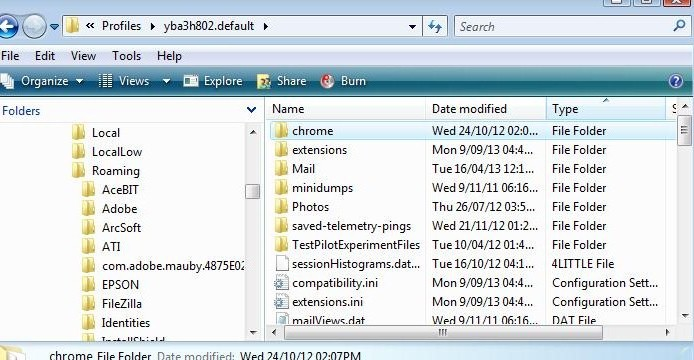
- Create a new folder and call it chrome - note the spelling - all lower case.
The 'chrome' folder should be in the 'profile name' folder - same place as the 'Mail' folder. See image below.
- Open a text editor like Notepad.
- Copy everything between lines below into Notepad.
/*
 * Do not remove the @namespace line -- it's required for correct functioning
*/

@namespace url(http://www.mozilla.org/keymaster/gatekeeper/there.is.only.xul);

/* Hides the 'new mail' icon in Thread Pane */
treechildren::-moz-tree-image(subjectCol, new) {
  list-style-image: none !important;
}


/*Hide the 'new mail' icon in Folder Pane */
#folderTree treechildren::-moz-tree-cell-text(folderNameCol, newMessages-true) {
 background-image: none !important;
}
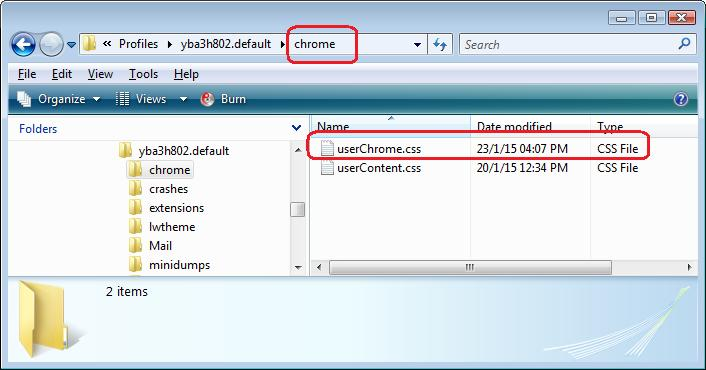
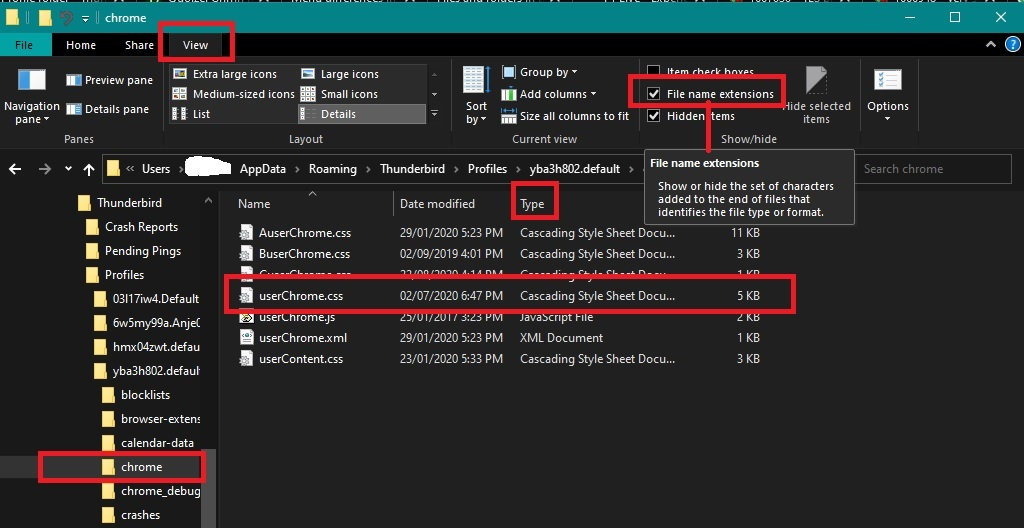
- save the file as userChrome.css (note spelling - all lower case except for the 'C' ) in the 'chrome' folder. See second image.
check you really have saved it as a userChrome.css (Cascading Style Sheet Document) and not a Text Document with filename userChrome.css.txt
Start Thunderbird.
Thank you Sir, I will try to apply this detailed solution :).