


Can't See Message List Column Headers

I installed Thunderbird 138.0.1 (64-bit) on a Win 11 desktop computer yesterday and the column headers for the messages are not displayed. I have View/Headers/All, View/Layout/ Classic View, Folder Pane, Message List Header selected. How can I get access to the message column headers to display them and later select the ones I want ?
Thanks, Corey
ყველა პასუხი (5)
შერჩეული გადაწყვეტა
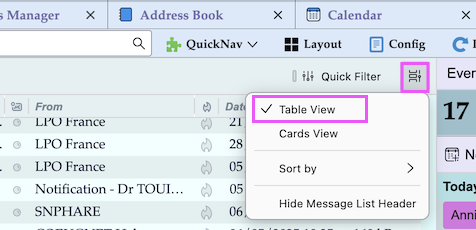
See this page: https://blog.thunderbird.net/2023/08/make-thunderbird-yours-how-to-get-the-thunderbird-115-supernova-look/ and review the graphic at step 2. The short video there clicks a menu that shows Table View and Card View. You seem to be in Card View and you can switch to Table View by clicking the displaying icon.
Hello David,
I watched the video and the screenshots in the video did not have the column headers. I followed the instructions in the video and the program had been set set to Card View. The video says: "Finally we arrive at the Message Header Settings. That's at the top of your email information such as sender's name, contact photo (.., subject, any associated tags, and more. Configuring this to fit your preferences is easy. Just click the "More" button with the downward facing arrow, then select "Customize" and make it yours!" I have a similar setup (i.e. screenshots) as the email in the video two columns (From and Date/Time) with no column headers. I can't find the Message Header Settings or the "More" button with the downward facing arrow. Still in the same situation: No column headers like Received, From, Size, Subject, etc
Your help is much appreciated, Thank you, Corey
I just realized that I needed to be in Table View and all is well now. My mind has been spinning with this issue, and I was dizzy, much better now.
Thank you very much, Corey
There are no thread pane column headers if you use the new "Cards View" in the thread pane. This is the default view when you install TB with a new profile. To switch to the classic "Table View" with the the different columns such as Subject, From, Date, Size etc you have to click on the icon on the right of the "Quick Filter" button (see picture) and select ✔ "Table View" in the drop-down menu
Thank you I figured it out about 10 minutes ago and Table View works for me. Much appreciated, Thank you, Corey