


Steps for customizing latest version TBird viewing panes

I've been a Netscape-based user for almost as long as home IT has been around. Am attempting to finally take the plunge and get away from the Seamonkey Suite to use just Thunderbird for emails, and the wife would like some of the same viewing pane colors to be the same as she's used to.
Following assorted online suggestions for enabling the use of 'userChrome.css' to change the background colors of folderPane, threadPane and messagePane aren't having any effect. I've:
- Set 'toolkit.legacyUserProfileCustomizations.stylesheets' to TRUE
- Created 'chrome' folder and specimen .CSS file
- Added color values for the above properties
- Restarted TBird after each setting change attempt, but no views are changing
I've also attempted to make heads/tails out of guidance for using Debugging Tools to inspect elements to find/verify the current names of properties that I want to change, but have not been able to work that out.
I'm not a complete IT novice--I am a 20-yr sysadmin, not a developer. I can write PowerShell, but no HTML experience. Take pity on an old man?
所有回复 (5)
Folder pane background color:
#folderPane {
background-color: #E6E6FA !important; }
Thread pane background color:
.tree-table  {
 background-color: lavenderblush !important;  }
Message pane (and compose window) background color >>>> in userContent.css file <<<<<
 HTML, body {
 background-color: #e8edf2; }
由Mapenzi于修改
Thank you , Mapenzi. Sadly, nothing has changed in my T-Bird appearance--all panes viewing/compose are still a white background, as if nothing I change is actually being applied, regardless of the color value used. That's why I started this thread, to verify what terms I use in my userChrome.css to make the changes. Now I'm wondering if there's another setting or reg key not set to complete the config to actually use the colors I'm after.
I should be applying the personalizations, please see attached screenshots for current settings and file paths. Ref the callouts in the userChrome file, there have been several different item names used to date, and not 1 of which has made a difference.

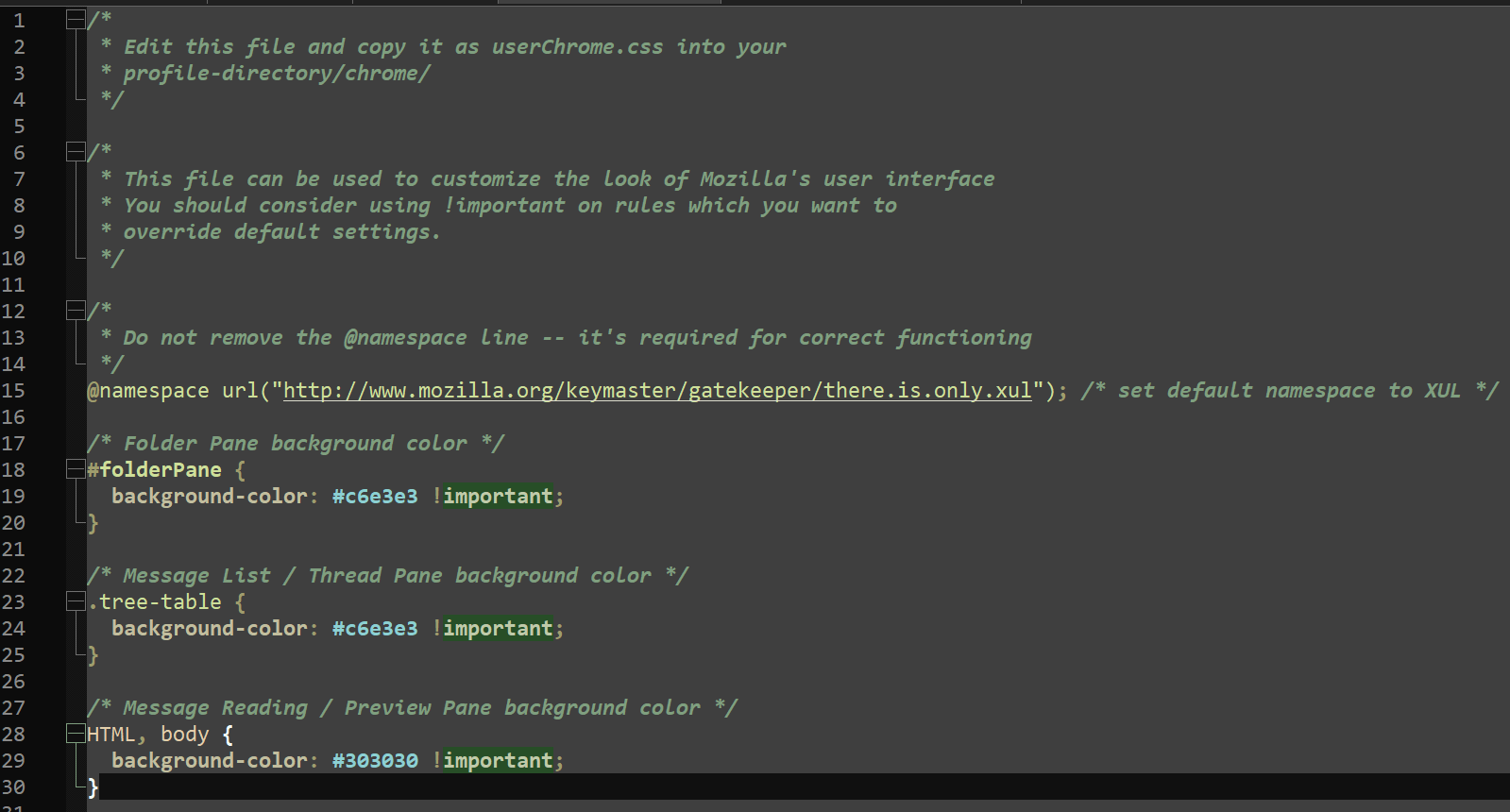
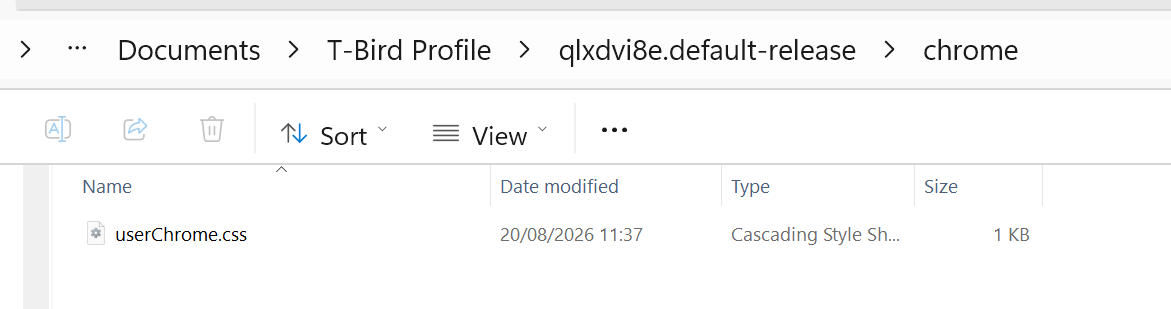
Please test the following CSS codes in your userChrome.css file:
#folderPane {
background-color: #E6E6FA !important; }
 .tree-table  {
 background-color: lavenderblush !important;  }
Do NOT add the @namespace url("http..... ) line
The following CSS code must be used in a userContent.css file:
HTML, body {
background-color: #e8edf2; }
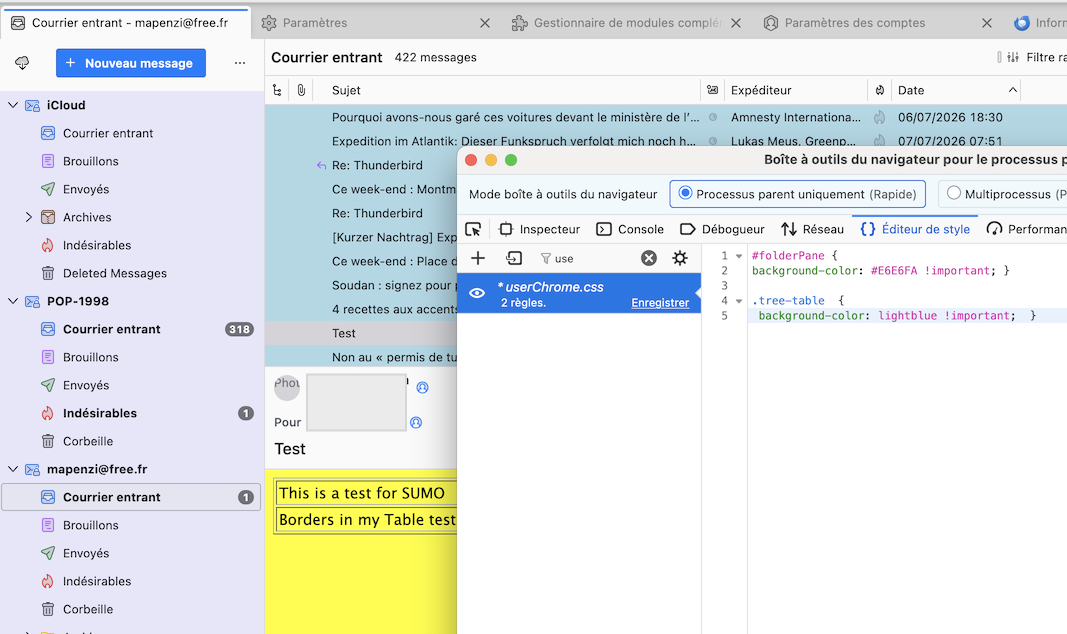
I've tested the above CSS codes in one of my Thunderbird 153 profiles using the "System theme".
I used different color codes to emphasise the difference to a default white background (see picture)
由Mapenzi于修改
Mapenzi, the removal of the '@namespace' line cured the application, many thanks. Syntax is everything! Your last reply included a color name instead of a hex value for the '.tree-table' line--is the use of either OK, or is there a standards requirement either way?
The Message view pane now has a dark grey background with no message selected (I'll adjust the color), but any message being previewed there, and any new message being composed, are both still white backgrounds. I've included your 'HTML, body' statement and left off the '!important' switch, but including that switch makes no difference.
Any online guidance that doesn't take months to read thru to highlight how the object references in the CSS files seen in Developer relate to the on-screen items? That would appear to be my sticking point, knowing how to work out those links.
Rick Pugh said
Mapenzi, the removal of the '@namespace' line cured the application, many thanks. Syntax is everything! Your last reply included a color name instead of a hex value for the '.tree-table' line--is the use of either OK, or is there a standards requirement either way?
You can use either hex values or color names like blue, violet , yellow, lightblue, ....etc. There are color tables one can find easily, e. g. https://cloford.com/resources/colours/500col.htm
Rick Pugh said
The Message view pane now has a dark grey background with no message selected (I'll adjust the color), but any message being previewed there, and any new message being composed, are both still white backgrounds. I've included your 'HTML, body' statement and left off the '!important' switch, but including that switch makes no difference.
This code doesn't work for you since you didn't read my instructions! I wrote twice that YOU MUST NOT copy & paste the code
 HTML, body {
 background-color: #e8edf2; }
in the userChrome.css file BUT in another text file you'll have to create and name userContent.css Then move this new file in the folder chrome in your profile folder.
Rick Pugh said
Any online guidance that doesn't take months to read thru to highlight how the object references in the CSS files seen in Developer relate to the on-screen items? That would appear to be my sticking point, knowing how to work out those links.
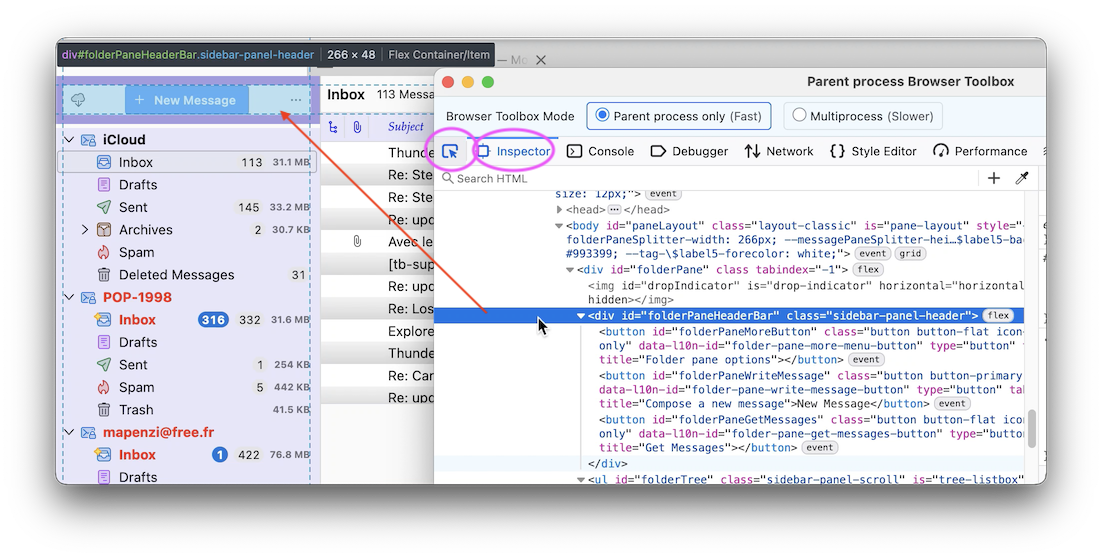
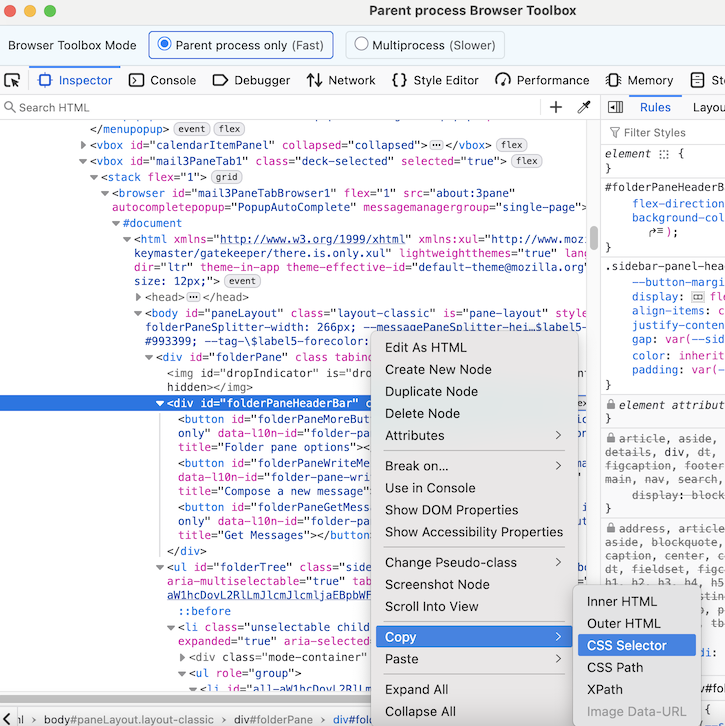
You can have look at this page https://www.uslsoftware.com/developer-toolbox-in-thunderbird/ When you open the developer toolbox in front of the Thunderbird window you must activate two buttons on the left of the toolbar: the small arrow sign for picking an element in the GUI and the Inspector. Then with you mouse pointer "pick" the element in Thunderbird for which you want to know the id or CSS selector. In my screen shot I've identified the id="folderPaneHeaderBar" and when you right-click on the blue line you can select "Copy CSS Selector" in the context menu
由Mapenzi于修改