


How can I manually add a website to "local network devices" settings?

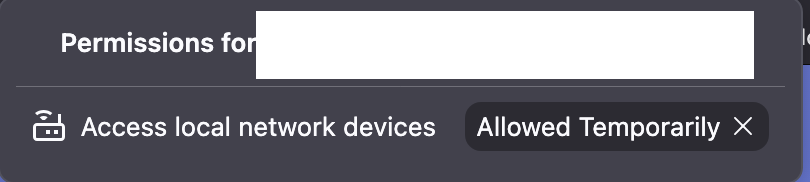
There is a website that when I visit it , it Firefox prompts me if I want to grant it access to Local Network Devices. The page continually refreshes, so the checkbox to "allow always" unchecks in a fraction of a second after I check it.
The result is the site is only temporarily allowed to connect to Local Network Devices but I want it to be permanent.
Since I cannot check the "always allow" checkbox, I'm looking to manually grant the website permission. Looking at Settings->Local Network Devices, I don't see a way to add a website to the allowed list.
Is there a work around I can use to achieve my goal? Perhaps something I can edit in about:config?
选择的解决方案
This is what worked for me
1. Open about:config 2. Navigate to network.lna.skip-domains (string) 3. The add / remove website from list.
所有回复 (4)
Hi,
When visiting the website:
- Click the shield icon in the address bar.
- Click "Connection secure >" in the top right corner of the panel that opens.
- Click More site information at the bottom of the panel that opens.
- Select the Permissions tab at the top of the window that opens.
- Under Access local network devices, uncheck Use Default and select Allow.
Or key combo Command + i should open the page info panel for you right away — that has the list of permissions.
选择的解决方案
This is what worked for me
1. Open about:config 2. Navigate to network.lna.skip-domains (string) 3. The add / remove website from list.
jbr said
Or key combo Command + i should open the page info panel for you right away — that has the list of permissions.
I can't try it now that I've fixed the issue, but definitely next time. I'm not sure how well operations inside of the same tab will work while the web page is constantly reloading.