


Messages layout

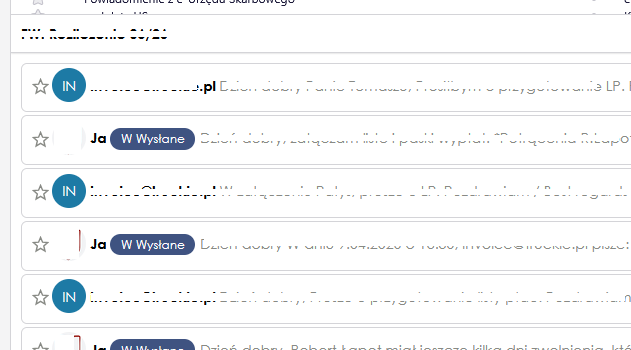
How can I get the message layout shown in the attached screenshot?
选择的解决方案
@Wayne, I think that Tomasz's image corresponds to Thunderbird with the "Conversations" add-on and a Sort By > Threaded view
由Mapenzi于修改
所有回复 (9)
Hello there\Moderator 5/7/2026 / 01:48 / europe.
Hello there
Tomasz kos.
Supernova look Yes, you can get this layout if you are using Thunderbird version 115 or newer. The screenshot you provided shows Thunderbird utilizing the Vertical View layout combined with the Cards View message list.
To set this up on your own screen, follow these steps: 0Click the Application Menu button (the three horizontal lines in the top right). 1Navigate to View > Layout and check Vertical View. (This moves your email preview pane to the right). 2Look at the top right of your message list (just to the right of the Quick Filter button) and click the Message list display options icon. 3Select Cards View from the dropdown menu.
由Googlethunderbird.于修改
@googlethunderbird @tomasz
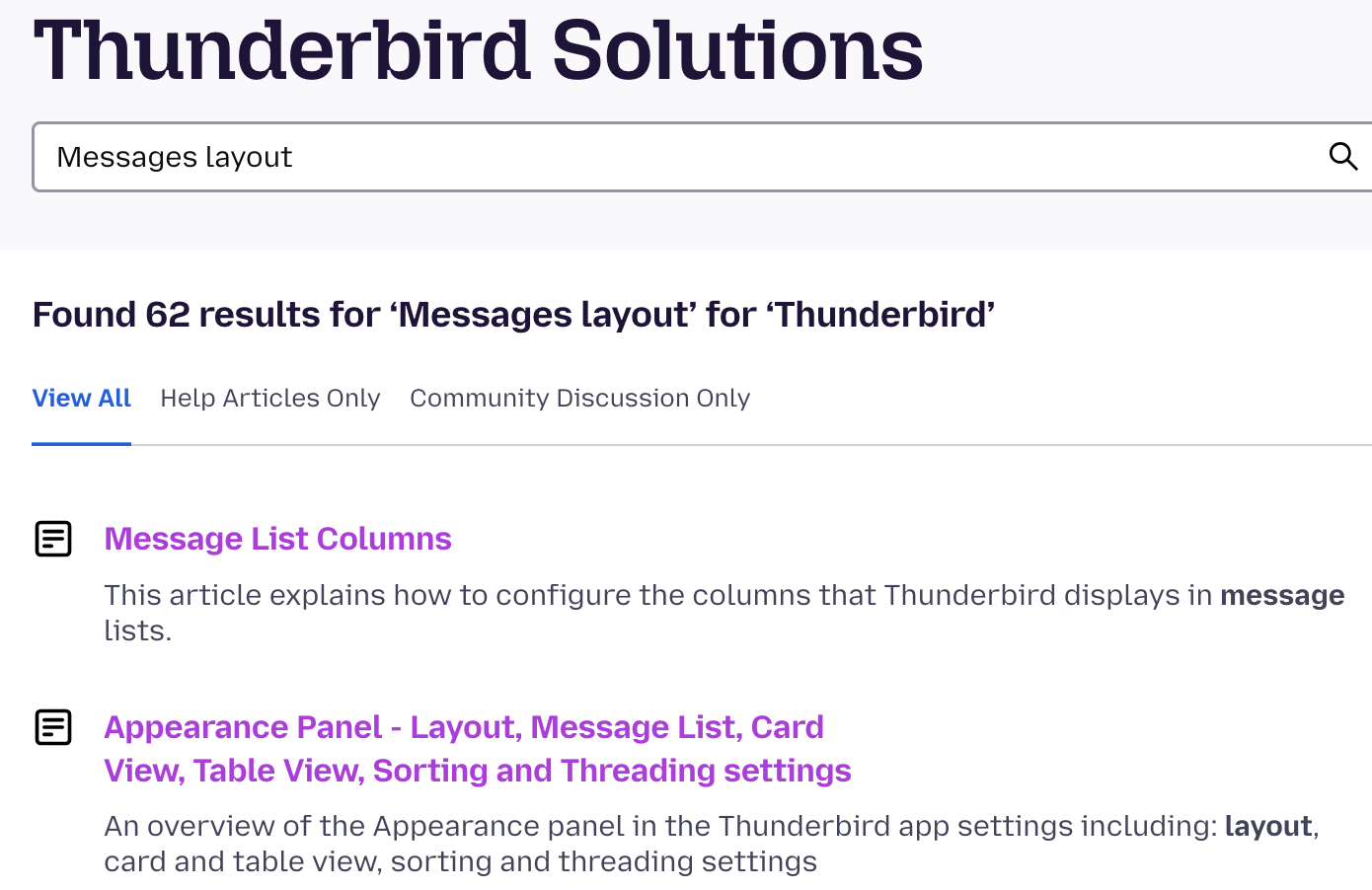
When you type the subject of your question, this support system provides you with possible matching KB articles, which are your friend.
In your case, "Messages layout", the second link in the list gives you https://support.mozilla.org/en-US/kb/appearance-panel-layout-message-list-card-view-tab
由Wayne Mery于修改
Googlethunderbird. said
Hello there\Moderator 5/7/2026 / 01:48 / europe. Hello there Tomasz kos. Supernova look Yes, you can get this layout if you are using Thunderbird version 115 or newer. The screenshot you provided shows Thunderbird utilizing the Vertical View layout combined with the Cards View message list. To set this up on your own screen, follow these steps: 0Click the Application Menu button (the three horizontal lines in the top right). 1Navigate to View > Layout and check Vertical View. (This moves your email preview pane to the right). 2Look at the top right of your message list (just to the right of the Quick Filter button) and click the Message list display options icon. 3Select Cards View from the dropdown menu. Use https://www.thunderbird.net/en-US/thunderbird/all/
I don't have a card view to choose from. I only have a table view and a business card view.
Thunderbird version 152.0.1 (64 bity)
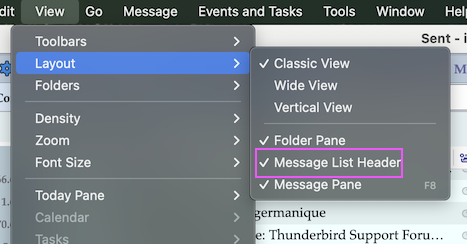
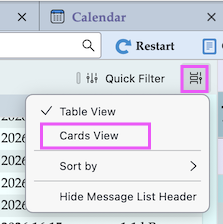
@Tomasz, first go to the View > Layout menu und verify that the item "Message List Header" is checked. Then in the right corner of the message list header click on the "Message list display options" button and select "Card View" in the drop down menu
Mapenzi said
@Tomasz, first go to the View > Layout menu und verify that the item "Message List Header" is checked. Then in the right corner of the message list header click on the "Message list display options" button and select "Card View" in the drop down menu
All the problem is that I have not "Card View" to chose in menu you wrote :(((
Tomasz Kos said
All the problem is that I have not "Card View" to chose in menu you wrote :(((
If you don't understand my indications and screen shots please consult the link to the help article proposed by Wayne.
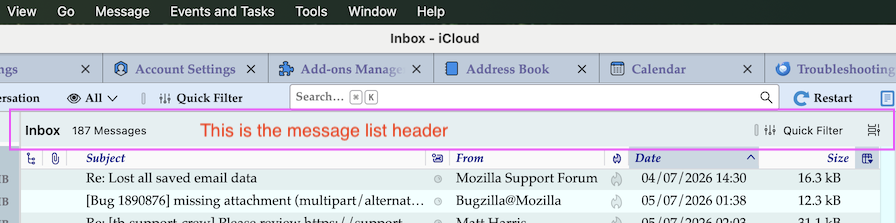
由Mapenzi于修改
Tomasz, your original screen shot is not list of messages of table view nor cards view. It is the message body summaries provided by the addon https://addons.thunderbird.net/en-US/thunderbird/addon/gmail-conversation-view/
Setting "Cards View" (once you find it) will not give you the display you have posted.
选择的解决方案
@Wayne, I think that Tomasz's image corresponds to Thunderbird with the "Conversations" add-on and a Sort By > Threaded view
由Mapenzi于修改
OMG, yes! Thanks a lot!