


Inbox Mail Error Message "A unique identity matching the From address was not found..."

In the last 24 hours all messages in the "Inbox" (new and old) no longer have a "From" email address and default to my email address, at the bottom of the screen is the following message "A unique identity matching the From address was not found. The message will be sent using the current From field and settings from identity Marcus Relton <my email address>". These emails once opened continue to be "unread", the option to typical options of a new email such as; delete are not available and they appear as if drafts. This is only occurring in the "Inbox", if mail is moved to another folder within the server folders or local folders the email appears and functions are normal. I read the following thread https://support.mozilla.org/en-US/questions/1457302, which only references updating the Inbox Flag Properties, however I do not have this option. See images of emails and properties for reference. (I have redacted my email address)
OS is Windows 11 Thunderbird is up to date as well. I have made no changes in the last 24 hours with the exception of adding a new "Tag" for email identification.
I would appreciate any help. Thanks Kristen P
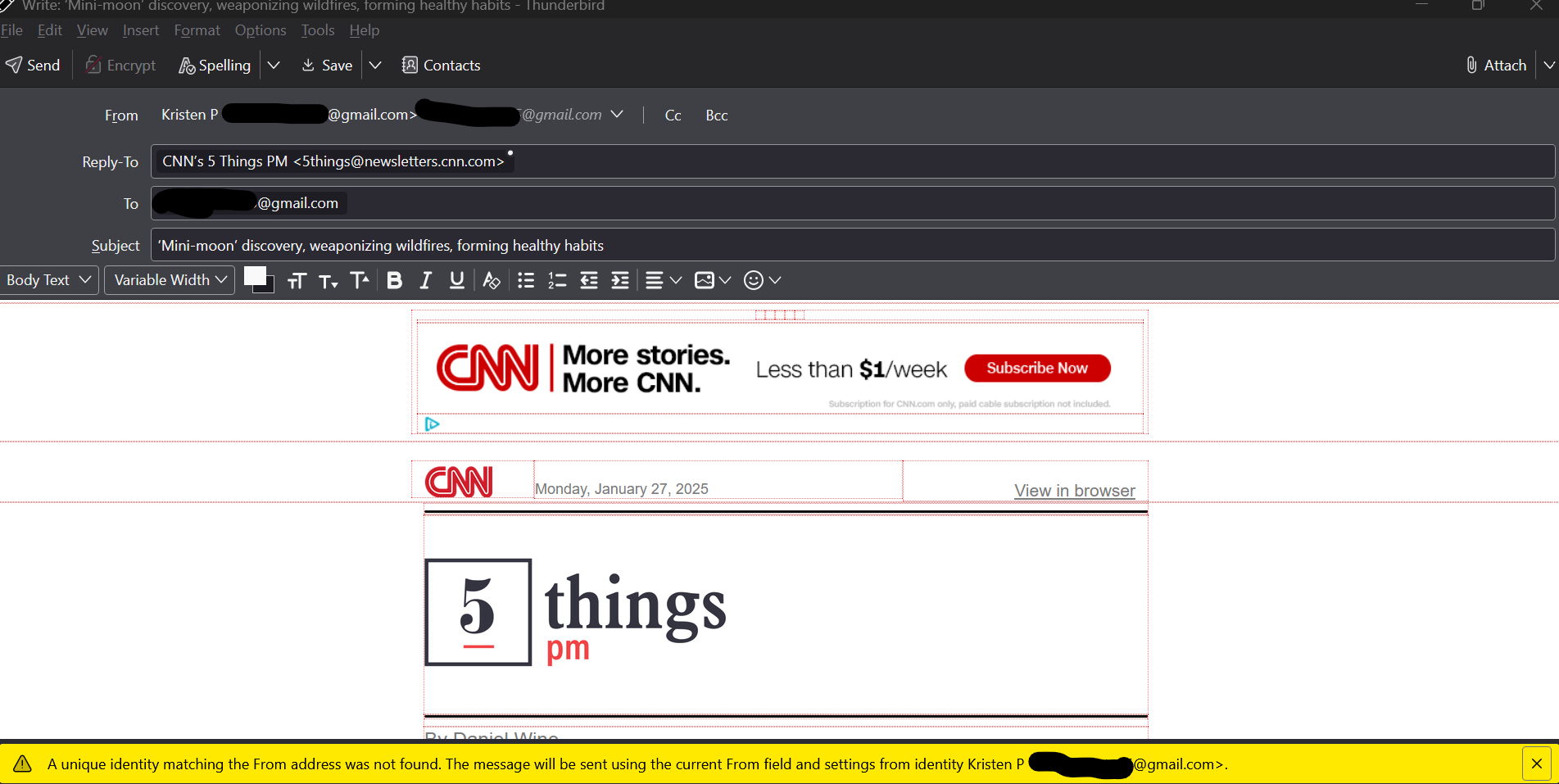
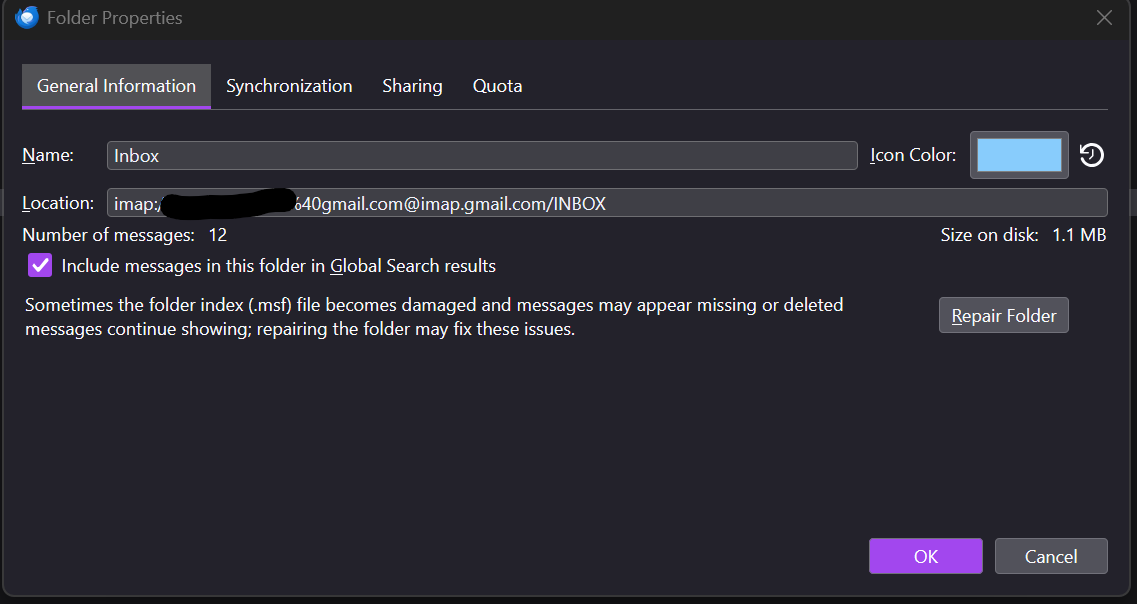
被采纳的解决方案
Did you install the FolderFlags add-on?
https://support.mozilla.org/en-US/kb/installing-addon-thunderbird
The Flags tab should appear in Properties, even for gmail IMAP accounts.
定位到答案原位置 👍 0所有回复 (4)
选择的解决方案
Did you install the FolderFlags add-on?
https://support.mozilla.org/en-US/kb/installing-addon-thunderbird
The Flags tab should appear in Properties, even for gmail IMAP accounts.
@sfhowes. Thank you, this fixed the issue.

Thunderbird thinking Inbox is a drafts folder… So funny… xD
So I figured there had to be a way to fix this without having to install the add-on, and there is. I installed the add-on to set the flag instead of to remove it, then did successfully remove the flag without using the add-on doing this:
- Open the account Copies & Folders settings.
- Under Drafts and Templates, choose Other, then select the account Inbox. You have to select the folder that has the problem here, not some other folder.
- Close the account settings (not sure this is necessary).
- Open Copies & Folders again and change the Drafts folder setting back to what it was. This is where having selected the right folder before matters, because it's when the folder that had been chosen to store drafts stops having that role that the flag is removed.
HTH… And looking forward to see more funny stories like this… :)
由DavidGG于修改

I had same problem. I downloaded the FolderFlag addon .. but made no difference.
This however quickly resolved the issue.
1) Highlight your email Inbox Folder in question. 2) Right Click and select Properties 3) From the screen displayed with headings select Flags 4) Untick Drafts so that only Inbox is selected 5) Okay and close
Your email display will now return to normal functioning display. :)
由acchapman7于修改