How can I see my Address Books in Thunderbird?
My hundreds of collected email addresses are still in Thunderbird (v60***), and can be seen one at a time when sending an email. But I used to be able to see and maintain entire address books from the Menu Bar, but now I don't see any even though the addresses are hidden inside Thunderbird. I've tried reinstalling, and updating but the address books still remain hidden. I can locate the impab.mab file that contains the addresses, and I can see the contacts listed therein. But this isn't the way it's supposed to work. The address books I'd most like to retrieve and keep out front are the "Thunderbird Address Book" , the "Personal Address Book", and the "Collected Addresses".
由James Burke于修改
所有回复 (10)
选择的解决方案
Start Thunderbird in 'SafeMode' to ensure no other addon etc is conflicting with Thunderbird.
Do you see the 'Address Book' button on the 'Mail Toolbar' ?
If no:
- Right click on 'Mail Toolbar' and select 'Customise'
- A new 'customise' window opens.
- click on 'Restore default set' button
- click on 'Done'
If yes: Click on 'Address Books' button Is the left pane visible? 'View' > 'Layout' make sure 'Directory Pane and 'Contact Pane' are selected. Confirm all is selected.
Post an image showing what you see in the 'Address Book' window.
Thanks! After starting in Safe Mode, the address books appeared just as they should be.
Do they still appear when you restart as normal ?
On restart, the Address Books are gone again. If I repeat starting in Safe Mode, the address books appear again. I have no add-ons installed. It's repeatable: if I start in Safe Mode, the address books appear, but not otherwise.
Are you using the default theme in Thunderbird or one you have downloaded and added?
TRy this:
In Thunderbird
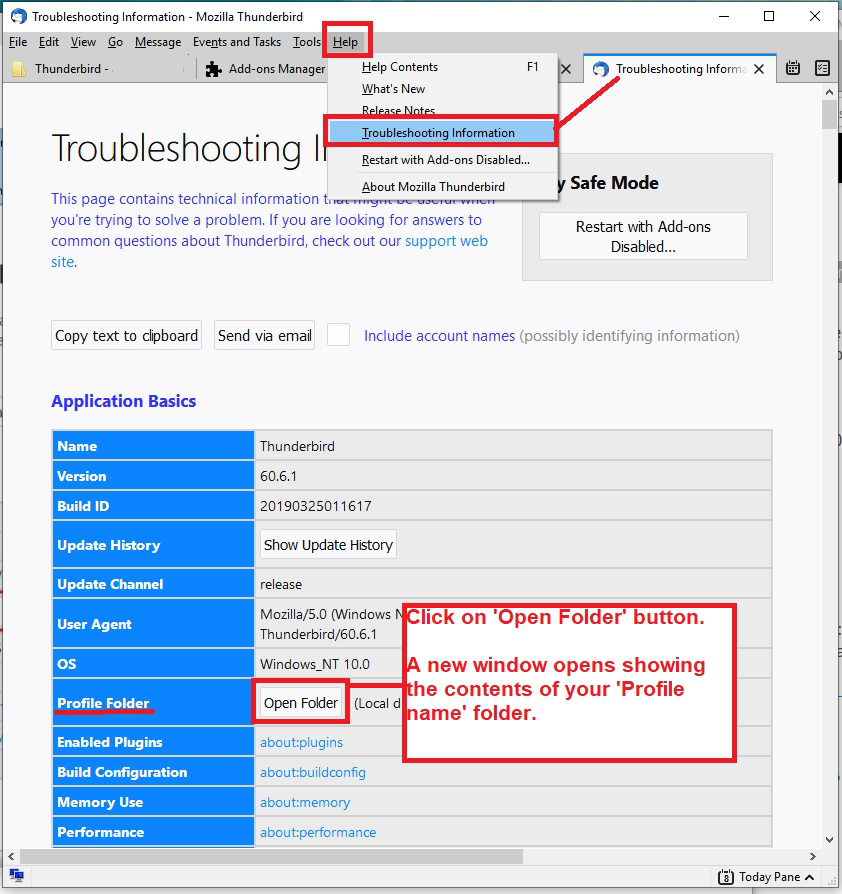
- 'Help' > 'Troubleshooting Information'
- click on 'Open Folder' button
a new window opens showing contents of your 'profile name' folder.
- Exit Thunderbird now - this is important.
Locate and delete the following files:
- directoryTree.json
- session.json
- xulstore.json
Start Thunderbird as normal.
Please report back on results.
I can open and see "Troubleshooting Information", but I don't see an "Open Folder" button.
After searching for the .json files, I don't see any json files within Thunderbird, nor elsewhere. Could they be located somewhere else unexpected?
由James Burke于修改
This is another way to delete xulstore.json: start in safe mode, check 'Reset toolbars and controls', then click 'Make changes and Restart'.
sfhowes said
This is another way to delete xulstore.json: start in safe mode, check 'Reset toolbars and controls', then click 'Make changes and Restart'.
Yes, this seems to work so far :-) I really like TBird, but fixing these occasional bugs is hugely time-consuming so as a result I avoid all add-ons and plugins. They're just not worth this much hassle.
But many thanks for your suggestion. Much appreciated. This is one fix I'll bookmark and keep.
re :I can open and see "Troubleshooting Information", but I don't see an "Open Folder" button.
For future reference: Just in case you need to get access to the 'profile name' folder. See image below.
The image shows how to access via the 'Menu Bar' > 'Help' option. You can also access via the 'Menu icon' on the 'Mail toolbar' using the 'Help' option.