


How to turn off the "quick search", which turns on the key "/"?

When I use google calculator and want to divide something by pressing "/", the bar of "quick search" immediately appears, preventing me from working with a calculator further. Help me please. This is very annoying.
Измењено од стране Mustang_Mus
Одабрано решење
Type about:config in the location (address) bar and press the Enter key to open the about:config page like you open a website by typing the URL in the location bar.
- if you see a warning message then you can confirm that you want to access the about:config page.
See:
- use the Search bar at the top of the about:config page to locate preferences more easily
- preferences that have been modified and do not have the default value show as bold (user set)
- preferences that are user set (bold) can be reset to the default value via the right-click context menu
- preferences can be modified via Modify (String or Integer) or Toggle (Boolean) in the right-click context menu and by double-clicking the line with the pref
- preferences can be created via the right-click context menu: New -> String, Integer, Boolean
Сви одговори (6)
You can look at this extension:
- searchhotkeys: http://nic-nac-project.de/~kaosmos/index-en.html#searchkeys
screenshot
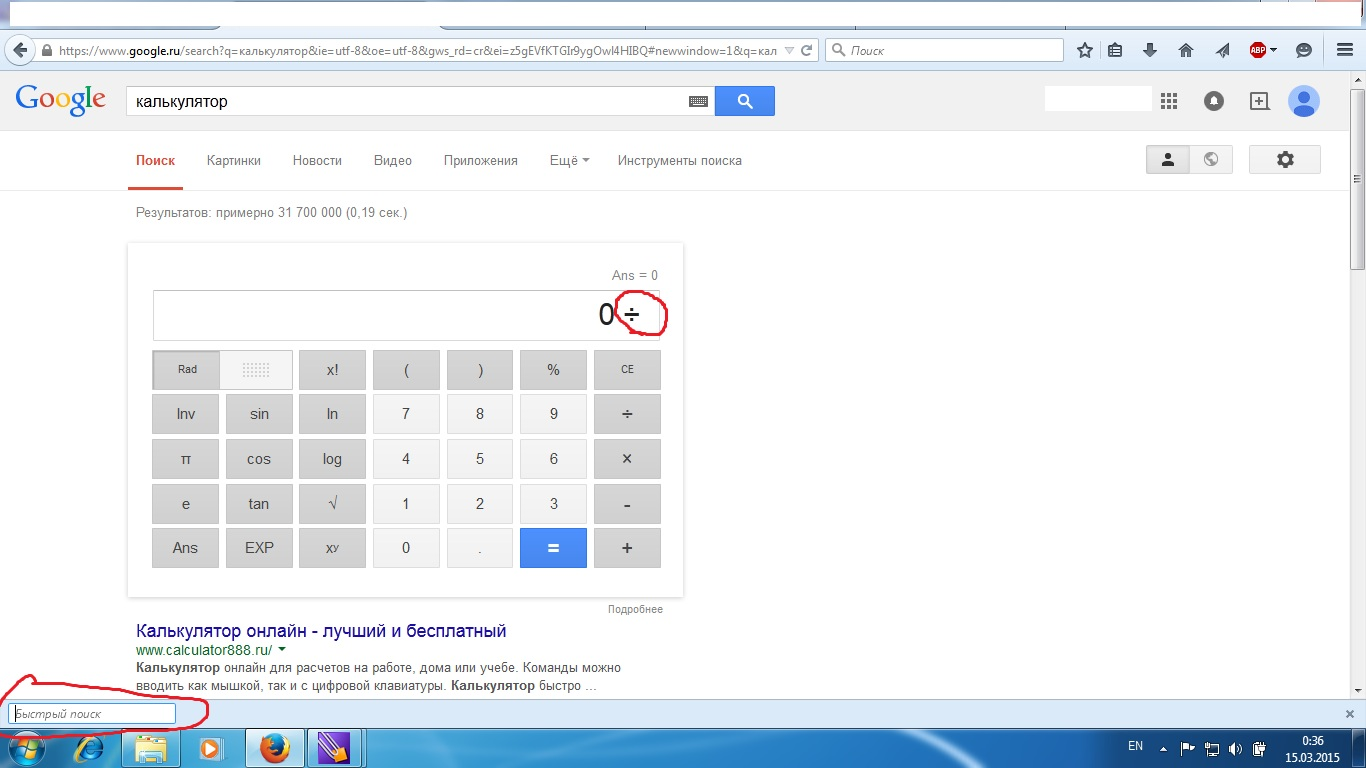
I installed this extension, but I can not find where I should set the preference "extensions.searchhotkeys.disable_all" to true.
Одабрано решење
Type about:config in the location (address) bar and press the Enter key to open the about:config page like you open a website by typing the URL in the location bar.
- if you see a warning message then you can confirm that you want to access the about:config page.
See:
- use the Search bar at the top of the about:config page to locate preferences more easily
- preferences that have been modified and do not have the default value show as bold (user set)
- preferences that are user set (bold) can be reset to the default value via the right-click context menu
- preferences can be modified via Modify (String or Integer) or Toggle (Boolean) in the right-click context menu and by double-clicking the line with the pref
- preferences can be created via the right-click context menu: New -> String, Integer, Boolean
Thanks a lot! I finally disabled this bar.
You're welcome