


Passkeys

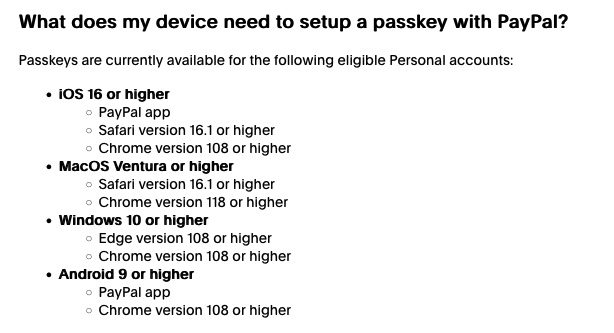
I have been setting up Passkeys to log in to the websites which allow them. But I have noticed on Paypal, they do not allow me to use passkey when using firefox, it only seems to allow chrome
Is there an issue with firefox which deems it not suitable for passkeys?
I noticed that sopmeone asked this question this time last year and it was advised that firefox is now able to create and store passkeys Paypal still dont seem to allow it?
Összes válasz (4)

Is passkey a Firefox browser app?

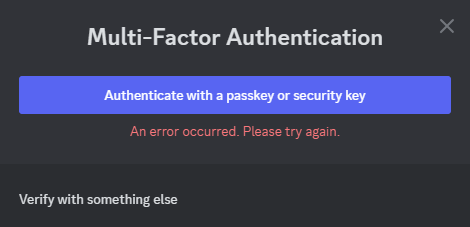
I have the same problem but with Discord. If someone can help, please extend a hand.

Screen shot from the PayPal help/more info page.
From chatgpt
But you CANNOT use passkeys in Firefox on iPad because: • Firefox on iPad doesn’t support the necessary passkey infrastructure. • 1Password’s browser extension doesn’t work in Firefox on iOS/iPadOS, due to Apple’s system restrictions.
⸻
✔️ What to Do:
Option A: Use Safari with 1Password on iPad 1. Open Safari. 2. Go to PayPal.com. 3. Log in and go to Security > Passkeys. 4. When you’re prompted to save or create a passkey: • Choose “Use 1Password” if available. • Or choose “Other options” > 1Password, if Face ID or iCloud Keychain is shown first. 5. It will save the passkey into your 1Password vault.
✅ Now, the next time you log in to PayPal, 1Password can autofill your passkey in Safari.