


Homepage will not load correctly

My homepage is my.yahoo.com and is listed as the start page under Options > General. This address is my customized Yahoo page. When FF v. 21 (just updated yesterday) starts the generic version of My Yahoo starts with the URL http://my.yahoo.com/?_bc=1. So each time I start FF I have to manually log in to Yahoo to get my personalized start page. I check the box to remember me, but to no avail. I have cookies enabled.
Never had this problem until the update. Any ideas?
Chosen Solution
To see all History and Cookie settings, choose:
- Tools > Options > Privacy > Firefox will: "Use custom settings for history"
All Replies (5)
Hello cactusdr, be also sure that you have in Privacy tab > History > Firefox will > CHECK Remember search and form history[v].
thank you
Well done, ideato. Problem solved. Thank you!!
Websites remembering you and automatically log you in is stored in a cookie.
- Create an allow Cookie Exception to keep such a cookie, especially for secure websites and if cookies expire when Firefox is closed.
- Tools > Options > Privacy > Cookies: Exceptions
In case you are using "Clear history when Firefox closes":
- do not clear Cookies
- do not clear Site Preferences
- Tools > Options > Privacy > Firefox will: "Use custom settings for history": [X] "Clear history when Firefox closes" > Settings
- https://support.mozilla.org/kb/Clear+Recent+History
Note that clearing "Site Preferences" clears all exceptions for cookies, images, pop-up windows, software installation, and passwords.
Clearing cookies will remove all specified (selected) cookies including cookies that have an allow exception and cookies from plugins.
cor-el :
Sorry for the late acknowledgement of your post.I remember the settings you propose from previous versions of FF, but in v. 21.xxx if you navigate to Tools > Options > General > History and be certain that "Firefox will: Remember history, all cookies, bookmarks, downloads, etc are retained. That said, if there does exist the capability to create exceptions as a 'backup' measure that would be very welcomed.
Thank you very much
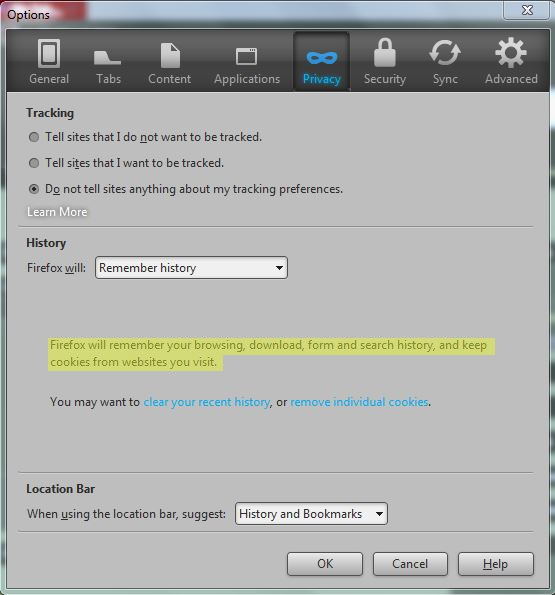
Chosen Solution
To see all History and Cookie settings, choose:
- Tools > Options > Privacy > Firefox will: "Use custom settings for history"