


Removing the babylon search from new tab

hello dear friends i remove the babylon toolbar but the babylon search didn't remove from new tab please help me ... !
Chosen solution
Ok, so we should be able to fix this fairly easily :)
- Type "about:config" into the address bar, then press Enter.
- Accept the Warning
- In the Search bar on this page, Search for "browser.newtab.url" (without
quotes).
- Right click it, and click "reset"
- Restart Firefox.
All Replies (18)
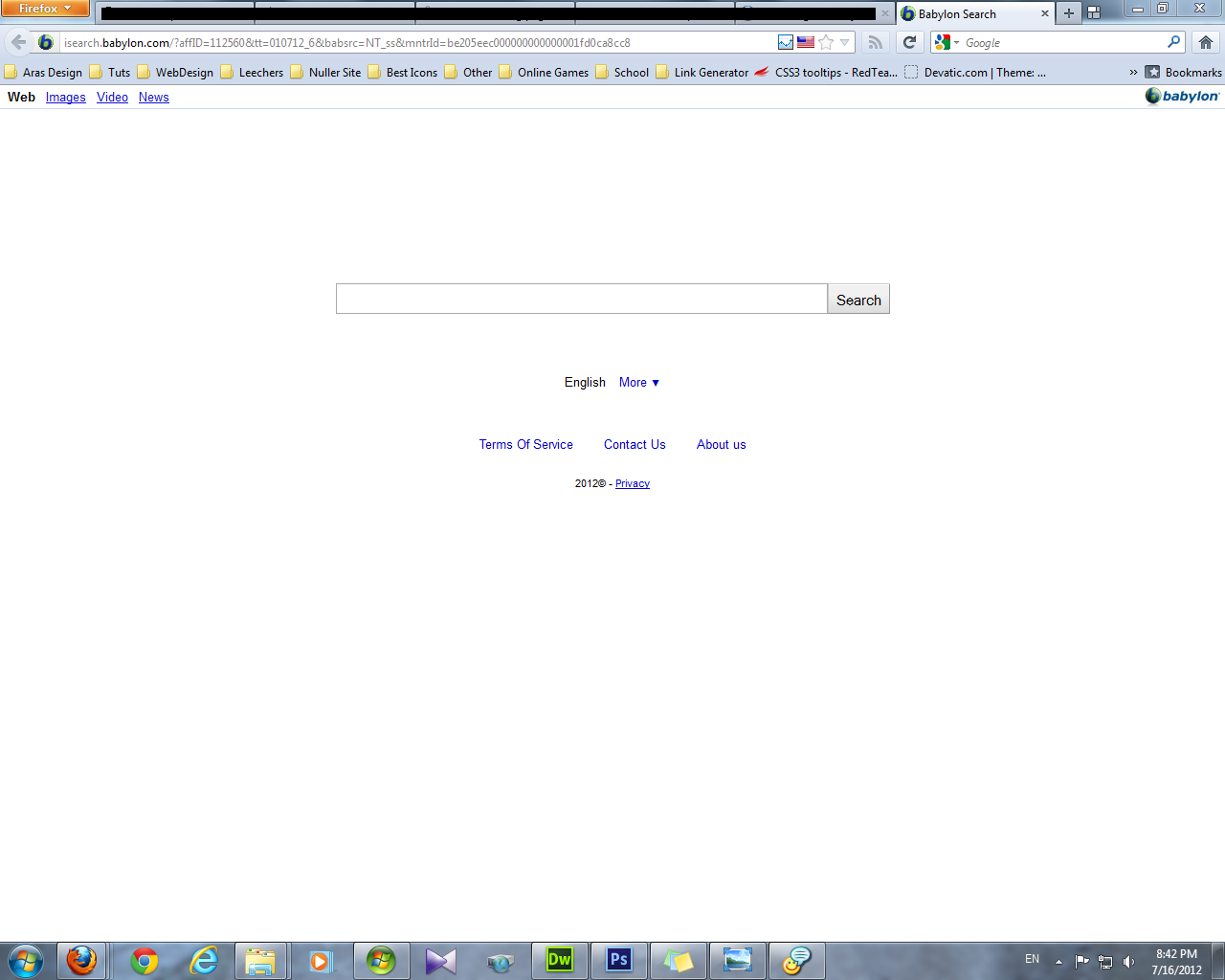
So do you have Babylon appearing when you open a new tab, or is this appearing as one of the small thumbnails on the new tab page? If you can provide a screenshot I'll try to help you get rid of this Babylon reference :)
it is appear when i click on new tab button i upload an image for this problem
Chosen Solution
Ok, so we should be able to fix this fairly easily :)
- Type "about:config" into the address bar, then press Enter.
- Accept the Warning
- In the Search bar on this page, Search for "browser.newtab.url" (without
quotes).
- Right click it, and click "reset"
- Restart Firefox.
Modified by user633449
thanks man ! i hate this page and i must see that every minute . thanks for your help !
Hi, i have the sam problem and i tried the solution but i didnt even get in to a page where i could Search for "browser.newtab.url". can you explain a little more?
If there is a problem with the build-in about:home page then try to reset the search engine used on the about:home page.
Reset the browser.startup.homepage_override.mstone pref via the right-click context menu to the default on the about:config page and close and restart Firefox to restore the about:home page to its default.
- Open the about:config page via the location bar
- Type in the Filter bar: mstone
- Right-click the browser.startup.homepage_override.mstone line and select: Reset
- Close and restart Firefox
If this didn't help then delete the delete the chromeappsstore.sqlite file in the Firefox Profile Folder and repeat the above.
See these pages about Babylon Toolbar:
- http://support.babylon.com/index.php?/Knowledgebase/List/Index/48/english-faq
- http://support.babylon.com/index.php?/Knowledgebase/List/Index/37/installation--technical-support
- [/questions/746530] How do I fully remove Babylon
While most of what is listed here will work. It did not work for me. After uninstalling from my program list and browser add-on list, Babylon was still appearing on my new tab.
What I had to eventually do was the following:
- type about:config in the url address bar of your browser
- accept the warning
- instead of searching for browser.newtab.url search for "babylon" (without the " " quotation marks)
- right click each line and reset every single one that is returned in your babylon search
- set a default search engine (mine is google) on the line that says browser.newtab.url - do this by right clicking and choosing MODIFY to change to your desired search engine.
* when you type about:config and search babylon.... voila .. all gone.
Finally no more freaking babylon search on my new tabs.
Also to be doubly sure. you may want to do a manual search of your computer for babylon. I was able to locate 4 babylon files (2 urls and 2 registry keys) that were still on my computer and promptly removed them.
Modified by MoxieQ
You can read detailed instructions with screenshots here: http://www.print-and-carry.eu/How-to-remove-completely-Search-the-web-Babylon-toolbar.php
You can fix this in 1 minute by downloading the AddOn: Tab Utilities 1.1.4 , then you just change the start page for new tab. Save and the issue is sorted !
Gosh I was so happy when I finally had this under control! HaHa ..
BYEBYE BABYLON SEARCH !!!

Modified by boodeque
but when i rightclick it wont come up any "delete" or " resert" alternative, just "copy" what can i do to resert then?
If there is a problem with the build-in about:home page then try to reset the search engine used on the about:home page.
Reset the browser.startup.homepage_override.mstone pref via the right-click context menu to the default on the about:config page and close and restart Firefox to restore the about:home page to its default.
- Open the about:config page via the location bar
- Type in the Filter bar: mstone
- Right-click the browser.startup.homepage_override.mstone line and select: Reset
- Close and restart Firefox
If this didn't help then delete the delete the chromeappsstore.sqlite file in the Firefox Profile Folder and repeat the above.
You can use this button to go to the Firefox profile folder:
- Help > Troubleshooting Information > Profile Directory: Open Containing Folder
I have the same problem. I have followed the steps outlined above. with the about:config thing. Everything seems to be back to normal, Just to be safe I entered about:config in the search bar, and babylon in the filter. I found 18 entries which i reset. I double checked by repeating the steps above. everything is gone. BUT, when I log off and back on again all 18 entries are there again. very annoying! Any Ideas?
If you do not keep changes after a restart then see:
thank you so much Tylerdowner! I was getting super-annoyed not being able to remove it, even after i uninstalled what caused it. before finding your comment, i found someone else post another solution that suggested downloading ANOTHER add-on to fix the issue. glad i could just tweak the settings abit and nothing else! thanks again!
Thank you Thank you!!!! u rock
thanks,i had done by this way.Useful
Babylon is considered to be malware. But Babylon is not detected by commercial spy ware products. How to remove Babylon: 1. Go to spybot.com and download their free shareware spybot program and install it. 2. Run spybot it will detect Babylon and remove most of it. Spybot will tell you some of Babylon is left in your computers ram and will ask if spybot can run when you restart your computer. 3. Let spybot run and restart your computer. Babylon will be gone. Enjoy the speed of your computer.
thanx man, i spent lot of time to remove stupid "babylon" but ur suggestion helps me.... thanx again.......