


Need help setting Thunderbird home screen up

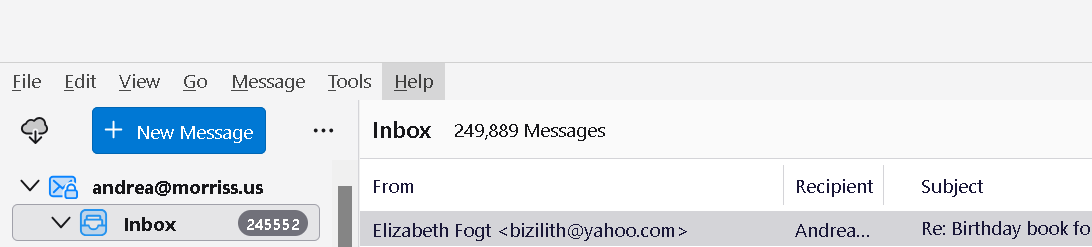
I have 1 computer that shows bars at the top and left side that I like. The one at the top shows Get messages, Delete, Reply, Reply All, and a few more items. The one on the left side shows icons that are for Mail, Address Book, Calendar, Tasks, and Chat. I have another computer that doesn't have those bars. I have attached a screen shot from that computer. Both are running T'bird 140.4.0esr (64-bit) and both are Win 11 machines. I've tried everything I can see to get the 2 bars to appear on the 2nd computer. I hope someone can tell me how to get them to show up. Thanks, Mike
தீர்வு தேர்ந்தெடுக்கப்பட்டது
Thanks SO MUCH, guys, Nothing has change but it is working well enough on this machine. I give up. I have tried everything you have suggested. Must be something on this HP machine or Win 11 or something. I've tried shrinking the view by pinching on the screen to "zoom out", making T-bird full screen or not... everything I can think of. Like I said... I can't see some of the things we like on our other computers but we can live what we CAN see. Thanks again!!! Mike
Read this answer in context 👍 0All Replies (13)
To get the one on the left, click view>toolbars and tick 'Spaces toolbar' To get the message on top, rightclick the blank area at top of your thunderbird screen and click 'customize' - from the next screen you see, you can drag desired icons to that area.
Hi and THANKS, David! I'm sorry to say neither worked. When I do view>toolbars and tick 'Spaces toolbar' the spaces is already selected. I tried de-selecting and re-selecting it and nothing happened. When I right click in the blank space I see that Menu Bar is selected. With that one, I tried de-selecting and re-selecting it and nothing happened. Customize is always always greyed out... not available. I sure hope someone can help me resolve all this. Mike
re :The one at the top shows Get messages, Delete, Reply, Reply All, and a few more items.
That is called the 'Unified Toolbar' Image does not show what might be seen on the far right.
Do you see the Menu app icon (3 horizontal lines) at the top on the right side ? If yes: Click on it and select 'View' > 'Toolbars' > Toolbar Layout That should get you the Customise view so things can get dragged onto the 'Mail' tab.
re: The one on the left side shows icons that are for Mail, Address Book, Calendar, Tasks, and Chat.
that is called the 'Spaces Toolbar'
If you have that Menu app icon (3 horizontal lines) at the top on the right side If yes: Click on it and select 'View' > 'Toolbars' > and see if 'Spaces Toolbar is selected
That's unusual. I am no tekkie on the mechanics, but here is what I would do: First, restart in troubleshoot mode. If that works, it may indicate that you have an addon causing the conflict. Second, if that does not work, I would - exit thunderbird - download and install over the top the exact same release and restart and try again. Doing that may fix any corruption that is in the setup.
Thanks Toad-hall. When I click on the Menu app icon nothing happens. If i just hover my cursor over it a small window shows up that says Display the Thunderbird Menu. And THANKS again, David! How do I restart in the troubleshoot mode? Also, if I download and install over the top, will I loose settings, messages, folders, etc? Thanks again... to BOTH of you :-) Mike
click help>troubleshoot mode and then restart thunderbird. A reinstallation will not change settings. Those are in the profile and a reinstall does not change that.
re :When I click on the Menu app icon nothing happens. If i just hover my cursor over it a small window shows up that says Display the Thunderbird Menu.
The tooltip is the 'Display the Thunderbird Menu'. But a click on the app menu should reveal a drop down list.
Did you get the Thunderbird program from the official website or from the Windows app store or from another location ? It would be useful to know.
- Exit Thunderbird
- Uninstall Thunderbird.
- Go to this link: https://www.thunderbird.net/en-US/thunderbird/all/
Select the following:
- Locale: - choose your prefered language
- Release Channel: Click on drop down and select 'Thunderbird Extended Support Release'
- Operating System : Windows
- Click on 'Download'
It should download version 140.4.0esr Then access the Firewall (it's either the default or maybe controlled by an Anti-Virus you installed) and make sure Thunderbird is set up as an allowed program.
Thanks! The drop down list never appears on the computer with the issues. It does on a different computer.
The only way I know of to delete the program would be to go to the Windows Installed Apps, find Thunderbird, and then uninstall it. If I do that and then download in install Thunderbird, will the setup, folders, addresses, etc. all be lost?
Thanks :-) Mike
Personal opinion (not an official recommendation): - if the current install is from thunderbird.net, you can safely download and install over the existing one. I say that because thunderbird is not dependent on registry settings. I have done this many times. An install does not touch existing profiles. Still, I always recommend copying the profile elsewhere in case any gremlins jump in. :)
Thanks SO MUCH, David,
If you can, please tell me where to get the file(s) I should copy to somewhere else.
Thanks again :-) Mike
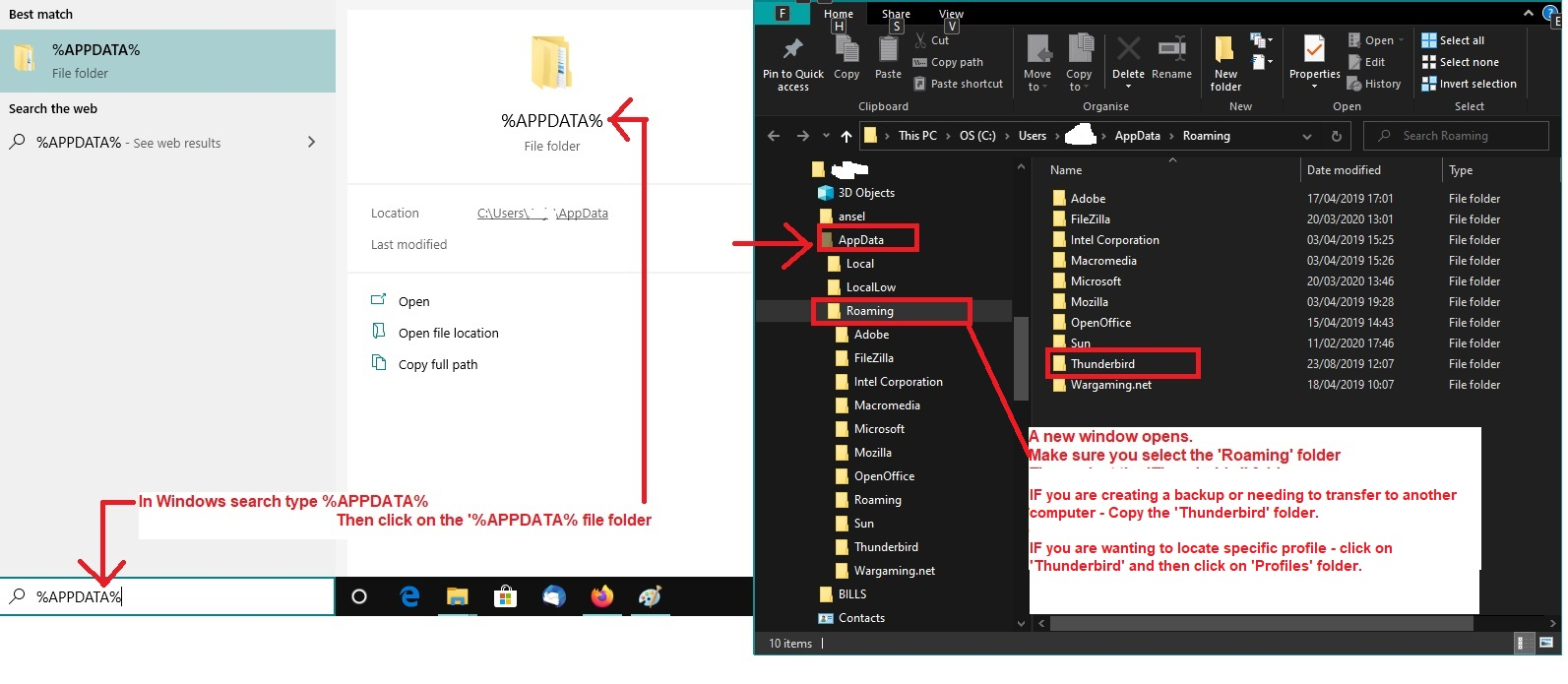
If Thunderbird was installed via the official website then it's very easy to do a backup as profiles are stored here:
- C://Users/username/Appdata/Roaming/Thunderbird
This is an easy way to locate it:
- Exit Thunderbird
- In windows search type: %Appdata% - see image below as guide
- Select %Appdata% file folder
- Select 'Roaming' folder
- Copy the 'Thunderbird' folder to an external drive or another drive on the computer.
If you had got Thunderbird installation from the 'Windows app store' then Windows likes to make life a bit more of a pain as it stores the profile here:
- C:// Users/ username/AppData/Local/Packages/MozillaThunderbird.MZLA_h5892qc0xkpca/LocalCache/Roaming/Thunderbird
In which case:
- Exit Thunderbird
- In windows search type: %Appdata% - see image below as guide
- Select %Appdata% file folder
- Select 'Local' folder
- Select 'Packages' folder
- Select 'MozillaThunderbird.MZLA_h5892qc0xkpca' folder
- Select LocalCache' folder
- Select 'Roaming' folder
- Copy the 'Thunderbird' folder to an external location.
Removing the old version of Thunderbird
- In Windows search type: Programs
- Select 'Add or Remove Programs'
- Local 'Mozilla Thunderbird'
- Click on the 3 vertical dot icon and select 'Uninstall'
தீர்வு தேர்ந்தெடுக்கப்பட்டது
Thanks SO MUCH, guys, Nothing has change but it is working well enough on this machine. I give up. I have tried everything you have suggested. Must be something on this HP machine or Win 11 or something. I've tried shrinking the view by pinching on the screen to "zoom out", making T-bird full screen or not... everything I can think of. Like I said... I can't see some of the things we like on our other computers but we can live what we CAN see. Thanks again!!! Mike
Also... Events and Tasks doesn't show up on the File Edit View Go... bar. Alt 3 doesn't bring up the calendar, but we don't need T-bird calendar on this machine... just another point of interest.