


How to change the size of the text-entry pane in the calendar event pop-up (userchrome.css name needed)

HI.
I'm trying to increase the size of the text-entry pane that appears in the calendar event editing pop-up. I already know how to change the size of the overall window (i.e., the pop-up itself), but I can't determine the name of the css element that would modify it.
I enabled developer tools, but the Inspector function doesn't seem to want to provide the name of that css element. It would be along the lines of calendar-event-pane, but that's not it.
Is that text window even specified in css, or is it hard-coded?
Any pointers would be appreciated
தீர்வு தேர்ந்தெடுக்கப்பட்டது
Well your image is odd. The window called 'Edit Event Test' is clearly a lot larger in width and height, but it's not being used by the content. The toolbar showing 'Save and Close'......'Delete' is chopping off all the options in menu and is badly restricted. The Calendar, Title, Location etc is all restricted in width and should by default fill the width of window. Near the bottom where you have 'Descripion' - that text are is also very restricted. 'Notify attendees' etc options by default wouldbe located at the bottom.
By default in the natural design without any userChrome.css code - all the above expands with window in both height and width. The height and width can be manually expanded by hovering over the bottom right corner to see the cursor change to double headed arrow and using the left click on corner and drag to expand to whatever is required.
I can only assume that you have created code which is messing it up.
I assume the intention is to force the current window to auto open in a larger window than the current default, so you do not have to manually enlarge as described above.
AS far as I can tell the code for items in that window is all set to flex. So you only need to alter the size of the window when it opens.
I used the following and now I can force the Task and Event window to open by default in a larger window and all contents are auto flex to fit anyway, so no need to alter that code.
#calendar-event-window,
#calendar-task-window {
  min-width: 63em !important;
  min-height: 81em !important;
}
Read this answer in context 👍 0
All Replies (14)
Note that the popup that's for viewing (not editing) and event allows the user to expand the overall window, and the text area automatically expands to fill the space. I have no idea if this is hard-coded behavior, or yet another CSS element.

You can test the following CSS code in your userChrome.css file:
#calendar-event-dialog {
min-width: 60em; !important;
min-height: 80em !important; }
Note that the userChrome.css file must be moved in a chrome folder to be created in the Thunderbird profile folder.
Furthermore open Settings > scroll to the bottom and click Config Editor....
Search for "toolkit.legacyUserProfileCustomizations.stylesheets" and toggle its value from false to true
Mapenzi said
You can test the following CSS code in your userChrome.css file: #calendar-event-dialog { min-width: 60em; !important; min-height: 80em !important; } Note that the userChrome.css file must be moved in a chrome folder to be created in the Thunderbird profile folder. Furthermore open Settings > scroll to the bottom and click Config Editor.... Search for "toolkit.legacyUserProfileCustomizations.stylesheets" and toggle its value from false to true
Thanks, Mapenzi, for your response. I already had that config editor item set to true. I tried the css you put in -- didn't make any difference. What I'd had before for that css item was this..but all that did was modify the overall popup size, not the pane that is used for text entry/editing:
   width: 600px !important; /* Change to desired width */
   height: 650px !important; /* Change to desired height */
   max-width: 800px !important; /* Optional: limit max width */
   max-height: 800px !important; /* Optional: limit max height */
   min-width: 400px !important; /* Optional: set minimum width */
   min-height: 300px !important; /* Optional: set minimum height */
I haven't looked at the code, but I suspect that the contents of the editing popup are done as a series of nested tables...perhaps the size of that pane simply can't be adjusted through css?
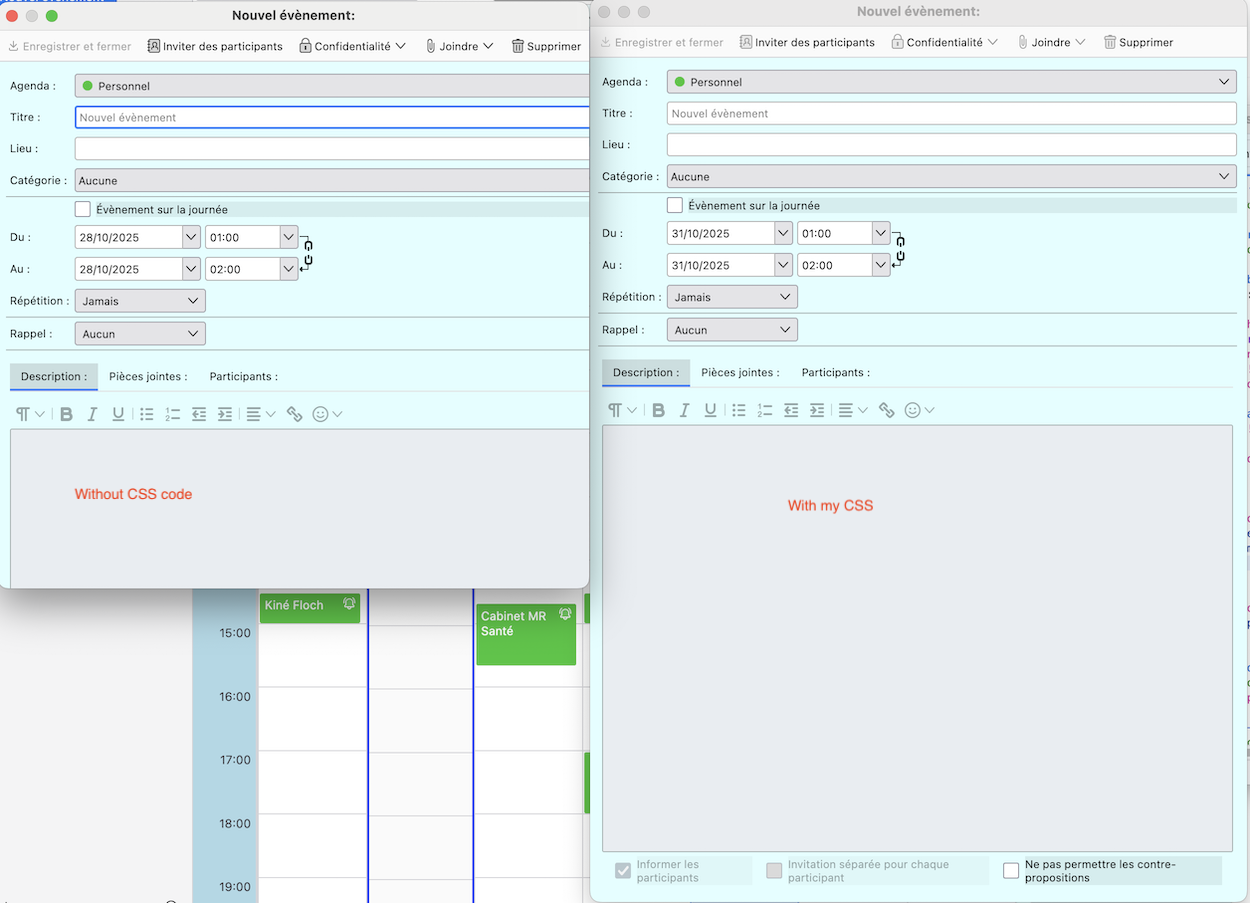
The code in your answer is not useful since it only contains heights and widths but no ID of the element. I add a screen shot showing two calendar event panels in my macOS Thunderbird version: the left one has been made without the code I proposed you, the right one with my proposed code. Do you note any difference between the two panels ?
Mapenzi மூலமாக திருத்தப்பட்டது
Sorry for the confusion in my earlier reply: those parameters were all within the parentheses specifying the calendar-event-dialog element. So I'm able to enlarge the overall popup.
Your screen shots illustrate the issue perfectly: yes, you expand the size of the overall pop up window (grey area), but what I'm trying to expand is the text pane that is shown in blue within the pop up.
Ideas?
Sorry, no more ideas because I don't understand what exactly you want to change. A screen shot to illustrate the view of your desired new event pane might be helpful.
Mapenzi said
Sorry, no more ideas because I don't understand what exactly you want to change. A screen shot to illustrate the view of your desired new event pane might be helpful.
Ah, you're right...I should have started there and not wasted your time.
Look at the left screenshot -- this is what you can do with the task pop-up when you're not editing it. The Description text field (I'm calling it a pane) expands with the window size, allowing easy reading of long description text.
In contrast, when you actually go to edit the Task, the Description pane is fixed in size, both horizontally and vertically. Expanding the overall popup window really does nothing useful.
I suspect this is hard-coded, but would love any info to the contrary.
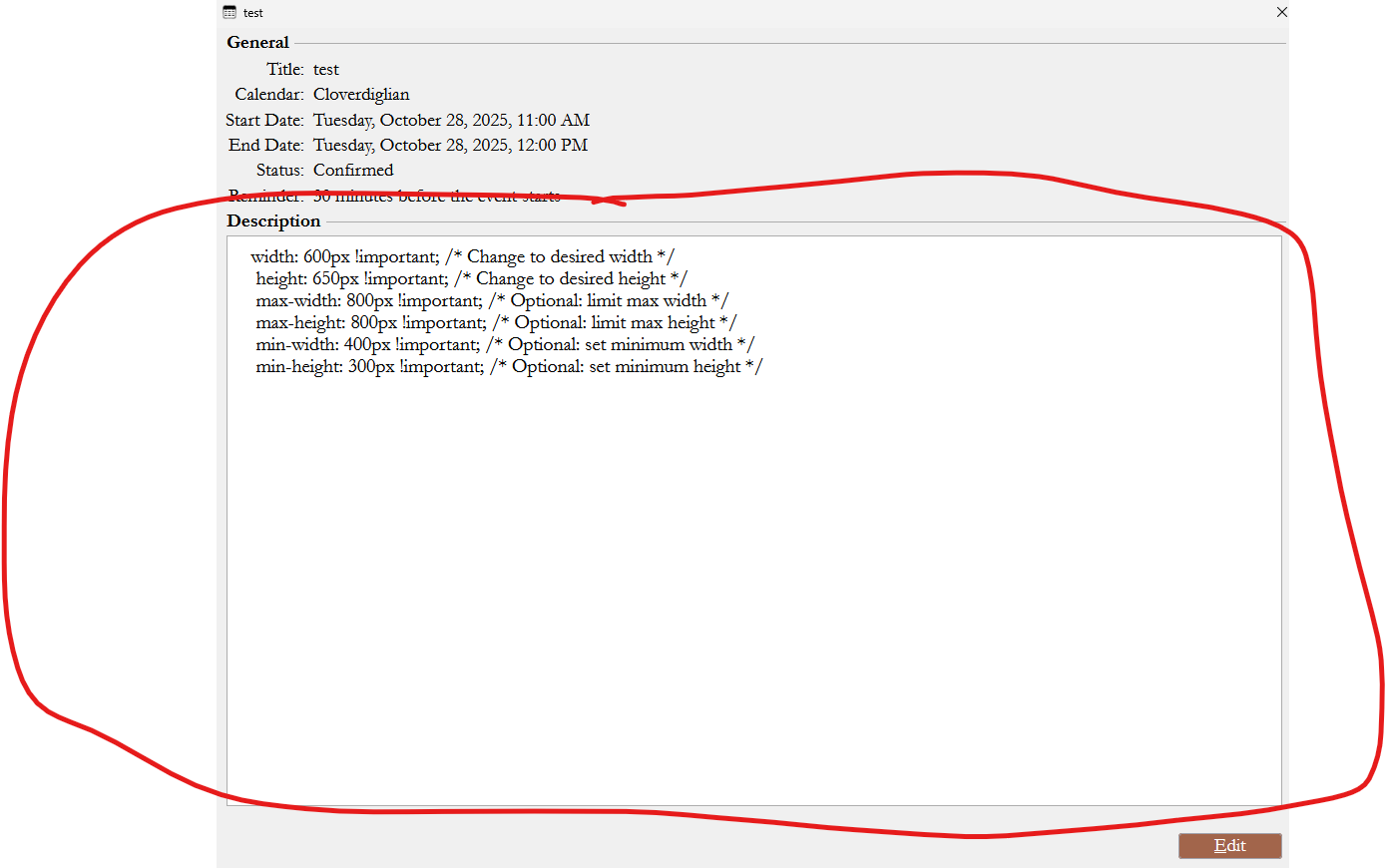
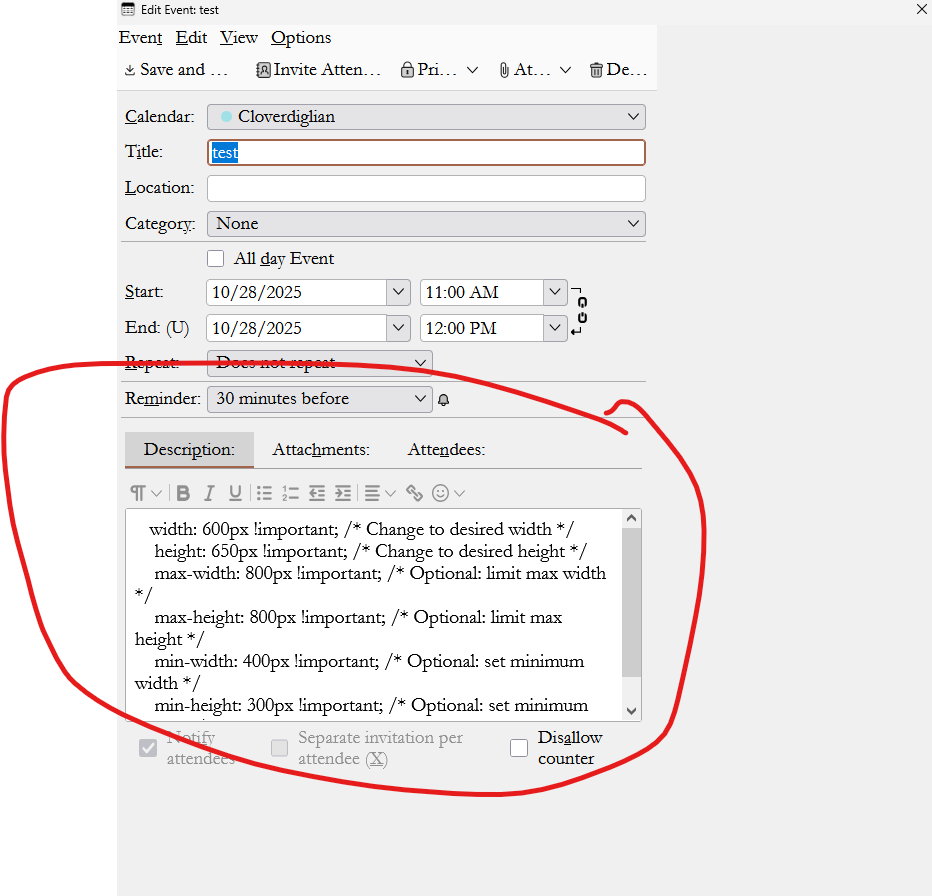
This is very confusing. There is a "New Event" window which has the identity #calendar-event-dialog When you double-click an existing event for editing it will be opened in the same #calendar-event-dialog window. This is shown in your right image!
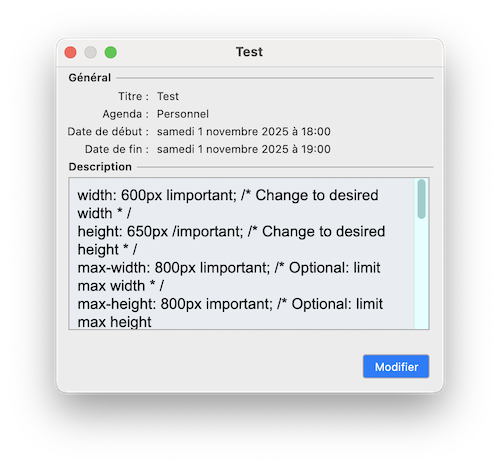
I had a big problem to identify your left image since it is enormous. Eventually I found that this is the information window for an existing event which you can open with a right-click > Open... (see my image) The identity of this element is #calendar-event-summary-dialog
saleslogistix said
In contrast, when you actually go to edit the Task, the Description pane is fixed in size, both horizontally and vertically. Expanding the overall popup window really does nothing useful.
I still don't understand what you are looking for. A CSS code, but to do what in which those windows? Make them smaller or bigger?
Mapenzi மூலமாக திருத்தப்பட்டது
Mapenzi said
This is very confusing. There is a "New Event" window which has the identity #calendar-event-dialog When you double-click an existing event for editing it will be opened in the same #calendar-event-dialog window. This is shown in your right image! I had a big problem to identify your left image since it is enormous. Eventually I found that this is the information window for an existing event which you can open with a right-click > Open... (see my image) The identity of this element is #calendar-event-summary-dialogsaleslogistix said
In contrast, when you actually go to edit the Task, the Description pane is fixed in size, both horizontally and vertically. Expanding the overall popup window really does nothing useful.I still don't understand what you are looking for. A CSS code, but to do what in which those windows? Make them smaller or bigger?
I'm trying to make the Description text entry area -- when editing -- taller, to use up the space that I've created by expanding the overall popup. It would be nice to also make it wider, but I'll take anything I can get to make the text editing area larger.
saleslogistix said
I'm trying to make the Description text entry area -- when editing -- taller, to use up the space that I've created by expanding the overall popup. It would be nice to also make it wider, but I'll take anything I can get to make the text editing area larger.
Can't you be more precise? Please show me in a new screen shot what you mean by Description text entry area . In the "New Event"/"Edit Event" window or in the "General" (information) window?
Mapenzi said
saleslogistix said
I'm trying to make the Description text entry area -- when editing -- taller, to use up the space that I've created by expanding the overall popup. It would be nice to also make it wider, but I'll take anything I can get to make the text editing area larger.Can't you be more precise? Please show me in a new screen shot what you mean by Description text entry area . In the "New Event"/"Edit Event" window or in the "General" (information) window?
Thanks for your perseverance here.
In the General (information) window, everything is fine: it behaves the way I want. (The Description text box expands to use space in the overall pop window as it is expanded.)
Let's focus just on the New Event/Edit Event window. In the attached screenshot, I've expanded that window via css. No problem there. But the rectangle that allows editing of the Description text doesn't change height or width. I don't need anything fancy -- just the ability to get that text-entry rectangle to change size (whether via css or some other trick).
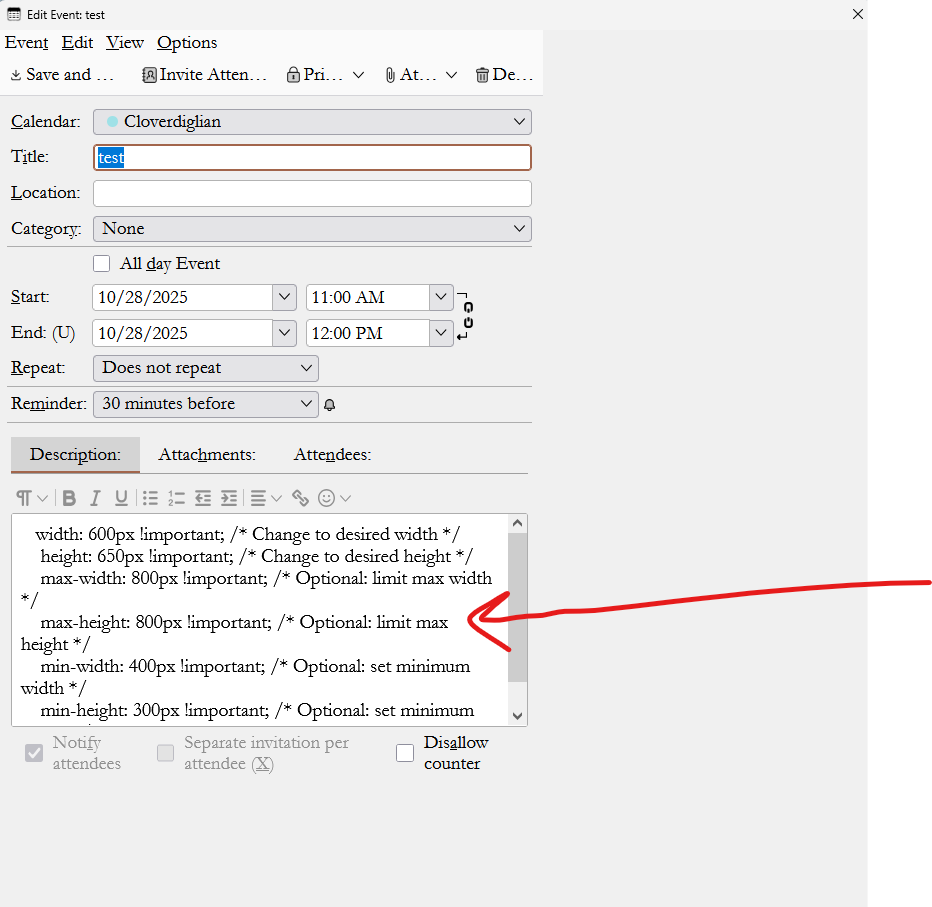
தீர்வு தேர்ந்தெடுக்கப்பட்டது
Well your image is odd. The window called 'Edit Event Test' is clearly a lot larger in width and height, but it's not being used by the content. The toolbar showing 'Save and Close'......'Delete' is chopping off all the options in menu and is badly restricted. The Calendar, Title, Location etc is all restricted in width and should by default fill the width of window. Near the bottom where you have 'Descripion' - that text are is also very restricted. 'Notify attendees' etc options by default wouldbe located at the bottom.
By default in the natural design without any userChrome.css code - all the above expands with window in both height and width. The height and width can be manually expanded by hovering over the bottom right corner to see the cursor change to double headed arrow and using the left click on corner and drag to expand to whatever is required.
I can only assume that you have created code which is messing it up.
I assume the intention is to force the current window to auto open in a larger window than the current default, so you do not have to manually enlarge as described above.
AS far as I can tell the code for items in that window is all set to flex. So you only need to alter the size of the window when it opens.
I used the following and now I can force the Task and Event window to open by default in a larger window and all contents are auto flex to fit anyway, so no need to alter that code.
#calendar-event-window,
#calendar-task-window {
  min-width: 63em !important;
  min-height: 81em !important;
}
Oh, wow.. Totally removing my original css and replacing it with yours totally did the trick. I'd gotten the CSS from chatGPT....
Thank you!
saleslogistix said
Totally removing my original css and replacing it with yours totally did the trick.
Did you really test my code TOGETHER with yours ???? No wonder that my code didn't work!!
Mapenzi மூலமாக திருத்தப்பட்டது