


Spam does not auto move from inbox to spam folder
When messages arrive in inbox and are marked spam they do not auto move to spam folder. I have to uncheck the spam icon and re-check it. Not until then will they move to spam folder.
Martha
選ばれた解決策
I've stated basically the same as Rick but a bit more info and added some images as a guide.
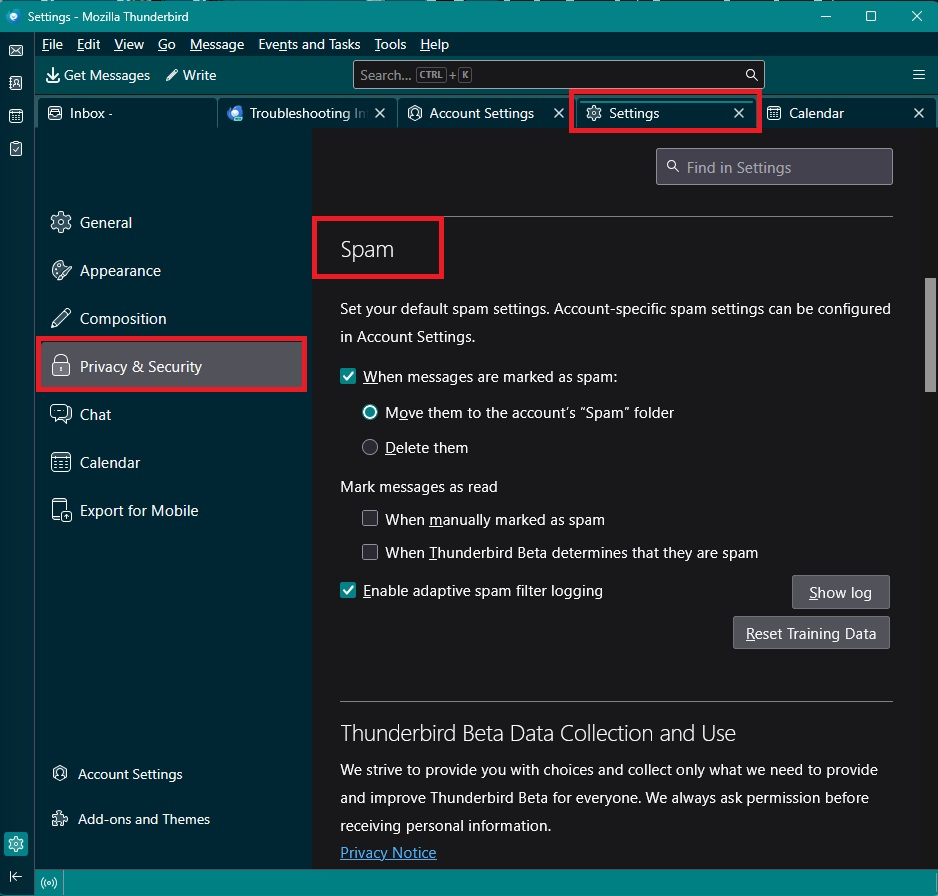
- Settings > Privacy & Security
- Spam subsection
- Select same options as image.
- select: 'When messages are marked as spam'
- Select: 'Move them to the accounts 'Spam' folder.
- Select 'Enable adaptive spam filter logging'
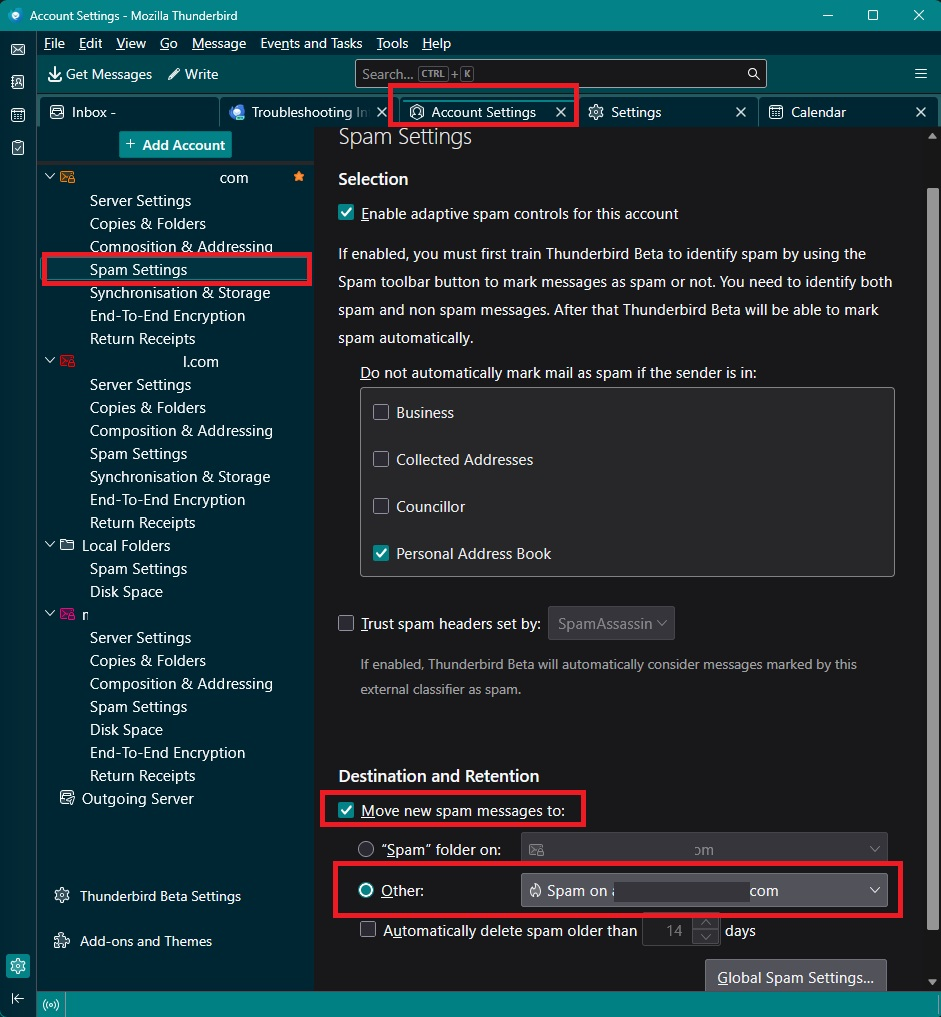
Check account
- 'Account Settings' > 'Spam Settings' for the account
- Select 'Enable adaptive spam controls for this account
- Select any address book name which you want to act as a whitelist of good email addresses.
- Under 'Destination and Retention'
- Select 'Move new spam messages to'
- Select 'Other' and choose 'Spam on the mail account'
It would be helpful if you upload some images that show the Settings you currently have got selected.
すべての返信 (4)

Check Thunderbird settings > Privacy & security > Junk > When messages are marked as junk.
And the account-level settings in account settings > Junk settings > Destination and retention.
I believe I have it all set properly. Not sure really HOW it should be set other than move spam to spam folder.
選ばれた解決策
I've stated basically the same as Rick but a bit more info and added some images as a guide.
- Settings > Privacy & Security
- Spam subsection
- Select same options as image.
- select: 'When messages are marked as spam'
- Select: 'Move them to the accounts 'Spam' folder.
- Select 'Enable adaptive spam filter logging'
Check account
- 'Account Settings' > 'Spam Settings' for the account
- Select 'Enable adaptive spam controls for this account
- Select any address book name which you want to act as a whitelist of good email addresses.
- Under 'Destination and Retention'
- Select 'Move new spam messages to'
- Select 'Other' and choose 'Spam on the mail account'
It would be helpful if you upload some images that show the Settings you currently have got selected.
I had a few incorrect settings but have changed them to match your pics. At 80 years of age, I sometimes have to have detailed answers. I believe I am all good now. Thanks for your help!