


"Profile Missing" Error

Hello, When I went to launch Firefox after starting up my PC this morning, I was greeted with: "Your Firefox profile cannot be loaded. It may be missing or inaccessible".
I went right to the Mozilla forums and found the help page [https://support.mozilla.org/en-US/kb/how-run-firefox-when-profile-missing...] . In this article it detailed how I should go into my AppData, then Mozilla, then Firefox, and look to see where my profile.ini file is. My profile.ini file was there, alongside the installs.ini and a few other folders. I attempted also to launch the profile manager using run and the "firefox.exe -P" command, but I got the same profile error as when I tried launching the app. The help page then recommended deleting the profile.ini file and then launching Firefox to hopefully remake the default profiles.ini file and enable me to launch Firefox, so I attempted that. When I tried relaunching Firefox, the profiles.ini file did not re-appear in my Firefox folder.
I then tried deleting the Firefox folder itself, and relaunching Firefox. This resulted in it being remade, but with just 2 folders left: Crash Reports and Pending Pings. Obviously that's not ideal, so I right clicked the Firefox folder and used the Windows "Previous versions" feature to restore the Firefox folder to a backup of how it was this morning. I then re-tried launching and I still got the same missing profiles error message. I also briefly attempted manually making a new profiles.ini file with notepad, and pointing it towards my Profile withing my Profiles folder, but that still resulted in the same missing profiles error.
This is basically where I am at now. I have confirmed that I do in fact see my actual profile in my "C:\Users\****\AppData\Roaming\Mozilla\Firefox\Profiles" folder, and as far as I can tell my profiles.ini file correctly points towards it. I did another reset of my Firefox folder to a backup of where I was at this morning before attempting anything. I can confirm my Windows account (Admin, and only account on the computer) has full read and write access to all Folders and files within the Mozilla folder, although I will mention some of the files in the Firefox folder were marked with the "Read-Only" attribute (not sure if that matters, but I tried unchecking those and still no luck)
As far as I can tell I have thoroughly exhausted all the easily accessible tips on the internet for solving this, so I am wondering what to try next?
TLDR: Error: Your Firefox profile cannot be loaded. It may be missing or inaccessible" Already Attempted (And failed): -deleting and prompting a remake of the profiles.ini folder -using firefox.exe -P to launch Profile manager -deleting Firefox folder to prompt a remake of that -multiple uninstalls and reinstalls of Firefox -manually remaking profiles.ini file after it didn't come back after deletion
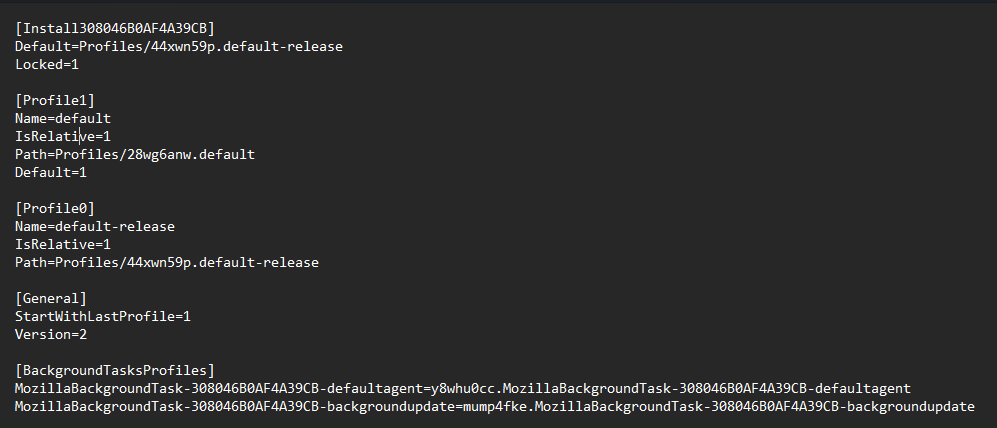
Will link images of (1) profiles.ini file. (2) Profiles folder.

All Replies (6)

Your user data is likely in the ****\AppData\Roaming\Mozilla\Firefox\Profiles\xxxxxxxx.default-release folder and Firefox has lost track of its location. Do you still have that folder? If so, try the instructions given here: Profile Manager - Create, remove or switch Firefox profiles to create a new profile.
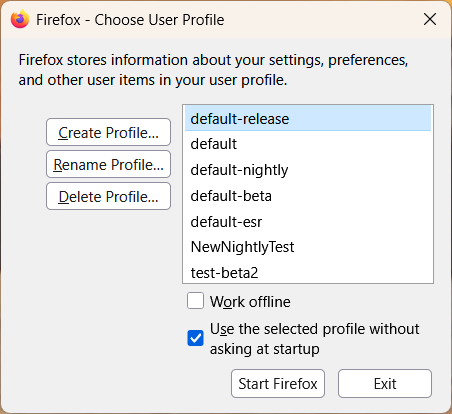
Run firefox.exe -P (or use the full path, such as "C:\Program Files\Mozilla Firefox\firefox.exe" -P if firefox.exe doesn't work) to open the Profile Manager Firefox - Choose User Profile window. Here is what it looks like for me, with the default-release profile at the top and other available profiles underneath:
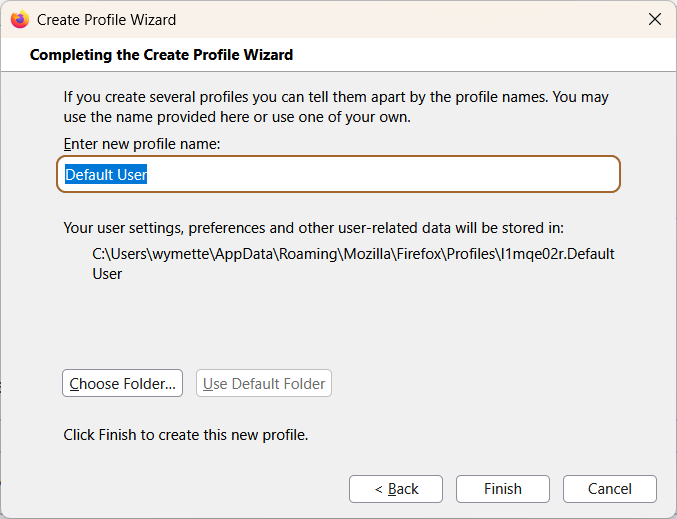
Select the Create Profile option on the left and click Next in the window that opens. In the next window, enter a profile name (I would name it default-release if that name is not being used) and use the [Choose Folder] button to select the xxxxxxx.default-release folder so that the new profile will use the data in that folder.
 Once you complete the profile creation process and start Firefox with that profile, does it fix the problem?
Thanks for your response. Unfortunately I wasn't able to get very far, as I mentioned in the above post, all attempts to run firefox.exe -p resulted in the same error that I was getting before. I also tried with the full path, and same thing.
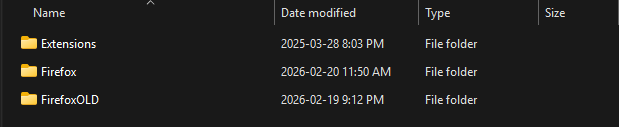
OK, I didn't understand that you were not even able to start the Profile Manager. If no one suggests another solution, here is what I would do: Try the last suggestion from the How to run Firefox when your profile is missing or inaccessible article: Open the ****\AppData\Roaming\Mozilla\ folder, right-click the Firefox folder and rename it FirefoxOLD.
When you start Firefox, it will seem like a brand-new install since none of your old profile data will be available. A new Firefox folder will be created with all of the needed files and folders, including a Profiles folder with a new xxxxxxxx.default-release folder. You can then open the FirefoxOLD\Profiles folder, rename your original xxxxxxx.default-release folder to xxxxxxxx.default-releaseOLD, copy it it to the new Firefox\Profiles folder that was created. At this point, you can use the Profile Manager to create a new profile by giving it a new name such as default-releaseOLD and using the Choose Folder option as I explained above.
Fingers crossed that this will work!
Thanks for the advice. I tried what you outlined in the article again.
I renamed the Firefox folder, launched Firefox (got the same error), and another Firefox folder got created. Inside the folder, only 2 folders get created, similarly to what happened when I tried this in the past: Crash Reports and Pending Pings. (No Profiles folder, no installs.ini, no profiles.ini, none of that).
Seemingly something is preventing Firefox from creating these, similarly to when I renamed profiles.ini and tried launching, and it did not create a new one.
Thanks for your help

Sorry it didn't work. I looked through the Troubleshoot and diagnose Firefox problems article and the only other suggestion would be to uninstall and reinstall Firefox, in case there is something wrong with your Firefox installation. You might want to first delete the new Firefox folder that was created and rename the FirefoxOLD folder back to Firefox. You can then uninstall Firefox (se Uninstall Firefox from your computer) download and save the Firefox installer from https://www.firefox.com and then reinstall it (see How to install Firefox on Windows).
glad gan, in recent months several users have reported issues with profiles that are located within the default path that Firefox uses, so I wonder if this is related?
Some things to try, but before doing anything I'd make sure that you have a local backup of your profile folder and / or profiles.ini file (as in, copies that you have made yourself and not just copies stored by Windows' own backup tools.).
Try launching your profile folder directly from its default location, by explicitly specifying its path in the command line argument: -profile "profile_path"
Or try copying your profile folder to a new location that is outside of "C:\Users" or any other special Windows location. For example, copy it to "C:\Firefox Profiles". Then try directly launching it from this new location using the previous command line option.
You could also try copying the profiles.ini to a non special Windows location (again, "C:\Firefox Profiles", for example.) Then use the following command line option to force Firefox to use this alternate ini file: -override /path/to/override.ini (Not sure if this will work with profiles.ini, however, or whether it was intended for use with other inis? So mentioning this last.)
For mor information on Firefox's command line options, see this article if you haven't already: https://wiki.mozilla.org/Firefox/CommandLineOptions