After Re-installing Window 10 on my computer

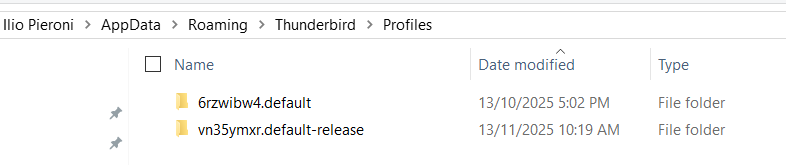
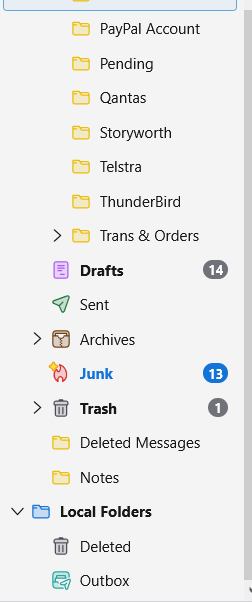
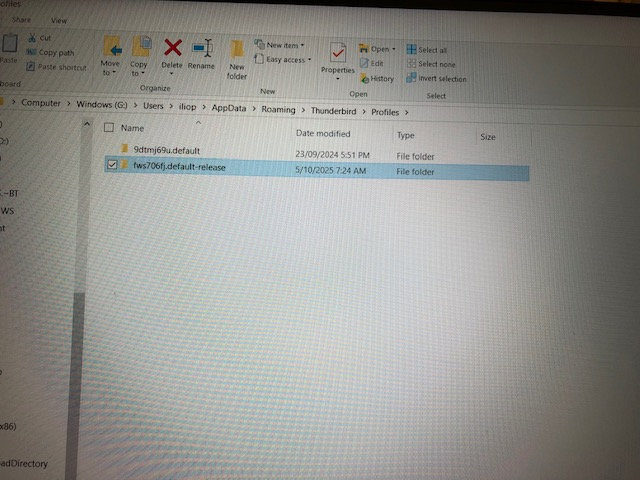
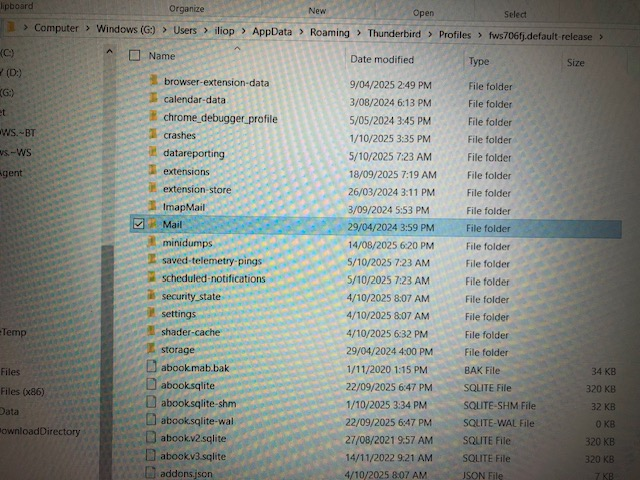
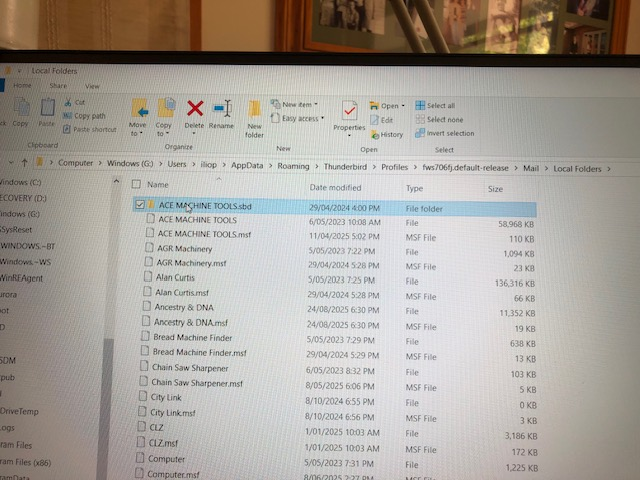
On the 20, of October I was forced to re install Windows 10. Kept my data but I had to re install all my apps. With Thunderbird I follow the same procedure I used with Firefox: After installation I copied the profile folder from my backup and replaced the new one. That worked out well. With Thunderbird, I followed the same procedure, all my emails where there but not my local folders. I am attaching several snapshots to illustrate my steps. Image 1 "local folders now" Image 2 "Profile Folder". (why there are 2 sub-folders)? Image 3 "Mail in the profile folder" Image 4 " List of folders in my Local Folders" The are there, how do I get them back on Thunderbird in the correct place "Local Folders"? Thank you for your help again. Regards Ilio Pieroni
Chosen solution
IF you want to have a copy of the Good decent sized Profiles which you have in the Windows G: iliop User Account and see the same in Windows C: iliop User Account which is where you would expect everything to run from then you need to do this:
Exit Thunderbird - it must not be running in any location.
Access: Windows G drive G://Users/iliop/Appdata/Roaming/Thunderbird And in 'Roaming' folder - Copy the 'Thunderbird' folder.
Access: Windows C drive C://Users/iliop/Appdata/Roaming folder Delete the 'Thunderbird' folder Paste the copied 'Thunderbird' folder into the 'Roaming' folder. Thus replacing the deleted one with the one that contains all your emails.
You can permanently use the one in C: drive and use the one in G: drive as a backup. But please remember - when you do a backup - do a full backup of the 'Thunderbird' folder. That means all the data includes the 'profiles.ini' file. In other words follow the process I've mentioned here.
If you really need yet another copy in Windows H drive - although I've no idea why as you already have two good copies in C and in G
Access: Windows Hdrive H://Users/iliop/Appdata/Roaming folder Delete the 'Thunderbird' folder Paste the copied 'Thunderbird' folder into the 'Roaming' folder. Thus replacing the deleted one with the one that contains all your emails.
Read this answer in context 👍 0All Replies (20)

Might be https://bugzilla.mozilla.org/show_bug.cgi?id=1990571 Which Thunderbird version did you use before reinstalling Windows and which version are you running actually?
I am running version 144.0.1 (64 bit) now. I am not sure how to check the previous version number of Thunderbird, but seeing that was only a few weeks ago, I suspect it is the same 144.0.1 Also the new version has the previous profile from my backup. My Thunderbird is configured to automatic updates.
Update to v144 was available since October 14, 2025. Not sure whether you already used v144 when you reinstalled Windows on your PC. Try the following before we need to do more serious things: go to Help > Troubleshooting information and click "Clear startup cache" in the upper right box. You'll be prompted to restart Thunderbird.
If you are still missing your Local Folders I propose to downgrade Thunderbird temporarily to v143.0 You can download v143.0 from https://ftp.mozilla.org/pub/thunderbird/releases/143.0/ Before installing the older version open your actual version, go to Settings > General > Updates and activate the radio-button ◉ "Check for updates, but let me choose whether to install them" Then install v143 over v144. To launch v143 in your old profile you need to use the --allow-downgrade command: Hit the Windows key + R, type thunderbird.exe -p --allow-downgrade and hit Enter. This action will open the profile manager where you have to click "Start Thunderbird".
As a precaution: before doing anything create a backup copy of your "Thunderbird" folder (containing your profile) in ....\AppData\Roaming\Thunderbird\
Modified by Mapenzi
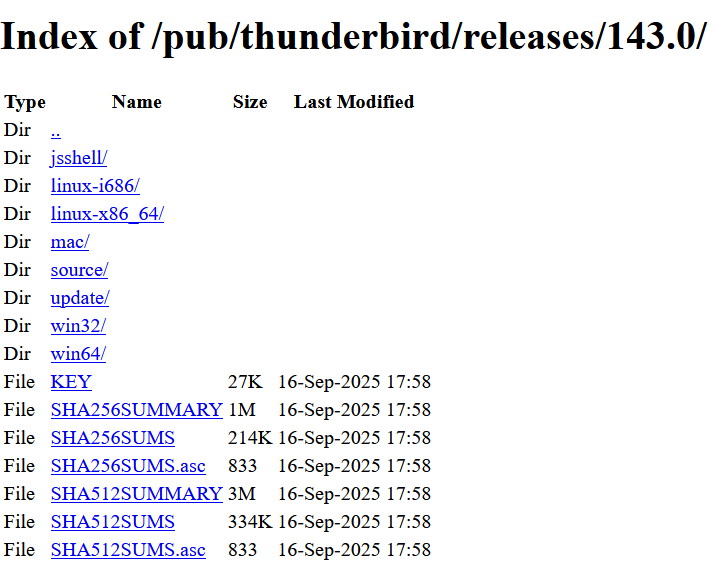
Hi, thanks for your continuous help. The link you sent me got to this page? I am not sure that this is what you where aiming for? I have a copy of Thunderbird Setup V143.0.1,exe Is there a chance to see this in you-tube as I am not sure of all the steps involved Regards Ilio (ilio) Pieroni
Ilio Pieroni said
The link you sent me got to this page? I am not sure that this is what you where aiming for? I have a copy of Thunderbird Setup V143.0.1,exe
yes this is the page where I sent you since I didn't know that you already have the installer for v143.0.1
Ilio Pieroni said
Is there a chance to see this in you-tube as I am not sure of all the steps involved
I don't know of a YouTube video which would illustrate my instructions which IMHO are easy to follow: If you don't know what Windows + R key means have a look here https://tutorialtactic.com/blog/windows-r-is-used-for/ Windows + R keys open a Run window Copy the thunderbird.exe -p --allow-downgrade command line and paste it in the Run window, then hit OK.
Sorry, I can't join screen shots because I am a Mac user....
Modified by Mapenzi
No I don't have trouble with windows+ R What I don't quite follow is when V143 is installed it will have a new profile folder I will need to replace it with my old one and hopefully it will import everything? If I am correct I can use the backup profile from yesterday ? If not can you please clarify what is going to happen after installing v 143. If it works out OK, the upgrade back to v 144 wont cause the Local Folder to disappear? Thanks Ilio Pieroni
The goal of our discussion is to allow you to start v143 in your actual profile because of bug 1990571 which came with v144 you cannot see your Local Folders. But if you try to launch a Thunderbird installation with a profile that was last used in a newer version, Thunderbird will refuse this and you'll get an error message https://support.mozilla.org/en-US/kb/dedicated-profile-thunderbird-installation#w_what-happens-to-my-profile-if-i-downgrade-to-a-previous-version-of-thunderbird
To circumvent this restriction I suggest you to start TB version 143 via the following "allow downgrade" workaround Windows + R keys open a Run window Copy the thunderbird.exe -p --allow-downgrade command line and paste it in the Run window, then hit OK This will allow you to open your actual profile with the lower 143 version. There is hope that your Local Folders will reappear in v143
Ilio Pieroni said
What I don't quite follow is when V143 is installed it will have a new profile folder
I presume that your actual Thunderbird version is still 144.0.1, is that right? If you install version 143 don't launch it yet since in this case it will crate a new virgin profile. If you already have installed v143 launch it in your actual profile with downgrade option In described above.
Modified by Mapenzi
Many people who have issues with 'Local Folders' not seeing folders have found it may be linked to pathnames being too long. So they renamed folders to a shorter length and it worked for them. It might be worth trying on any that have a longer name. Exit Thunderbird Access the Local Folders folder rename 'ACE MACHINE TOOLS' to eg: 'ACE M TOOLS' rename 'ACE MACHINE TOOLS.sbd' to eg: 'ACE M TOOLS.sbd' Delete 'ACE MACHINE TOOLS.msf' (when you restart - it should get recreated) or you could rename that as well 'ACE M TOOLS. msf'
Also any other thats longer such as 'Bread Machine Finder' and 'Chain Saw Sharpener' Could they be shortened to just 'Bread Machine' and 'Chain Saw '
It's up to you whether you want to see if that works.
REgarding going back a version: Mapenzi instructions are correct You can download v143.0 from https://ftp.mozilla.org/pub/thunderbird/releases/143.0/
- Select 'mac/'
- Select prefered language eg: en-GB is English British
- The click on the text link : Thunderbird 143.0.dmg
There is an an Alternative:
Setting > General Scroll to 'Updates' section Select 'Check for updates bt let me choose when to install them.' Uncheck 'Use a background service to install updates' - this will force the computer to ask if you really want to install update if you accidentally selected to update.
Exit Thunderbird Access profile name folder Delete this file: 'compatibility.ini'
Uninstall Thunderbird. Reinstall version 143.0.1
It should auto locate and use profile.
You did not post an image showing the contents of the 'Mail' folder, so I'm wondering if there are more than one Local Folders maybe one with a number etc.
So, it's worth checking is to see where your current 'Local Folders' is pointing to.
- Account Settings
- In left pane - select 'Local Folders'
- On the right locate 'Local directory:...'
- Click in the text area and use keyboard arrows to move to the far right.
- It should say:.../fws706fj.default-release/Mail/Local Folders
If it says something different click on the 'Browse' button It will open showing contents of current position, you can reselect the correct profile, Mail and Local Folders folder
I am quite confused, the image of the Profile Folder was taken on the 7th of this month. where it shows 2 folders starting with "fws706fj.... see image below. When I opened by backup to the 1ts of October the profile has changed to what it is now. And following Toad-Hall suggestion, see image below, the profile folders have changed name. When I opened by backup to the 1st of November it also shows the new profile name Different from the the 7th as stated above. If I don't here anything to the contrary I will follow Mapenzi recommendation the 9th of November. Thank you all for your contributions. Regards Ilio Pieroni
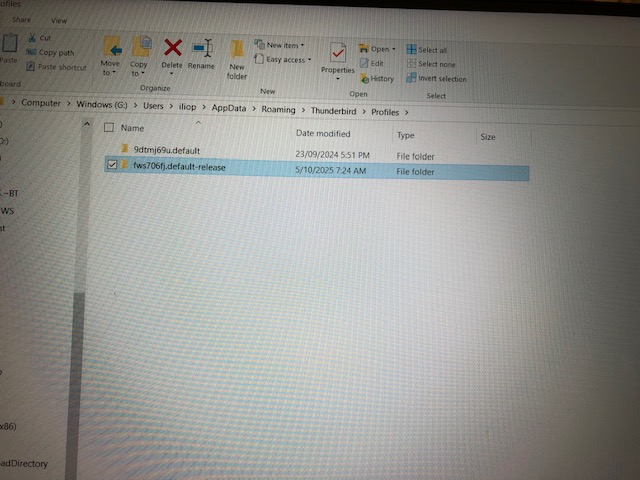

These are very confusing news! Please go back to ....\AppData\Roaming\Thunderbird\Profiles\ and take a new screen shot with the contents of "Profiles" in its state from today. Then, with a text editor, open the profiles.ini file which is located in the Thunderbird folder, too, and show us a screen shot (or a text copy) of its contents.
Modified by Mapenzi
Hello Mapenzi, if you are confused I am doubly confused. I open just now my oldest backup of the 5th of October and it shows exactly what I copied just now. Under Mail there is no more my Local Folders. If you can solve this puzzle I will be amazed and very very grateful. Thanks to everyone for their comments in trying to solve my problem. Regards Ilio Pieroni PS. I was going to execute your instructions this morning, Mapenzi but I don't think now it would do any good. But I will gladly be contradicted.

Just a moment I had opened my backup several times and in the 5th of the October here is Profile of the 5th of October. The 2 folders in the profile. I copied the 2 folders on my PC If you can find a way to make it work, it will be fantastic. Thanks for your support Mapenzi. Regards Ilio Pieroni
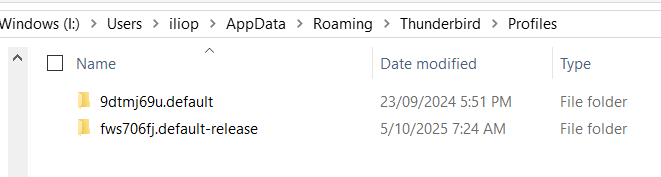
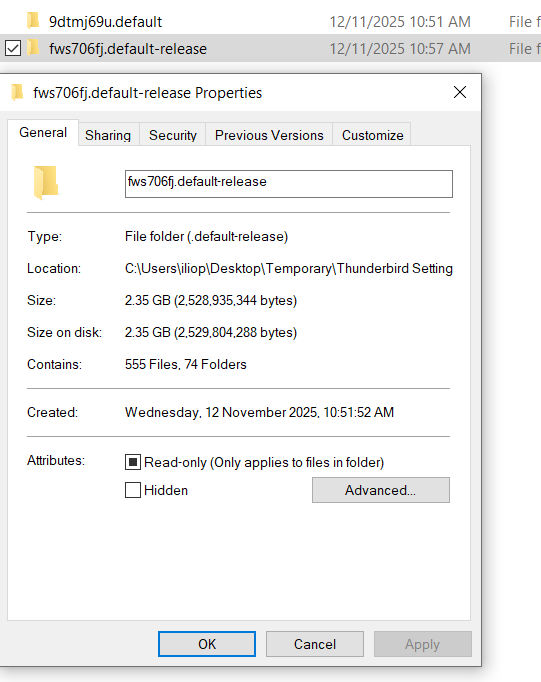
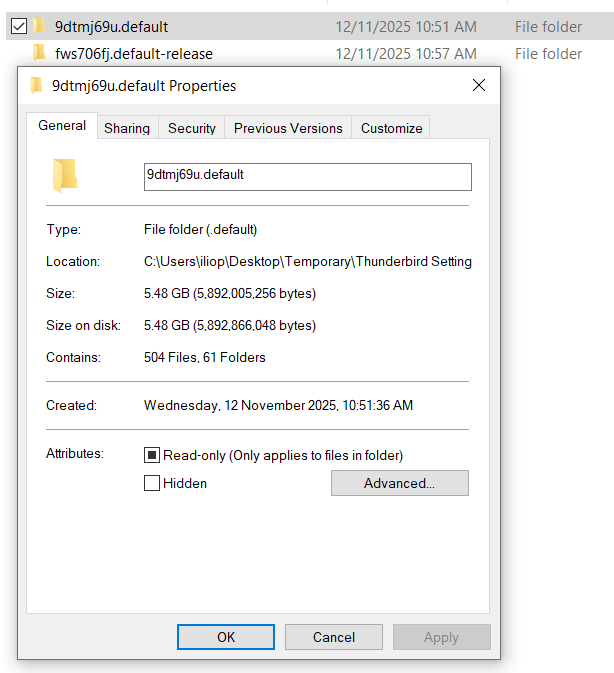
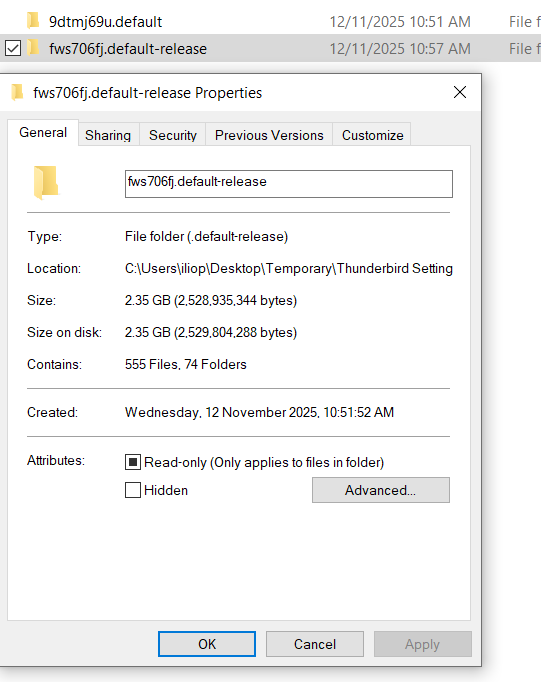
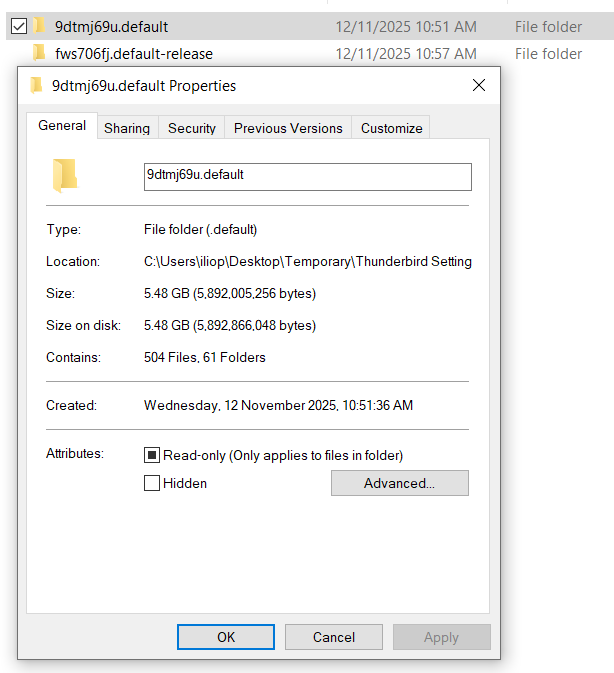
Now this is a completely new situation and there is no need to execute my prior instructions. In your last image with the contents of the folder "Profiles" I am seeing two very different default and default-release profile names compared with those you showed in previous images. The modification dates are more recent. It seems to me that you proceeded to a completely new Thunderbird installation.
Modified by Mapenzi
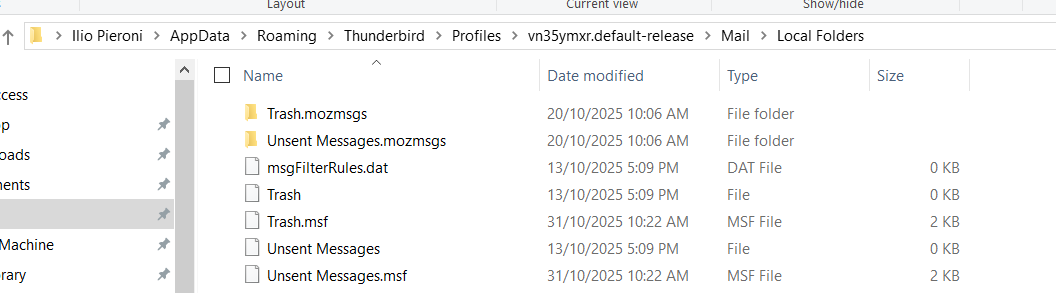
In answer to Toad-Hall. I did as you suggested the results are below. Thank you. It is getting more confusing everyday

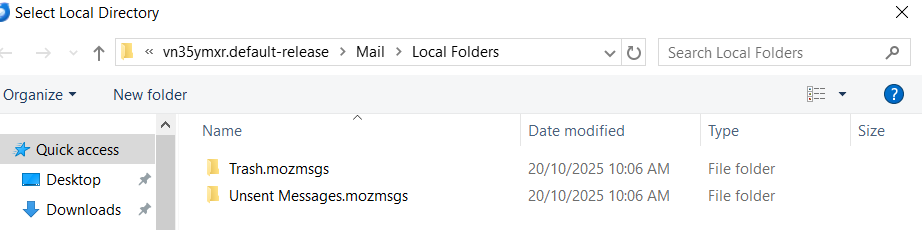
There is a total confusion about what have done in the last few days or even before tour first message in this forum. This is no reproach but just to explain why it is extremely difficult for a helper to build an entire image of a puzzle with a lot of different information pieces. Your recent screen shots with the properties of the 9dtmj69u.default and the fws706fj.default-release profile folders seem to indicate that you have moved your old profile folders to a "temporary" repertory on your Desktop. No idea, too, where this other Thunderbird installation with profile folders 6rzwibw4.default (13/10/2025) and vn35ymxr.default-release (12/11/2025) is located.
Thanks for images - I can see the problem. This is an easy fix.
The computer User account called 'iliop' It uses this profile name folder: fws706fj.default-release That profile name folder contains all your files in 'Local Folders'.
However, the 'Account SEttings' for 'Local Folders' is not pointing to that location. I did mention this earlier, but it seems you have done as advised.
- Account Settings
- In left pane - select 'Local Folders'
- On the right locate 'Local directory:...'
- Click in the text area and use keyboard arrows to move to the far right.
- It should say:.../fws706fj.default-release/Mail/Local Folders
The imageyou posted says this: ..../vn35ymxr.default-release/Mail/Local Folders.
So it is not saying what I advised. As the situation is not fixed I can only assume you did not follow the extra instructions - so do it now. I've written it out with more steps.
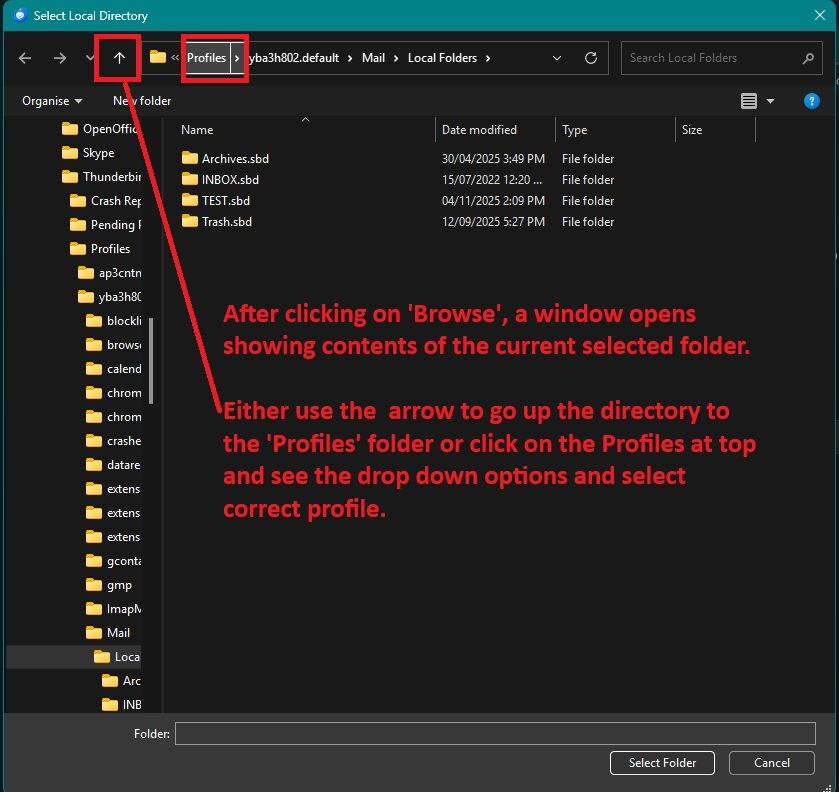
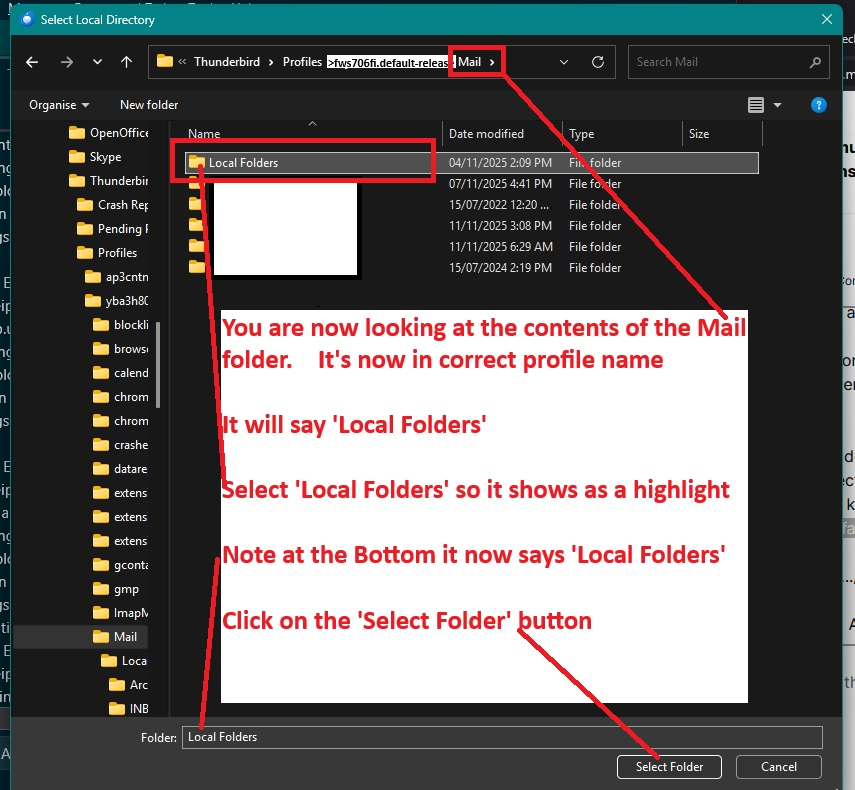
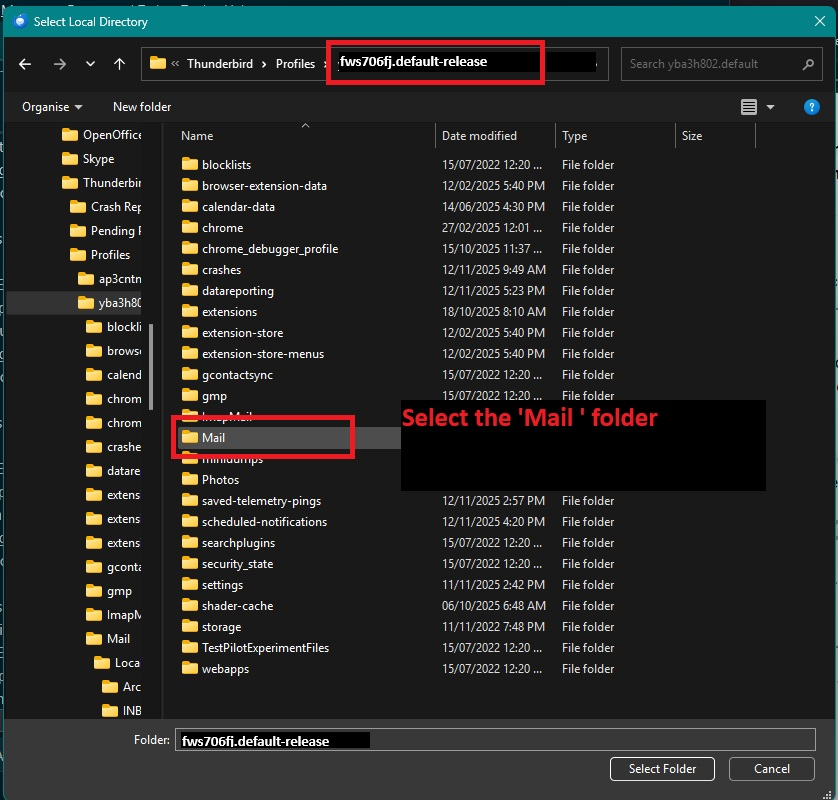
- click on the 'Browse' button
- It will open showing contents of current 'Local Folders' folder
- You need to go up the directory to the 'Profiles' folder, so up three levels
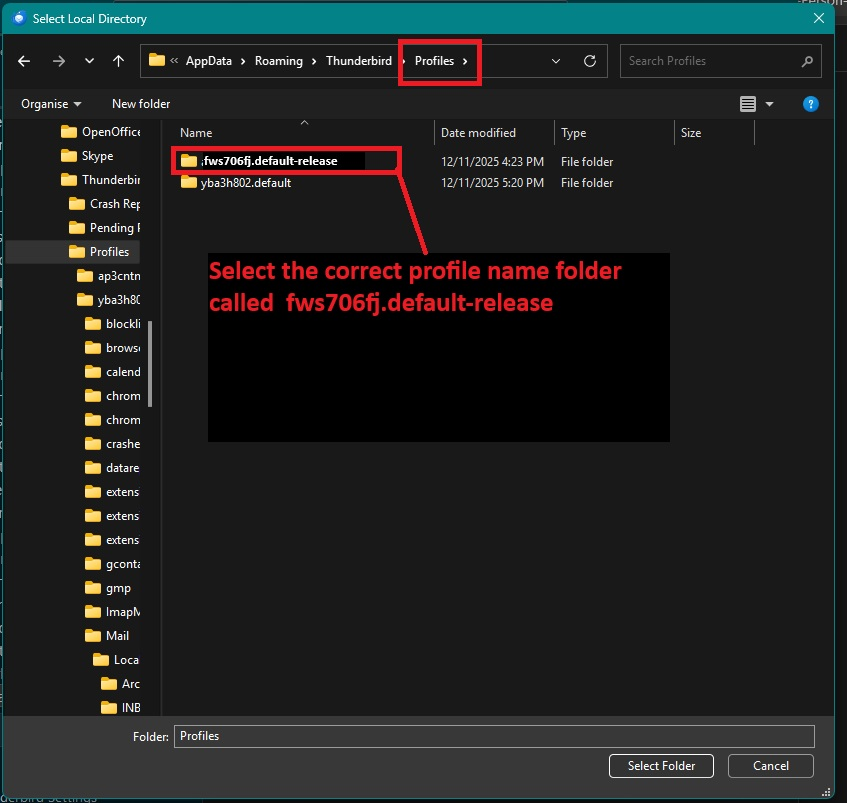
- Then select the correct profile 'fws706fj.default-release'
- Then select the 'Mail' folder
- Now you will see a list of the contents of the Mail folder
- Select to highlight the 'Local Folders' folder in the list
- At the bottom of window it will now say:
- Folder: Local Folders
- click on the 'Select Folder' button.
I've cobbled together some images that should help you.
Then restart Thunderbird.
Ilio Pieroni said
The 2 folders in the profile. I copied the 2 folders on my PC If you can find a way to make it work, it will be fantastic.
On reading this answer once again maybe I've understood you: after reinstalling Windows you copied the two default and default-release profile folders from your backup to your Desktop (your last images). You created a new Thunderbird installation and now you would like to integrate those two profile folders from the Desktop into the new Thunderbird installation. Is this what you want to do?
Modified by Mapenzi
Toad Hall, Thank you, I didn't find any images, but I did go up to where I saved the (correct profile) and al my sub-folders are here now. Again tank you and Mapenzi too for the effort to help me. I do have some questions if I am not pushing my luck: the folder fws7.. is 2.35 GB with mail> local folders The other folder 9dtmj... is %.48 GB, what is in it, all my emails?. I just looked at app data etc. The folders there are still there in App13-11-25 Is there a possibility of trouble ?
To Mapenzi, as you can see from my message above, it is now solved After the new installation, I downloaded a new Tunderbird app, turn it off, replaced the new profile with the one on my backup dated before the new windows 10, but if I understood correctly, the previous version had a bug that stopped importing my Local Folders. Am I OK from now on after a new update? Reagds Ilio Pieroni